


Who this is for
You answer customers all day — tickets, email, chat — and almost every reply needs you to look at something that is not the message.
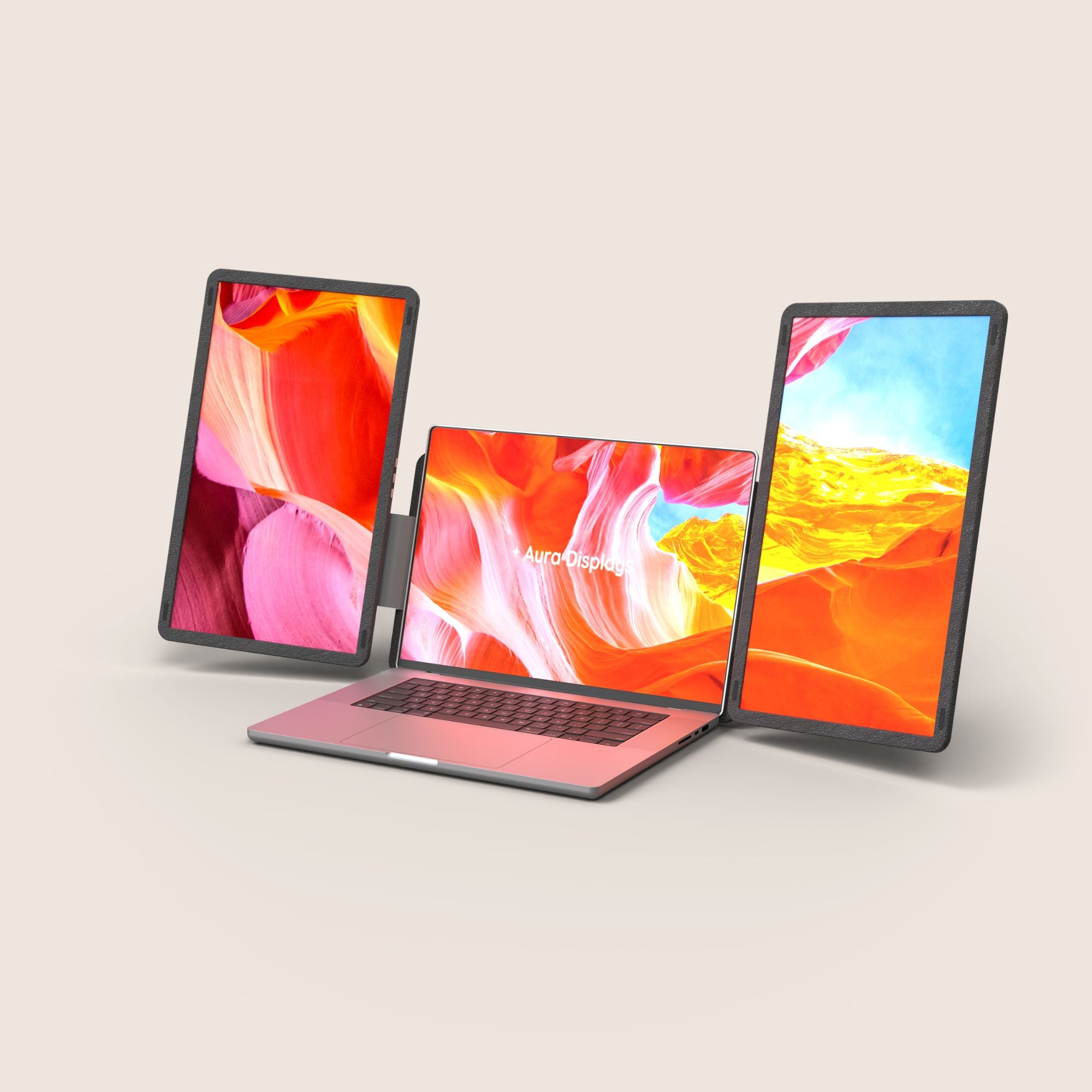
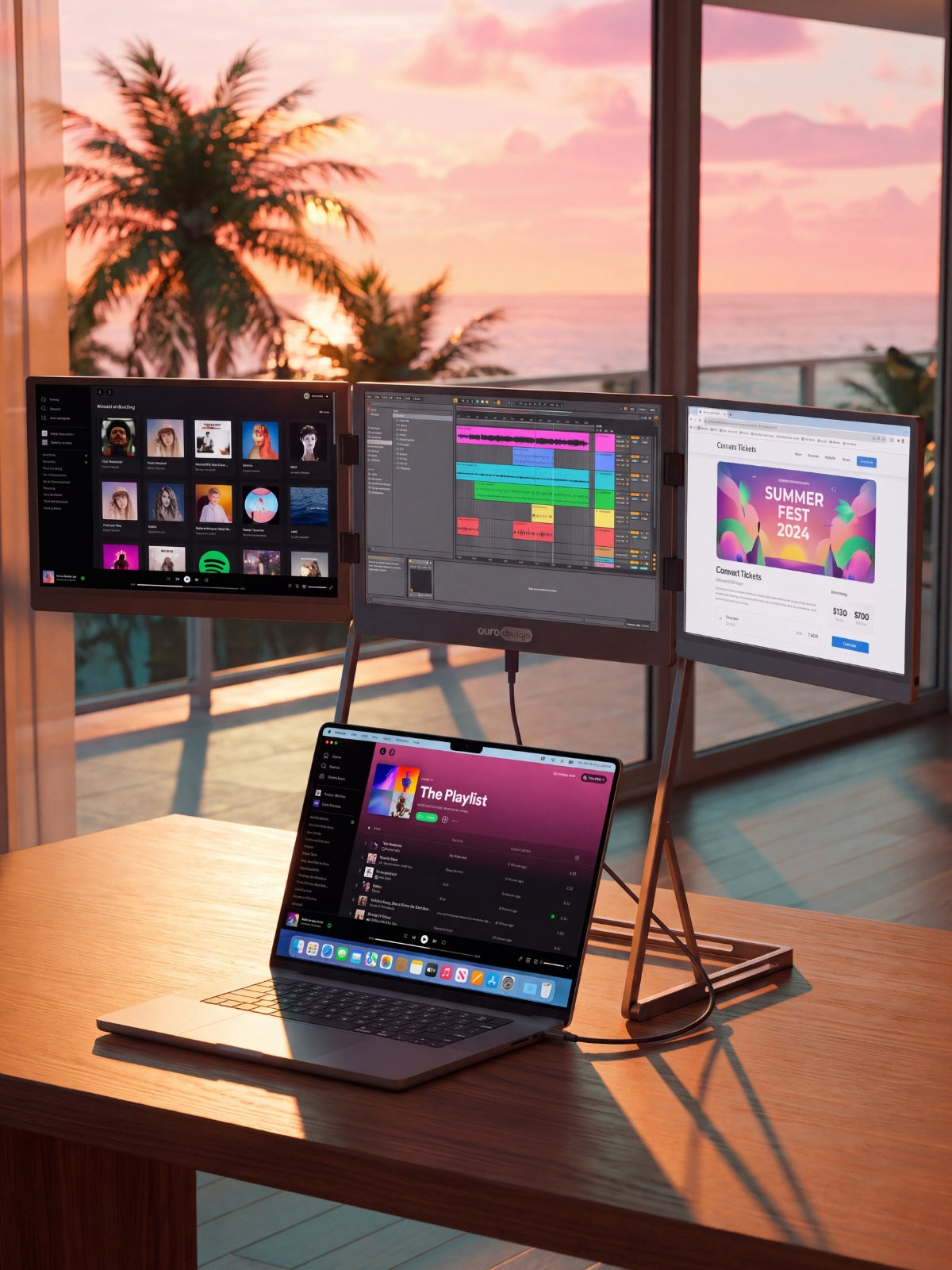
What goes on each screen
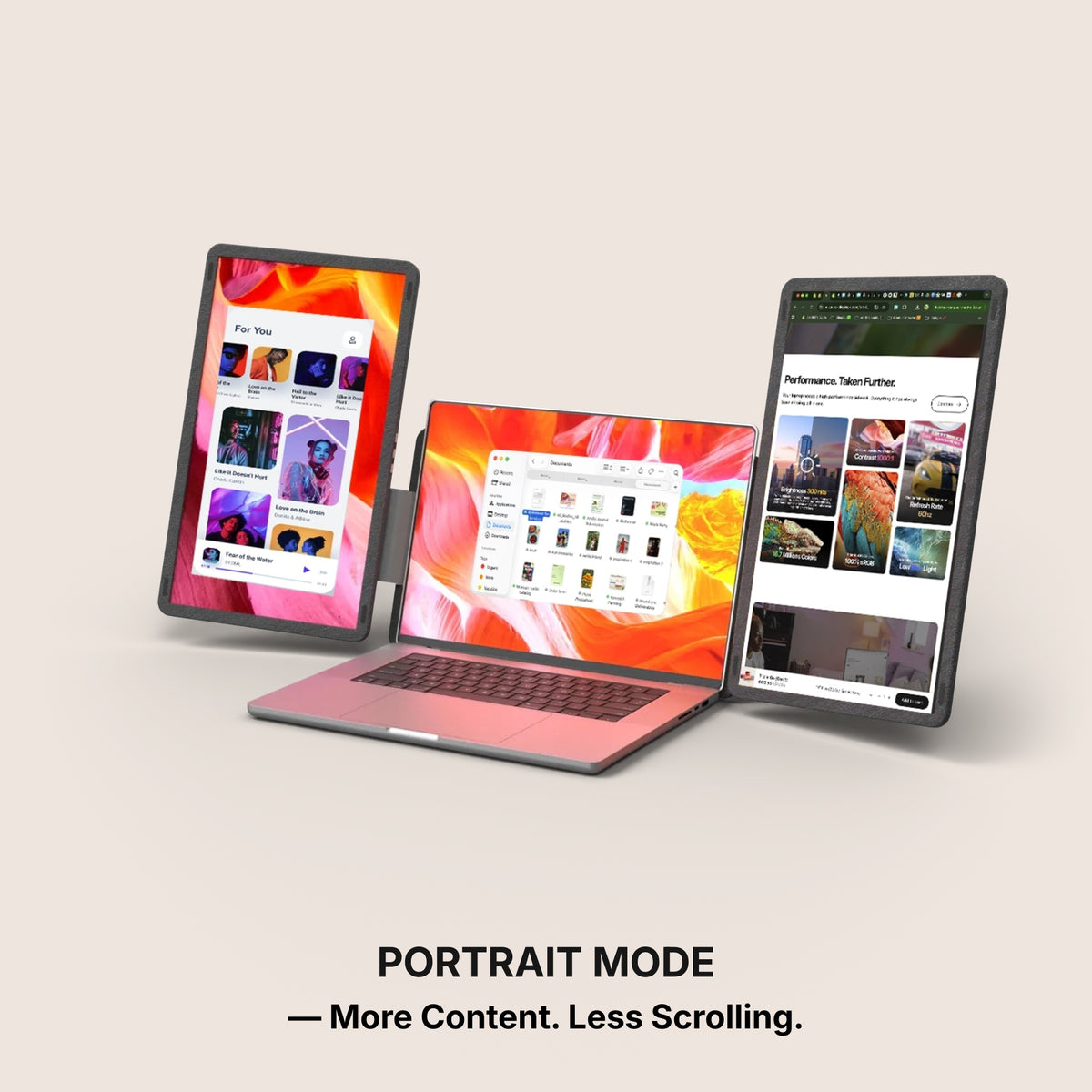
- The main panel: the queue and the ticket you are in, full height. This is the screen where rows count, not width. Nothing else belongs on it.
- The second panel: the customer's record. The order, the account, the shipment, the subscription — one record, the one you are answering about. Not the whole admin, and not a folder of tabs.
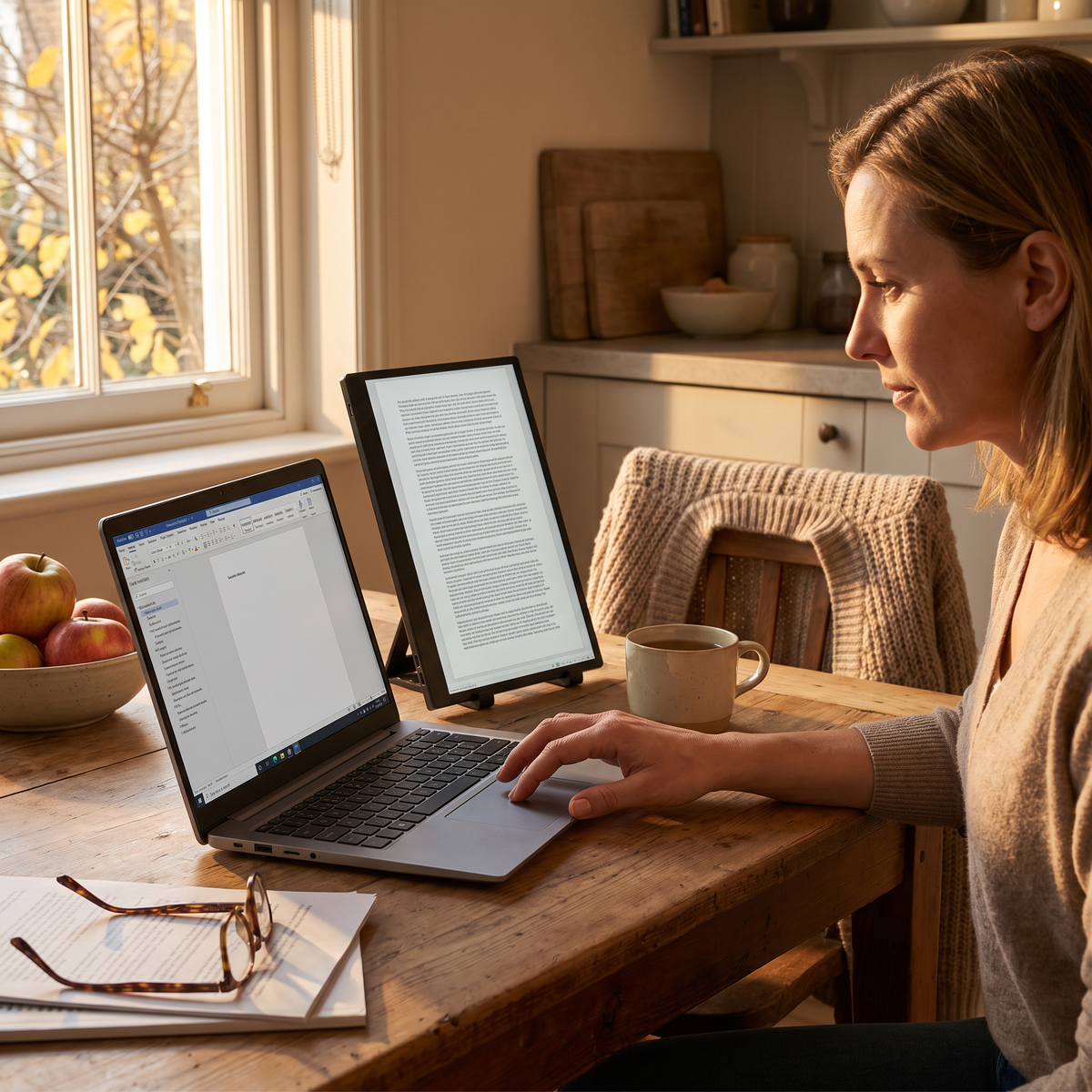
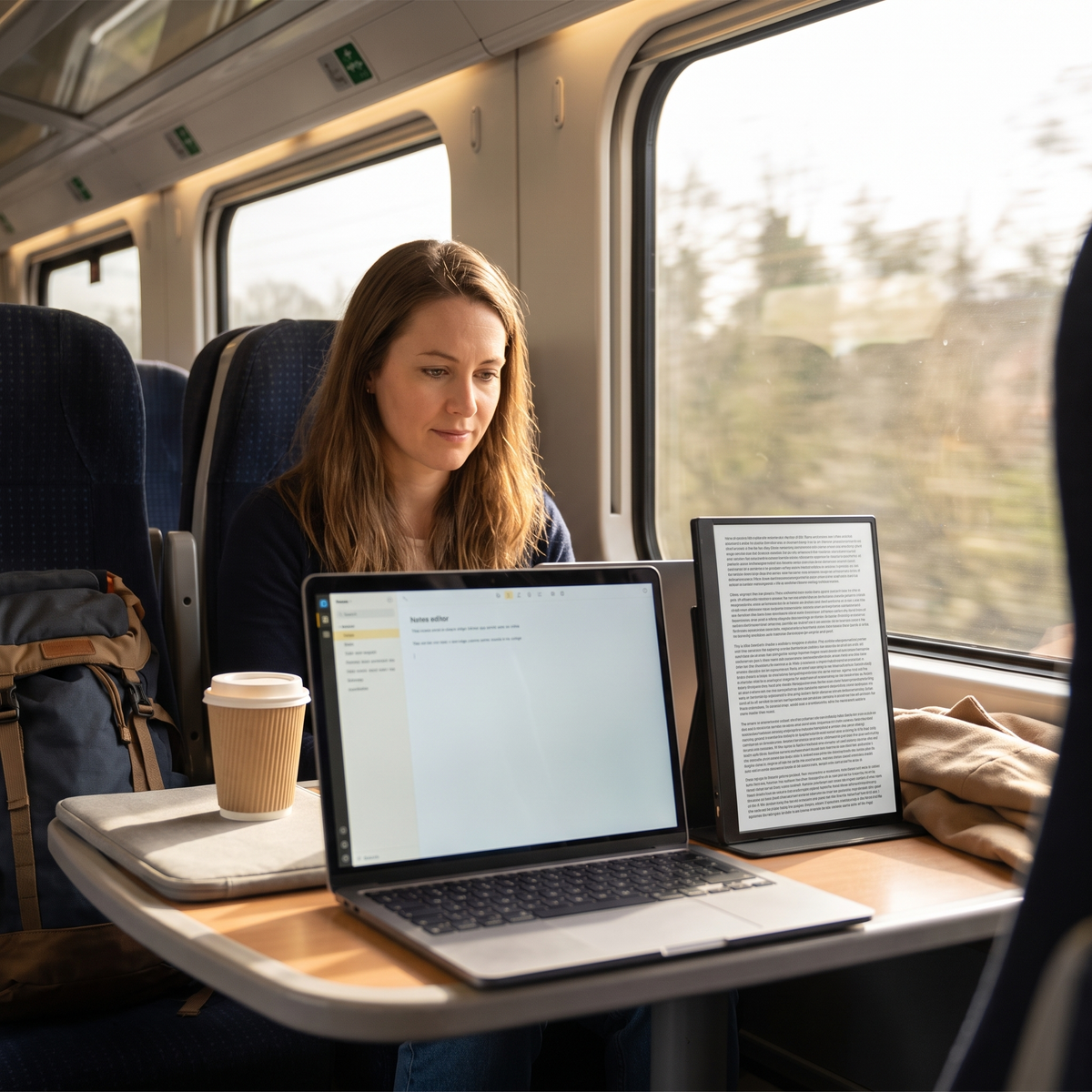
- The laptop: the reply you are writing, and your macro list. It sits low and close, and you type in it more than you read it.
- Keep the record and the reply next to each other. You copy order references and dates between those two all day. Put them at opposite ends of the desk and your eye crosses two screens for every paste — which is how the wrong order number ends up in a real email.
- The failure mode is predictable. People give the biggest screen to the queue, because the queue feels like the job, and then read a customer's order history in a quarter of a window.
The software settings that make it usable
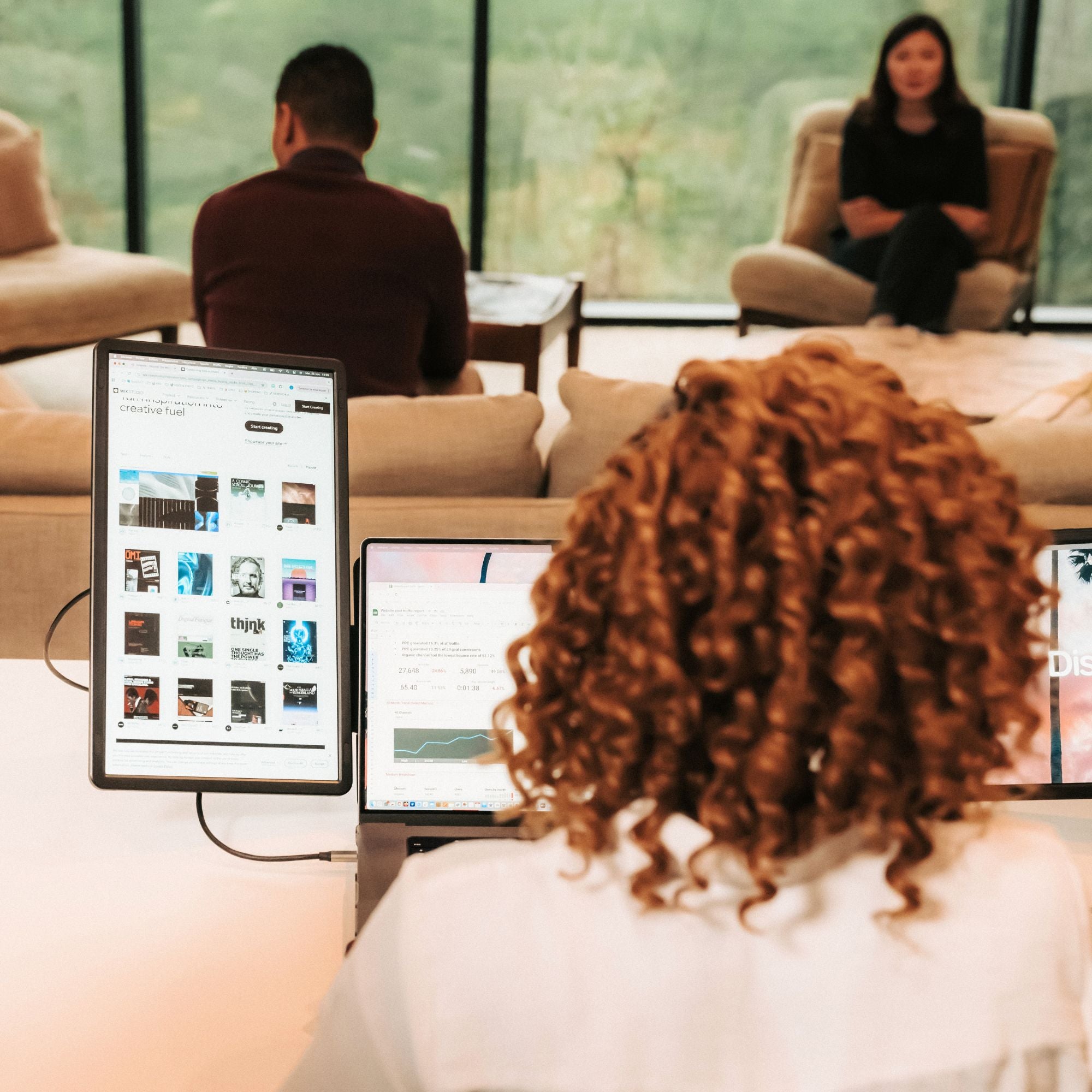
- Drag the tab out; do not open a tab. Zendesk, Gorgias and Intercom all run in a browser, and a browser tab is no use on a second screen. Grab the tab by its title and pull it downwards: it becomes its own window, and that window is what you move onto the panel.
- Give the back office its own browser profile. One session for the helpdesk, one for the store admin, so two logins stop fighting over the same cookies. Chrome: click the profile picture at the top right, then Add Chrome profile. Edge: the profile picture, then Add profile. Each profile opens in its own window, which is exactly what you want across two screens.
- Pin the tabs you never close. Right-click the tab, then Pin tab. The queue can then survive a stray click, and it comes back when the browser restarts.
- Windows 11: Snap Layouts, then let Snap Groups rebuild the pair. Hover the maximise button or press Win + Z, pick a two-pane layout, and Windows keeps the pair together; the toggle lives in Settings > System > Multitasking > Snap windows. Worth setting up, because you unplug this layout more often than you think.
- macOS: tile from the app's Window menu, and leave separate Spaces on. Recent macOS versions tile from Window > Move & Resize, or by dragging a window to a screen edge. More important: in System Settings > Desktop & Dock, keep Displays have separate Spaces switched on. With it off, putting the helpdesk full screen blanks the other panel.
- Put notifications on one screen and leave them there. Settings > System > Notifications on Windows 11, System Settings > Notifications on macOS. A chat alert that lands on top of the record you are reading is the most expensive interruption in this job.
What these screens will not do for you
A second screen does not lower your handle time if the wait is a decision. It removes window switching, and that is all it removes. If your replies are slow because you are working out whether you are allowed to refund, the fix is a macro library and a clear mandate, not another panel.
The queue is still one at a time. You answer one customer, then the next one. A third panel in this job usually ends up holding a dashboard you glance at twice a day, which is a poor use of a third panel.
The limit that is ours: a managed work laptop. Our Boost and Triple ranges read Software required under Filter: Driver. No admin rights means no install, and no install means no screen. The plug-and-play part of our range is the only part that works on a locked machine — and it is also the only part whose operating-system list covers Chromebook and Linux, which is what a good many support desks actually run.
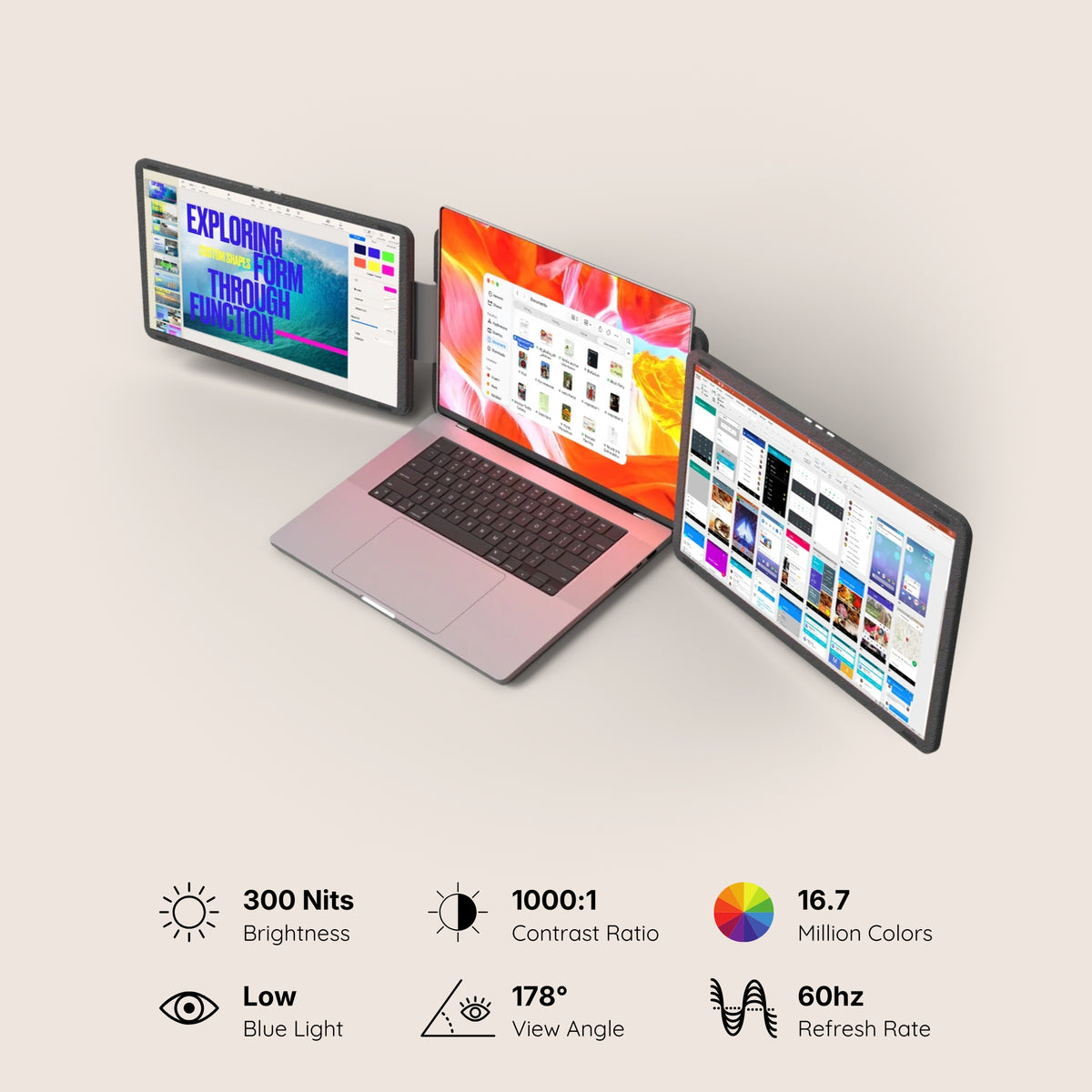
Colour, as ever. No product page in our catalogue declares a colour gamut, and our panels sit between 280 and 320 nits. Fine for a queue and an order record. If a customer sends a photo and asks whether the finish looks wrong, do not settle that on one of these.
The setup we recommend, and the cheaper one
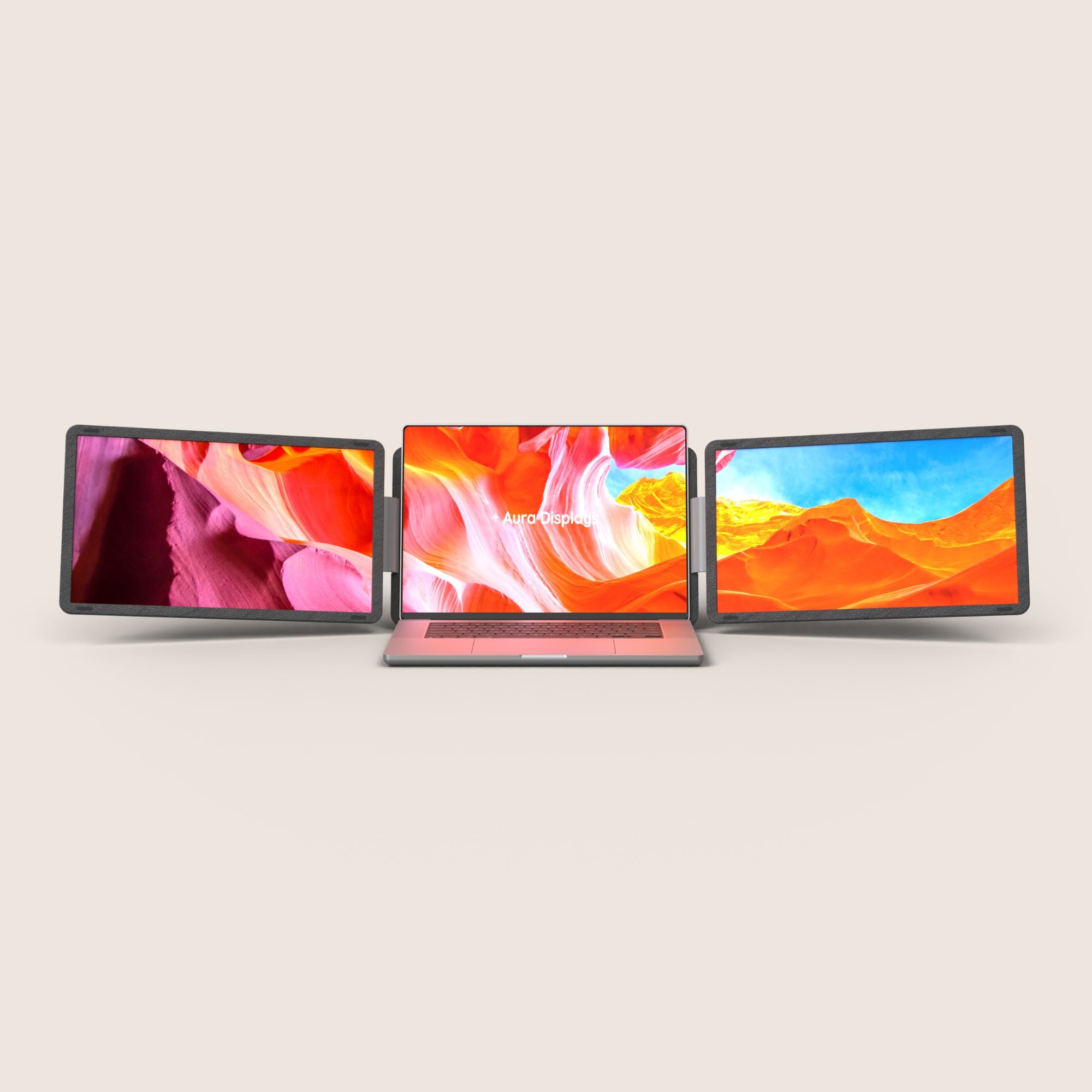
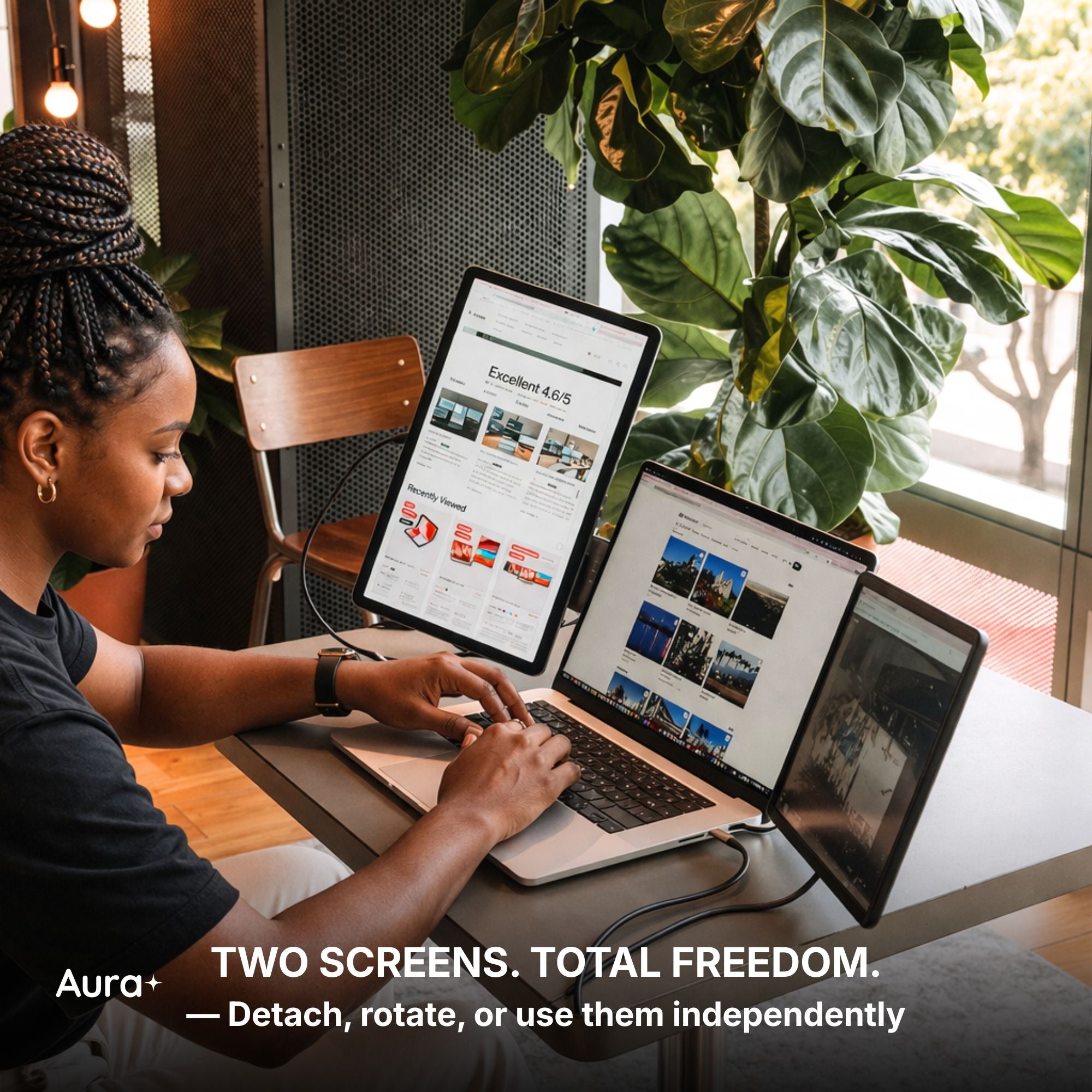
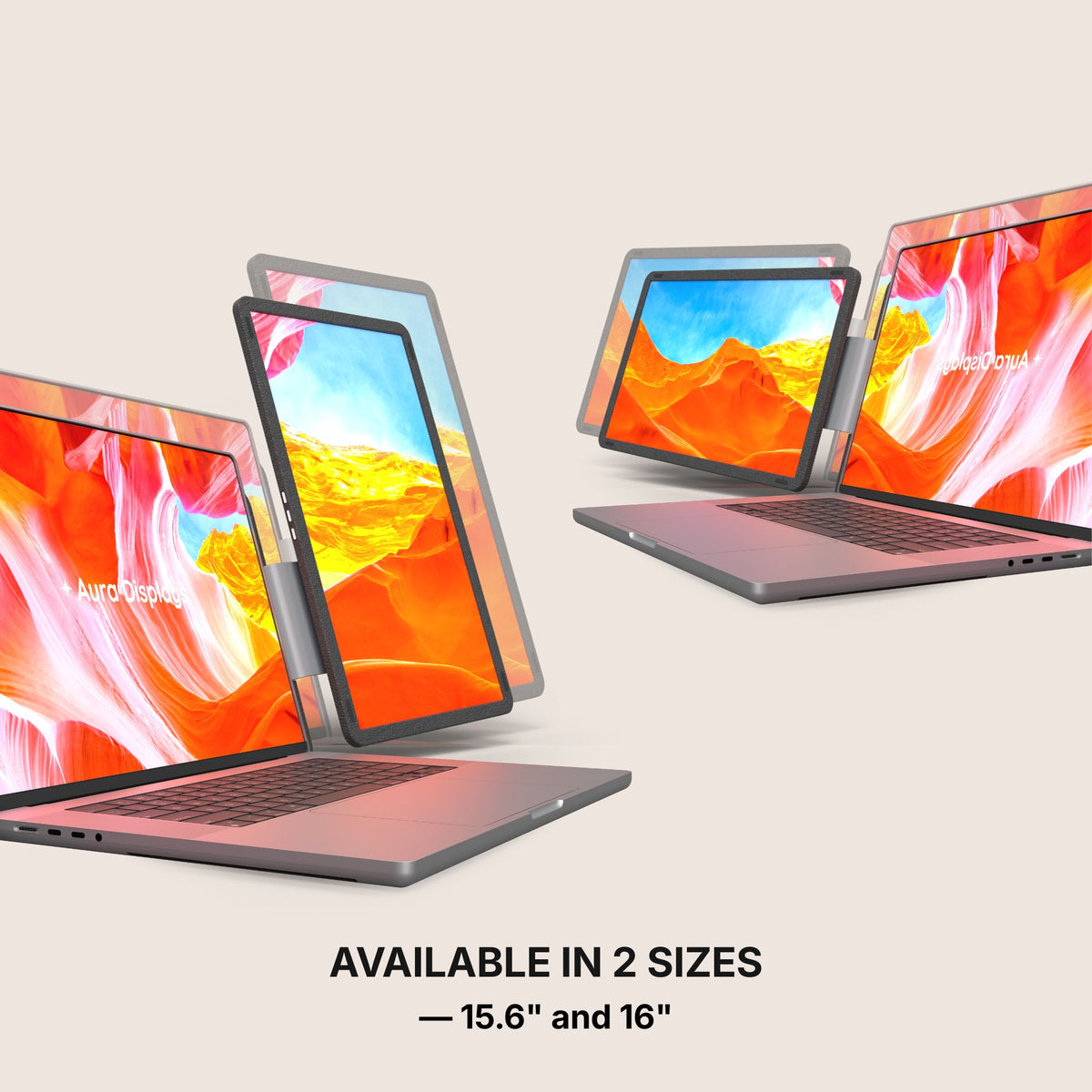
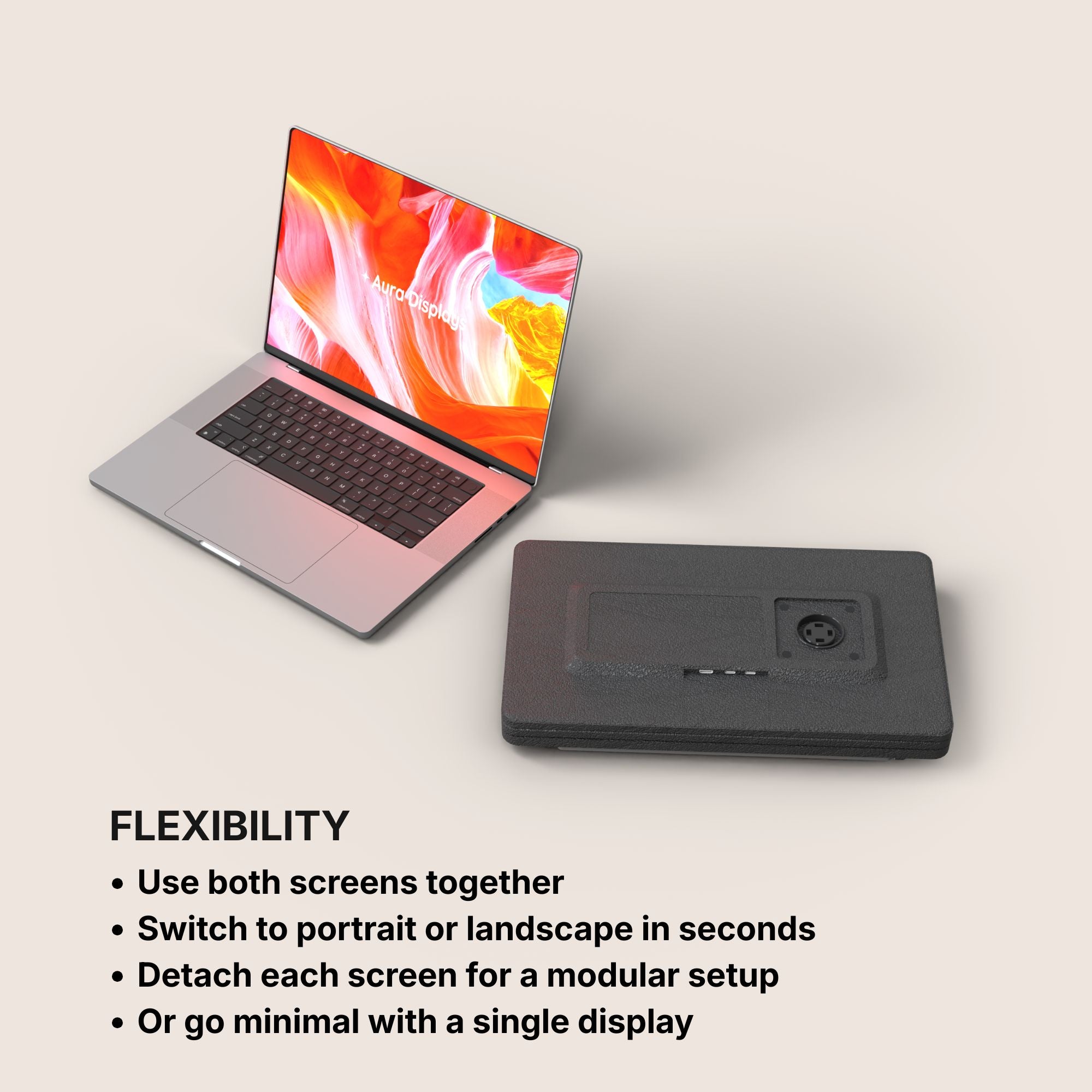
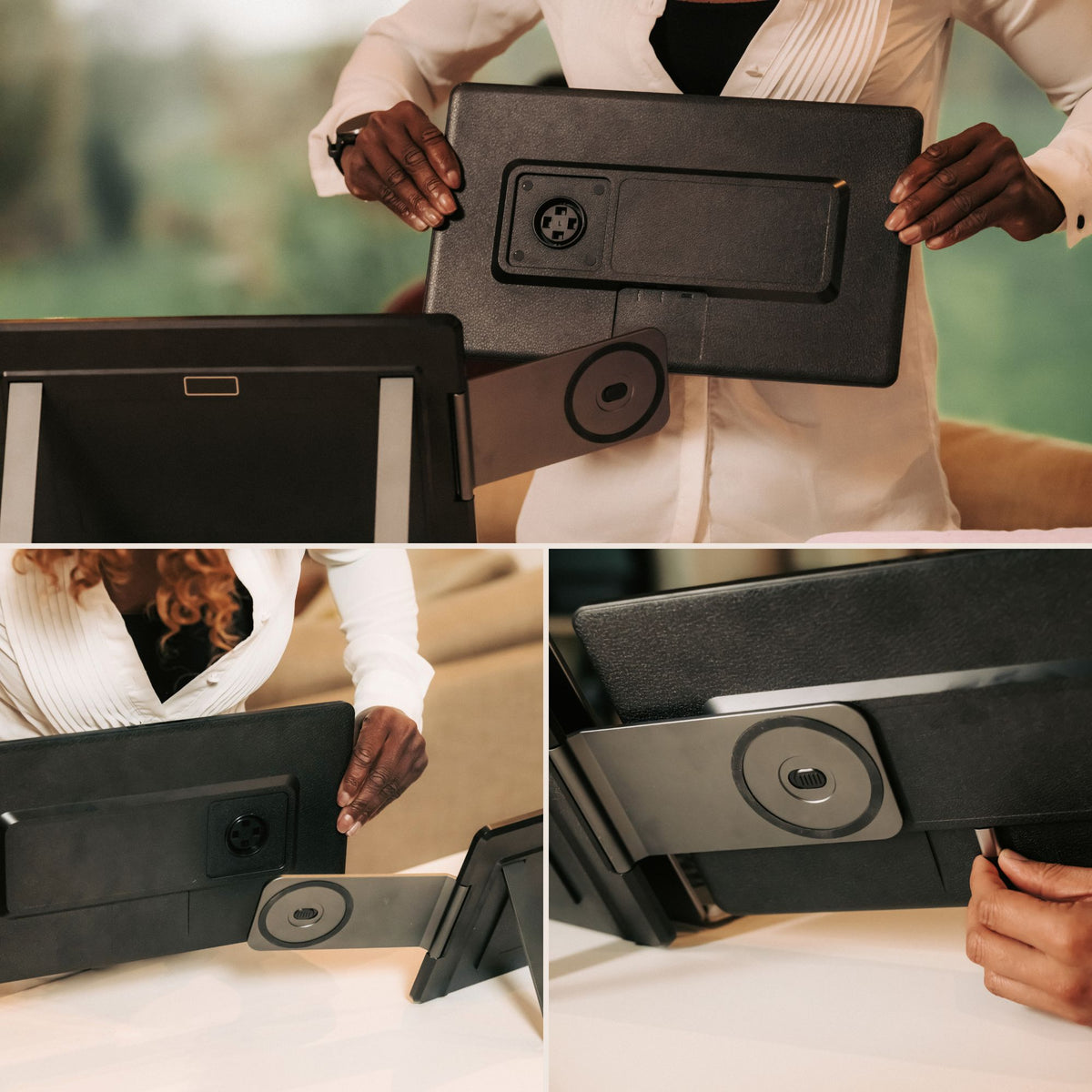
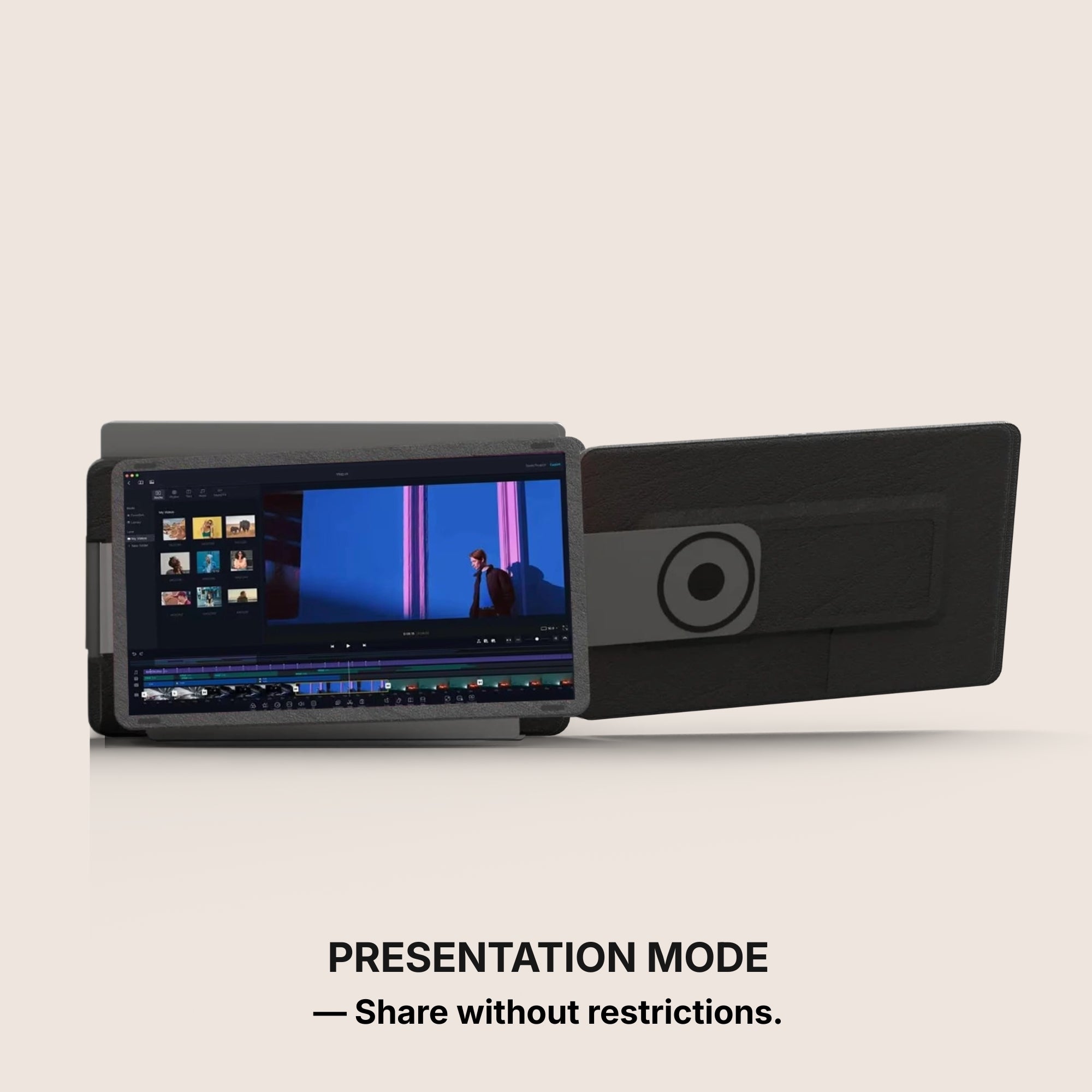
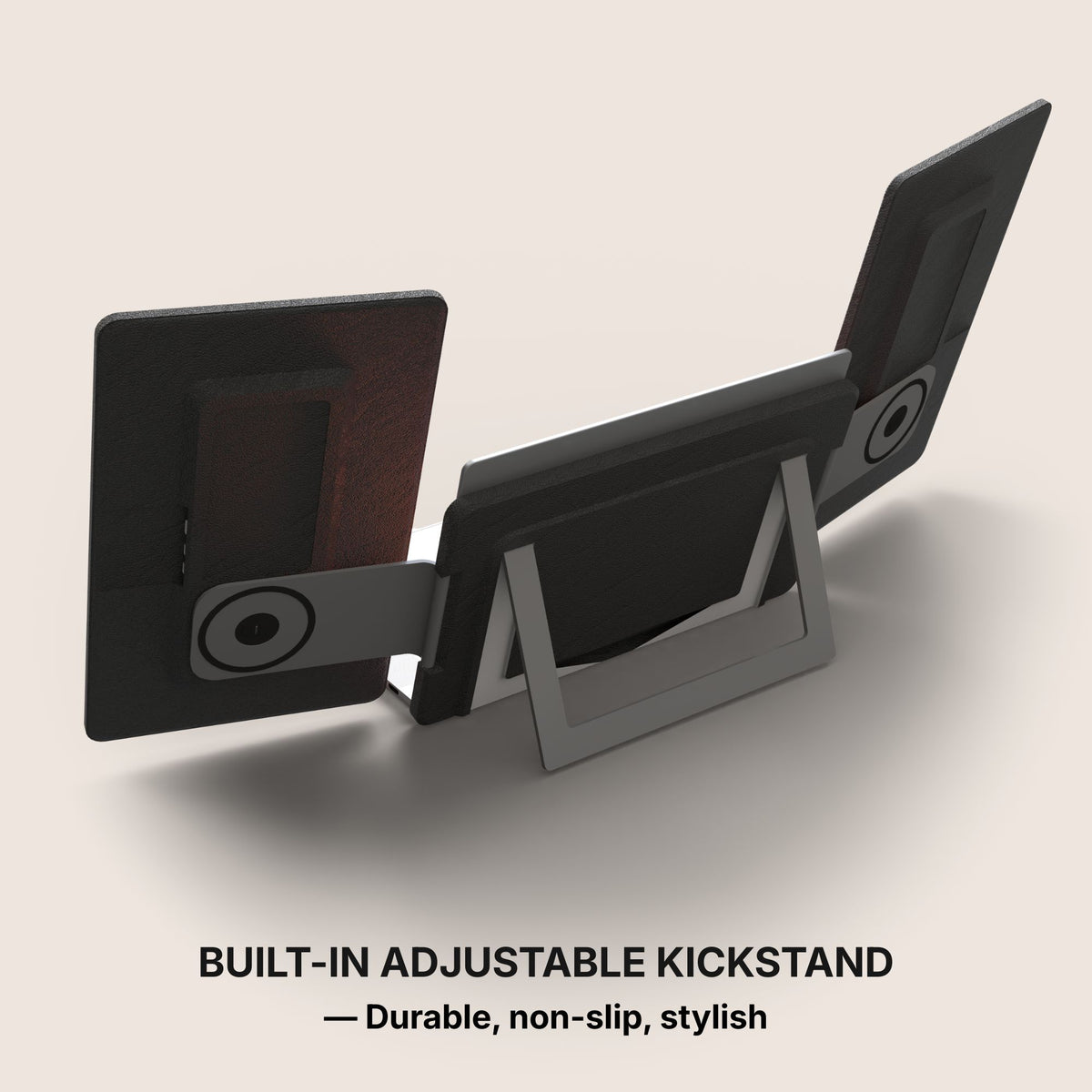
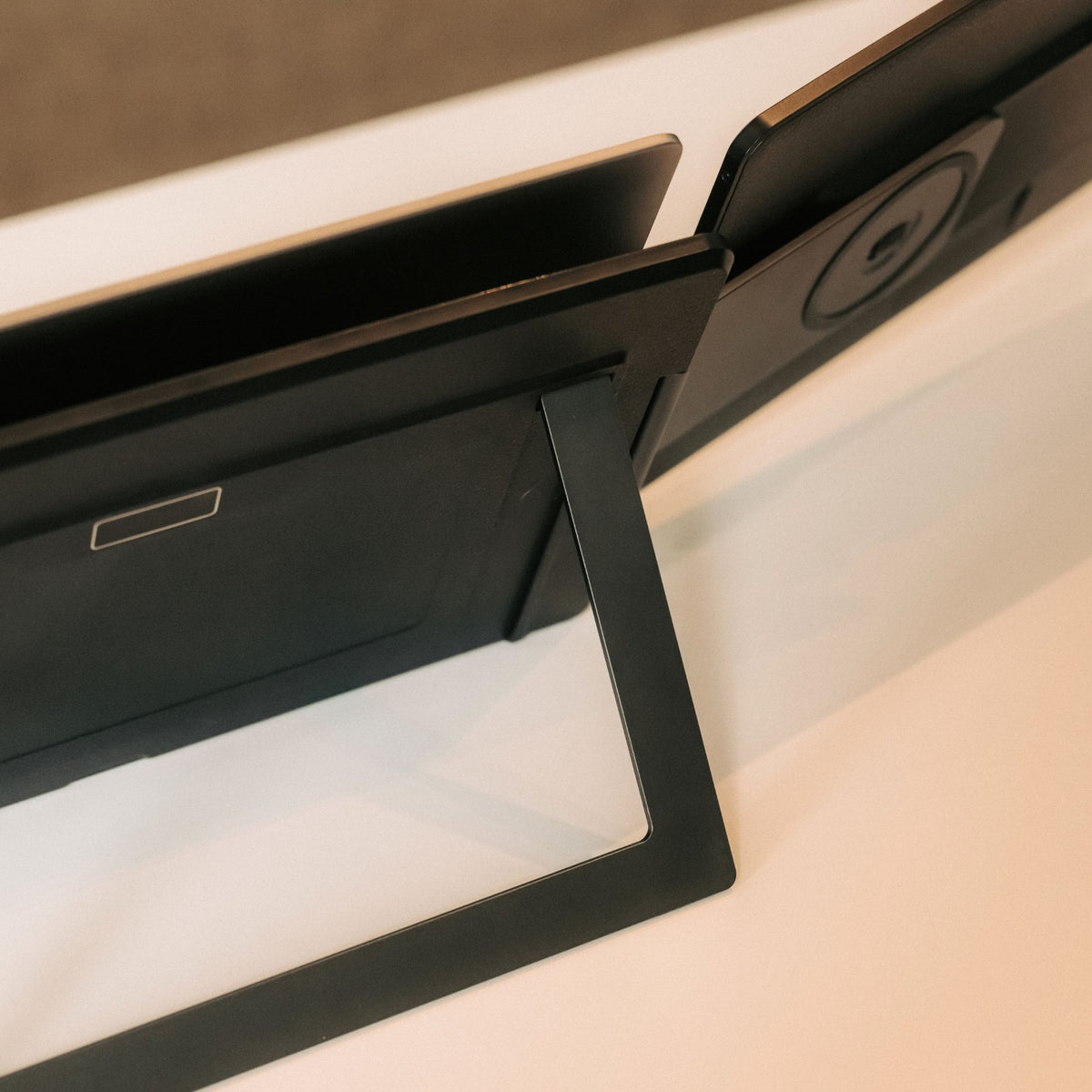
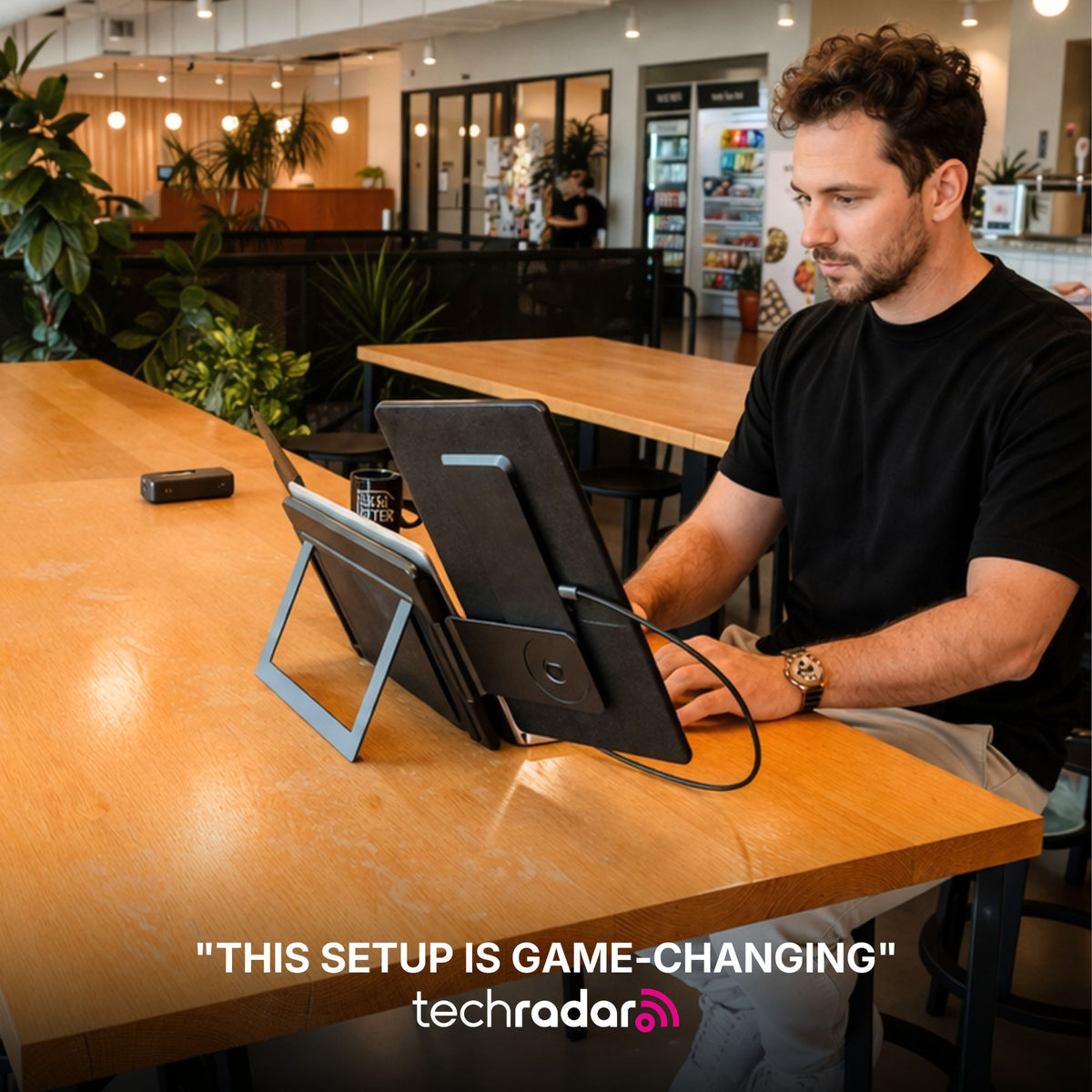
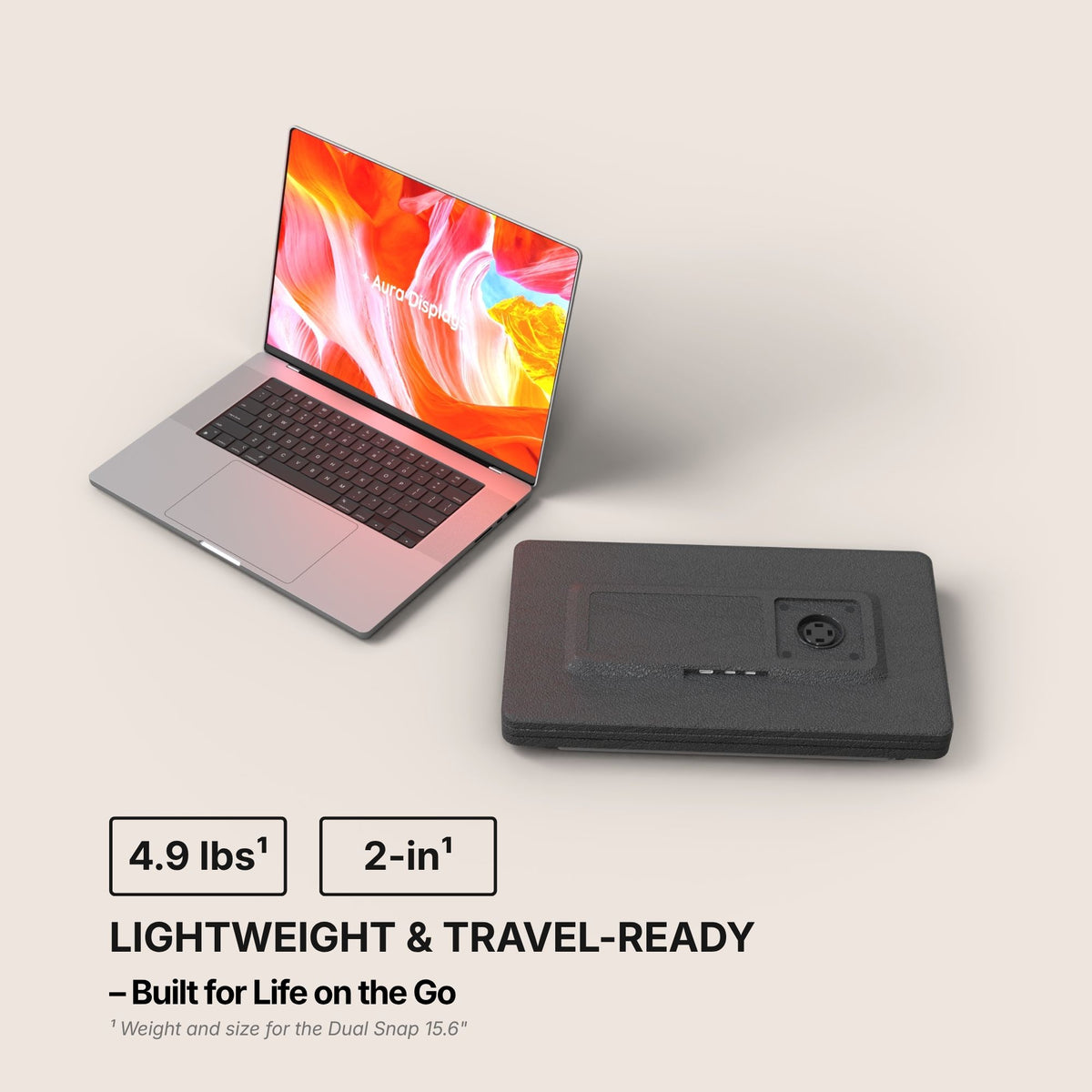
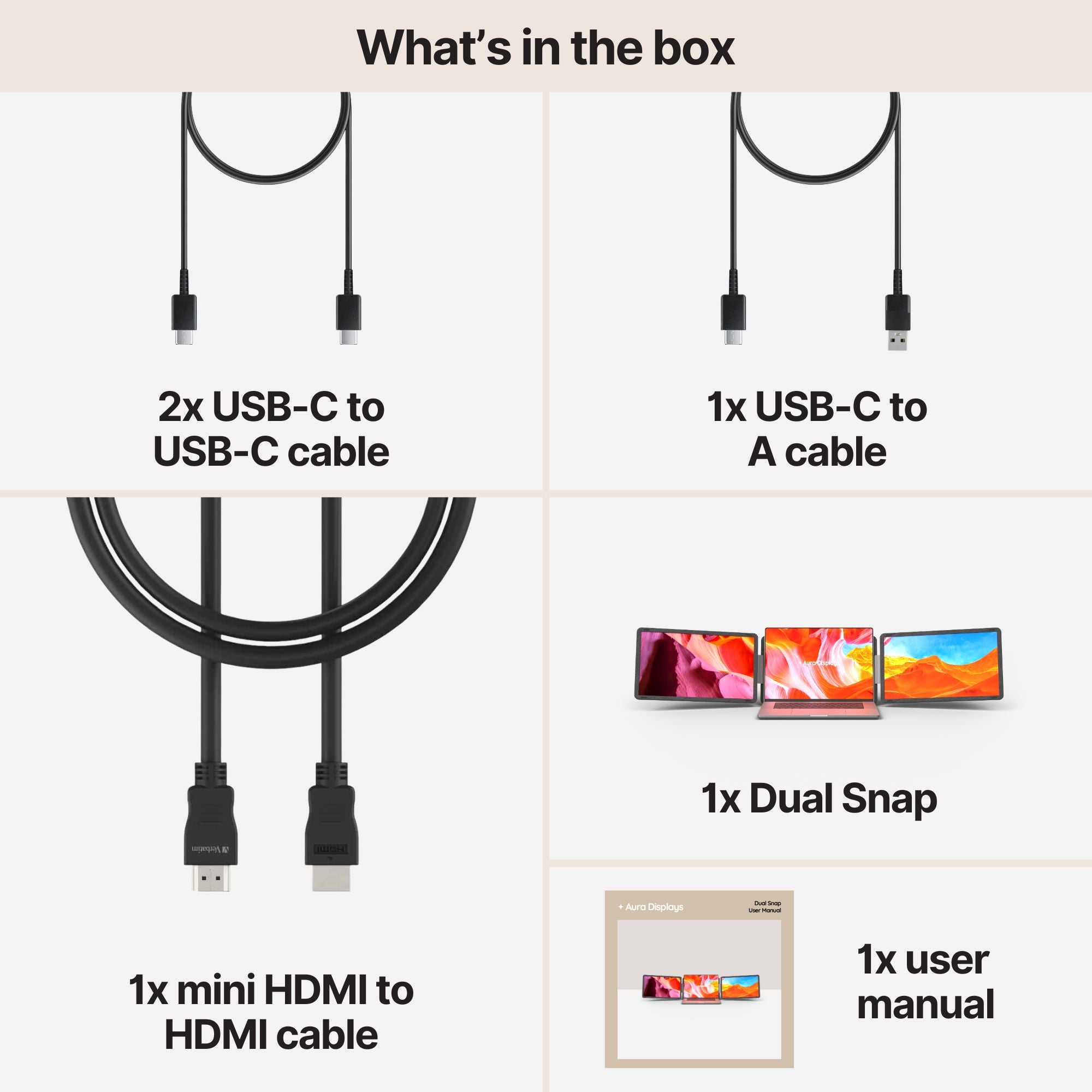
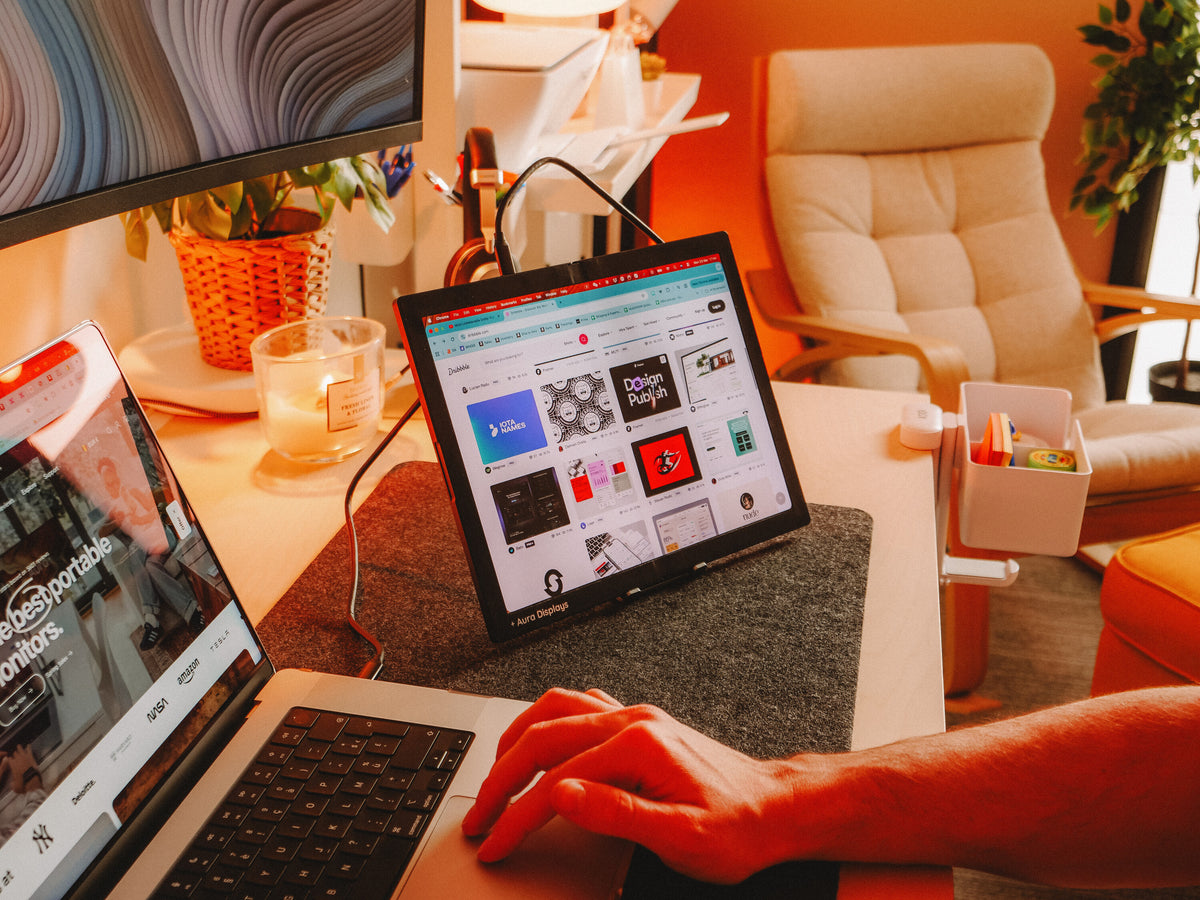
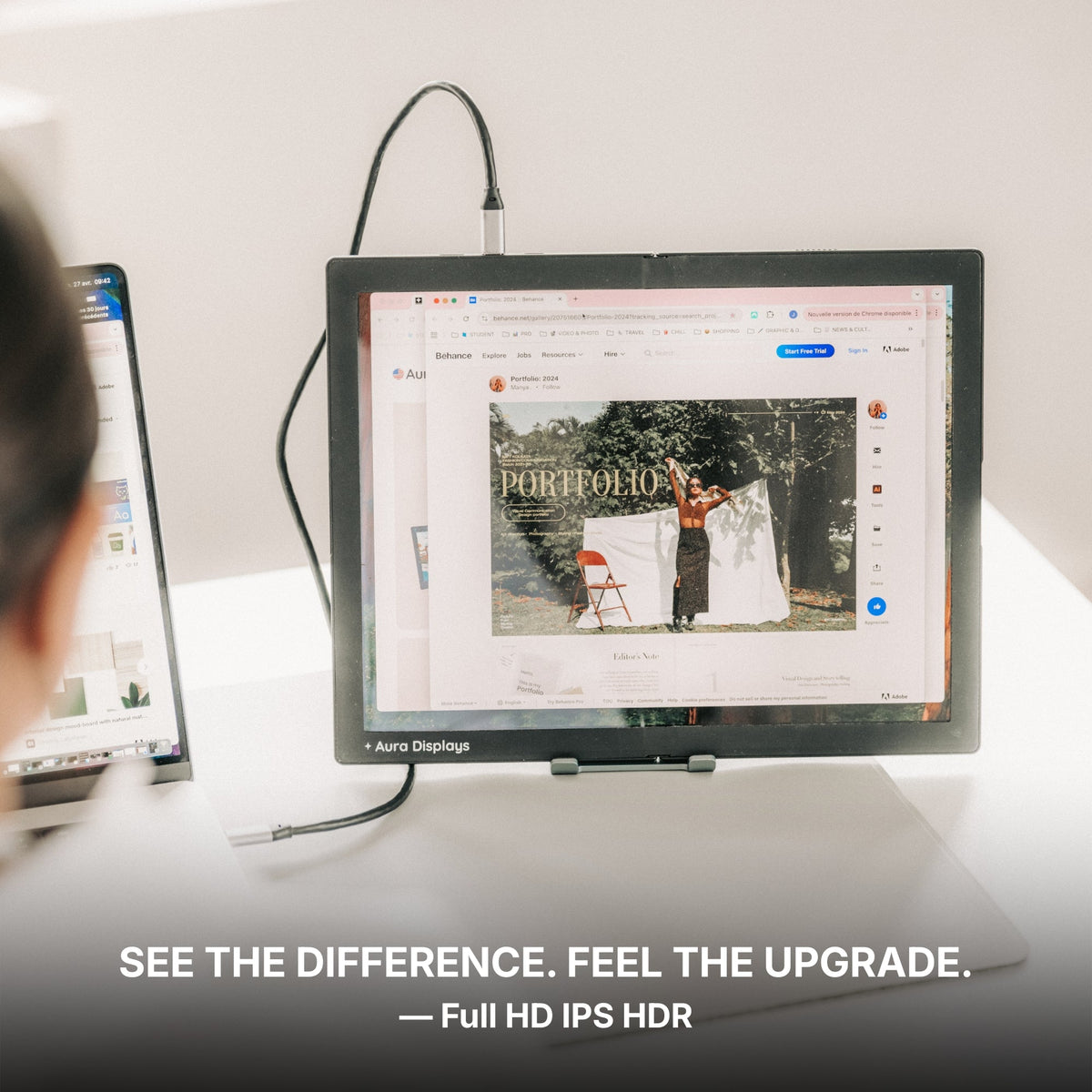
Our recommendation: Dual Snap (Gen 1), from $409. Two attachable panels, plug and play with no driver, 300 nits, 4x USB-C and 2x mini HDMI, with Full HD, 1920 x 1200 and 2560 x 1440 across its variants, and an operating-system list that runs macOS, Windows, Android, Chromebook, Linux, Surface, game consoles and USB-C iPhones and iPads. Take the 16" Plus at 1920 x 1200, $429: those extra 120 lines of pixels are queue rows, and rows are the whole point of the layout above. Rated 4.4 out of 5 across 53 reviews — the lowest score of the three panels named here, and we would rather say so than not. It is on this list for the driver field and the operating-system list, not for the score.
The cheaper option: Single Boost 15.6" (Gen 2), $249. One Full HD panel at 15.6", 300 nits, plug and play, with 2x USB-C, 1x mini HDMI and a 3.5 mm jack. Put the customer's record on it and keep the queue on the laptop: that covers the two things you look at most. Rated 4.79 out of 5 across 137 reviews — a higher score than our own recommendation. It is hard to keep in stock, so check before you plan around it.
Why we are not selling you more. Triple Go (Gen 3), from $549, gives you three panels, reads Software required, and lists macOS and Windows only — no Chromebook, no Linux, and nothing you can install on a company machine without help. For a job that answers one ticket at a time, that is three surfaces and one new problem. Spend the difference on a headset that does not hurt after six hours.






















Share: