


Most multi-screen advice assumes nobody is looking at you. On a video call somebody is, and that changes which screen gets what. Here is the layout, the settings in Zoom, Teams, Meet and PowerPoint, and the honest reason a third panel is the one you switch off.
Who this is for
You spend much of your week in calls where you are not only listening: you present, you share a document, you take notes — and you are expected to look present throughout.
What goes on each screen
One rule settles most of it: the call window belongs on the screen nearest your camera.
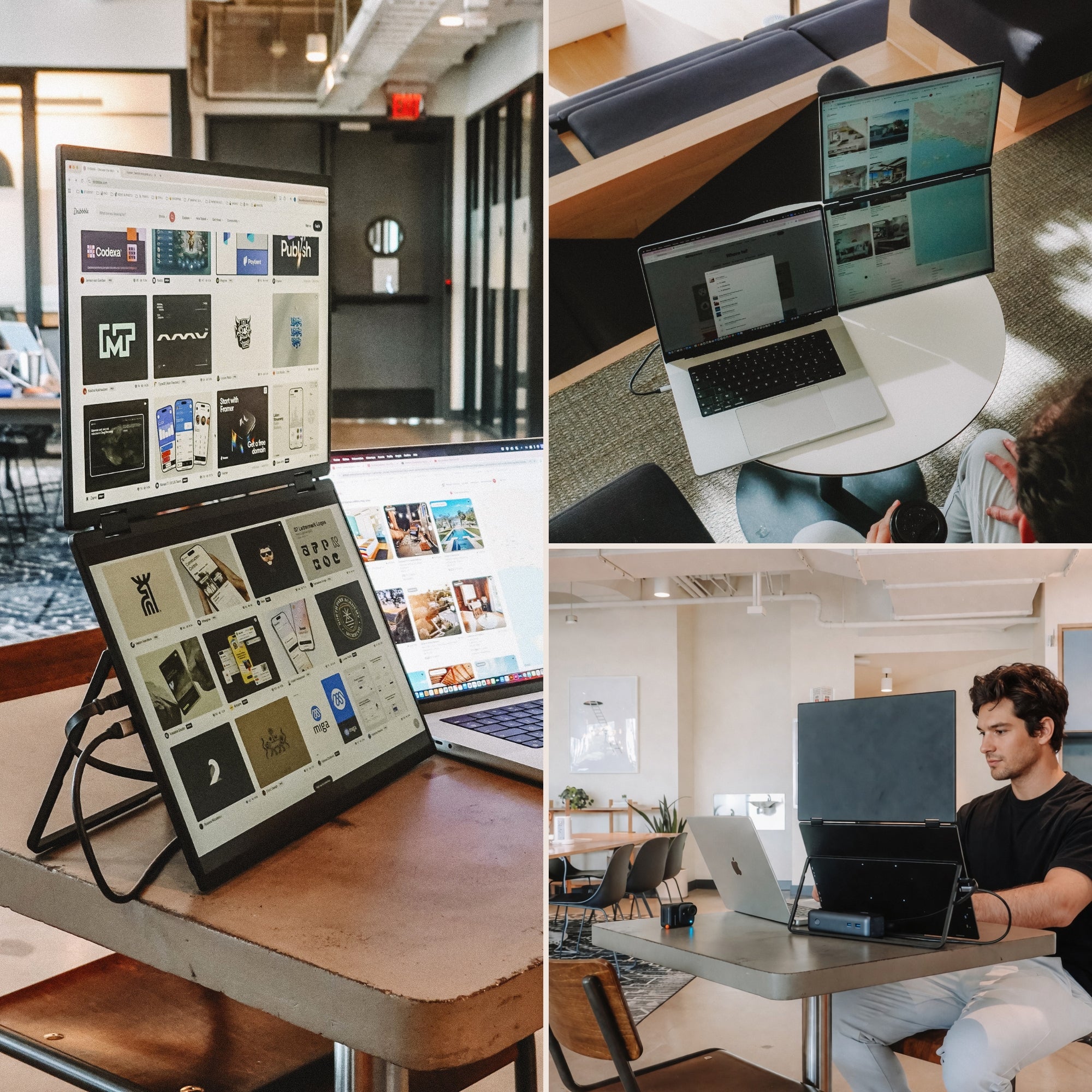
- Nearest the camera: the people. With the laptop's built-in webcam, the gallery of faces goes on the laptop screen: your eyeline sits where the lens is. Clip an external webcam to a side panel and the call window moves with it. Camera and faces always travel together.
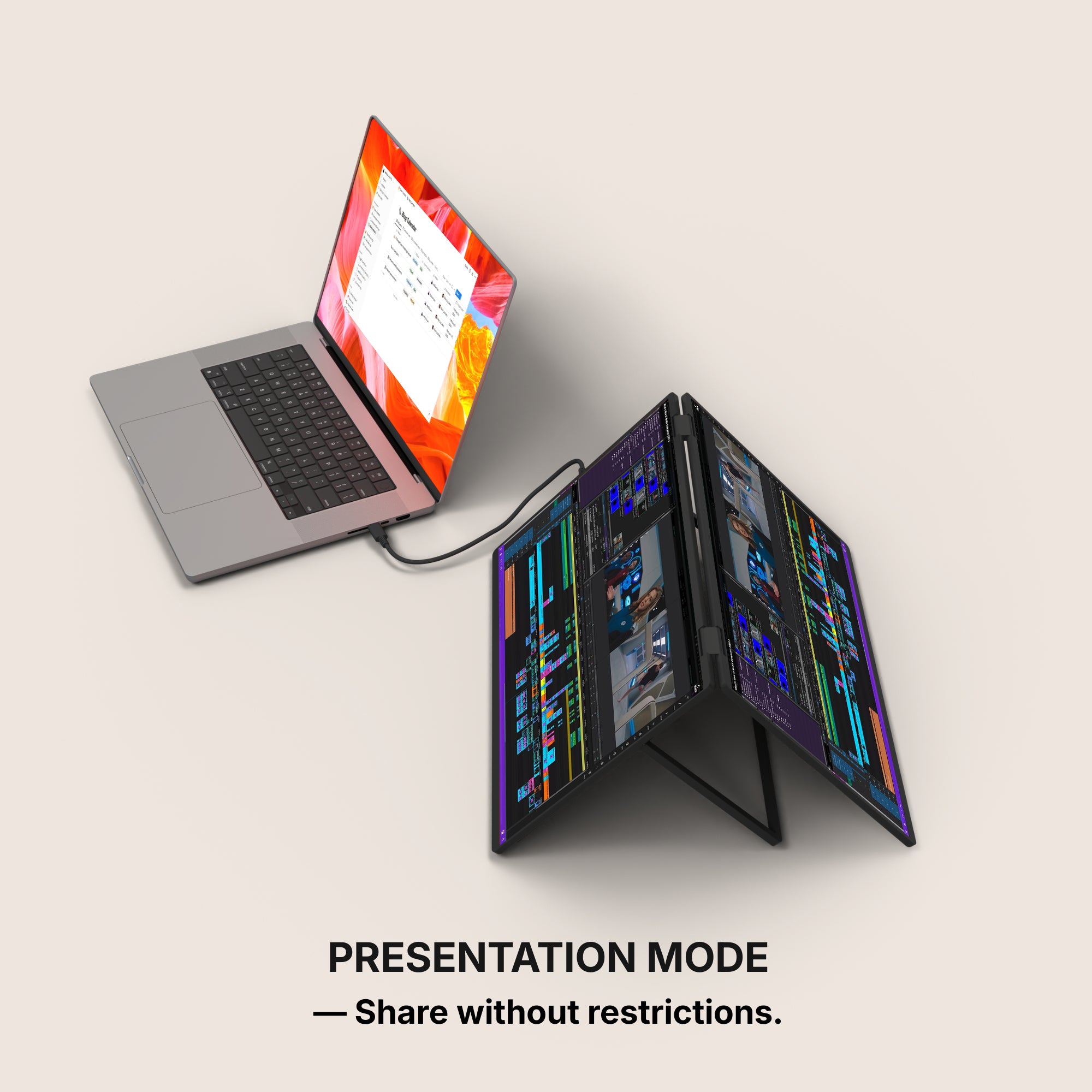
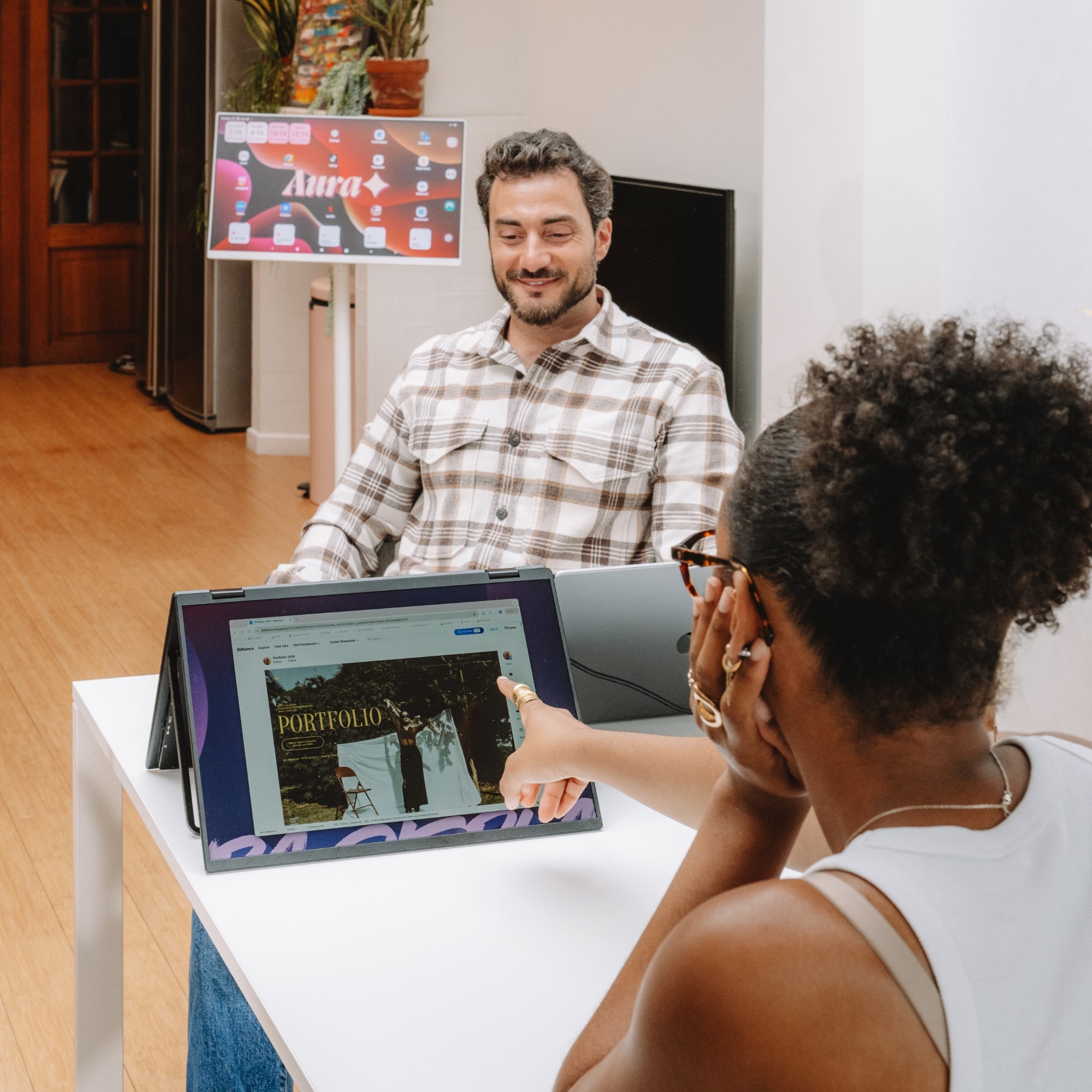
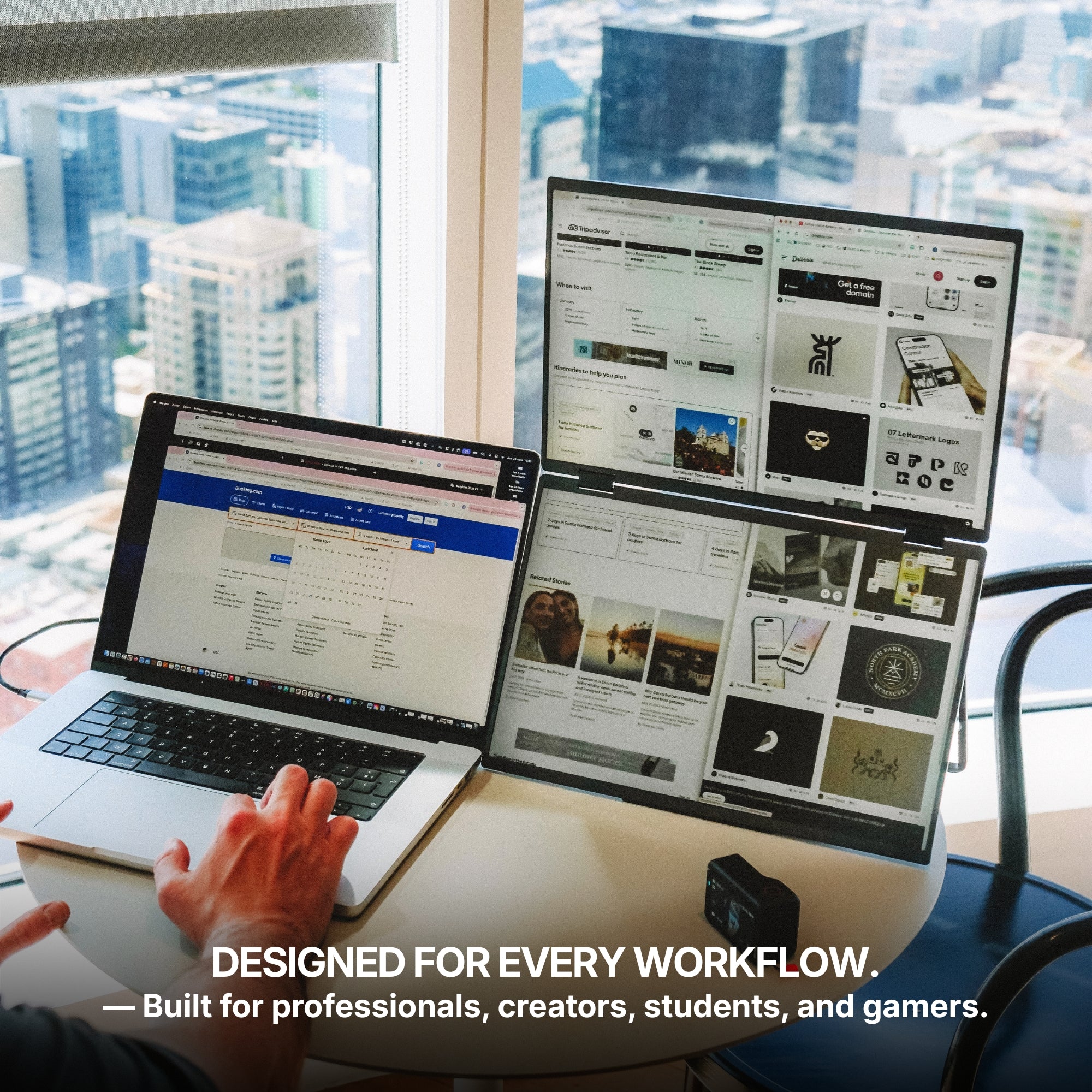
- Beside it: the thing you are sharing. One panel, one shared surface, full height. Nothing else lives on it — no inbox, no chat, no folder windows. What is on that panel is what the room sees.
- On the far side: your own material. Notes, the agenda, the chat panel, the document you are quoting but not showing. You can glance at it without it reading as distraction, and it is never shared.
The failure mode is predictable: people share the screen they work on, then spend the call apologising for it.
The software settings that make it usable
- Share a window, not a screen. In Zoom, Share Screen and pick the application window rather than Desktop. In Teams the share tray offers Window alongside Screen; in Google Meet, Present now > A window, or A tab for web content. A window share follows the document if you drag it, and never leaks a notification.
- Zoom: Settings > General > Use dual monitors. Shared content and the gallery then separate across two screens instead of stacking on one.
- PowerPoint: Slide Show > Use Presenter View, then set the Monitor dropdown to the panel you are sharing — your notes and the next slide stay on your own screen. On Keynote, Play > In Window, then drag that window onto the shared panel.
- Set your main display deliberately. Windows 11: Settings > System > Display, select the panel, tick Make this my main display. On macOS, System Settings > Displays > Arrange and drag the white menu-bar strip. It decides where new windows open — which is why a shared file lands on the wrong panel mid-call.
- Silence the machine before you share, not after. Windows 11: Settings > System > Notifications > Do not disturb, with Turn on do not disturb automatically set for when you are sharing a display. On macOS, a Focus from Control Centre. This is the configuration trap of the job, and it only ever bites in front of an audience.
- Snap the side panels and leave them. Win + Left / Win + Right on Windows, Window > Move & Resize on recent macOS. Fixed positions mean no hunting while someone waits.
What these screens will not do for you
A second panel does not fix how you look on camera. If the laptop sits low on a desk you are filming your own chin, and no amount of extra screen changes that — a riser does. Keeping the call on the camera screen makes it smaller, not solved.
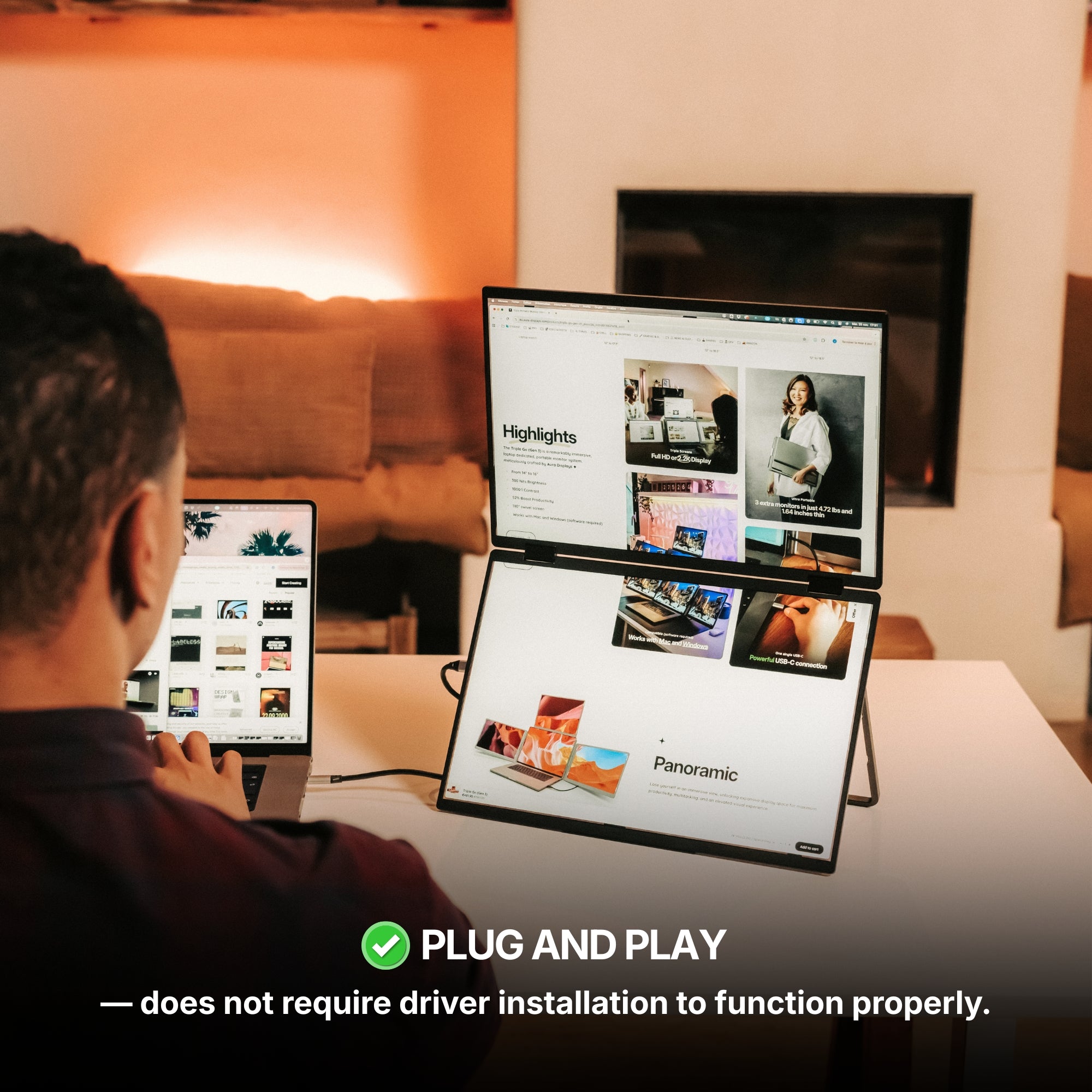
On an older laptop, a panel driven by extender software is also the wrong place for a screen share: the driver and the call's encoder run at once. A second reason to share a window — and the reason we point you at a plug-and-play panel below.
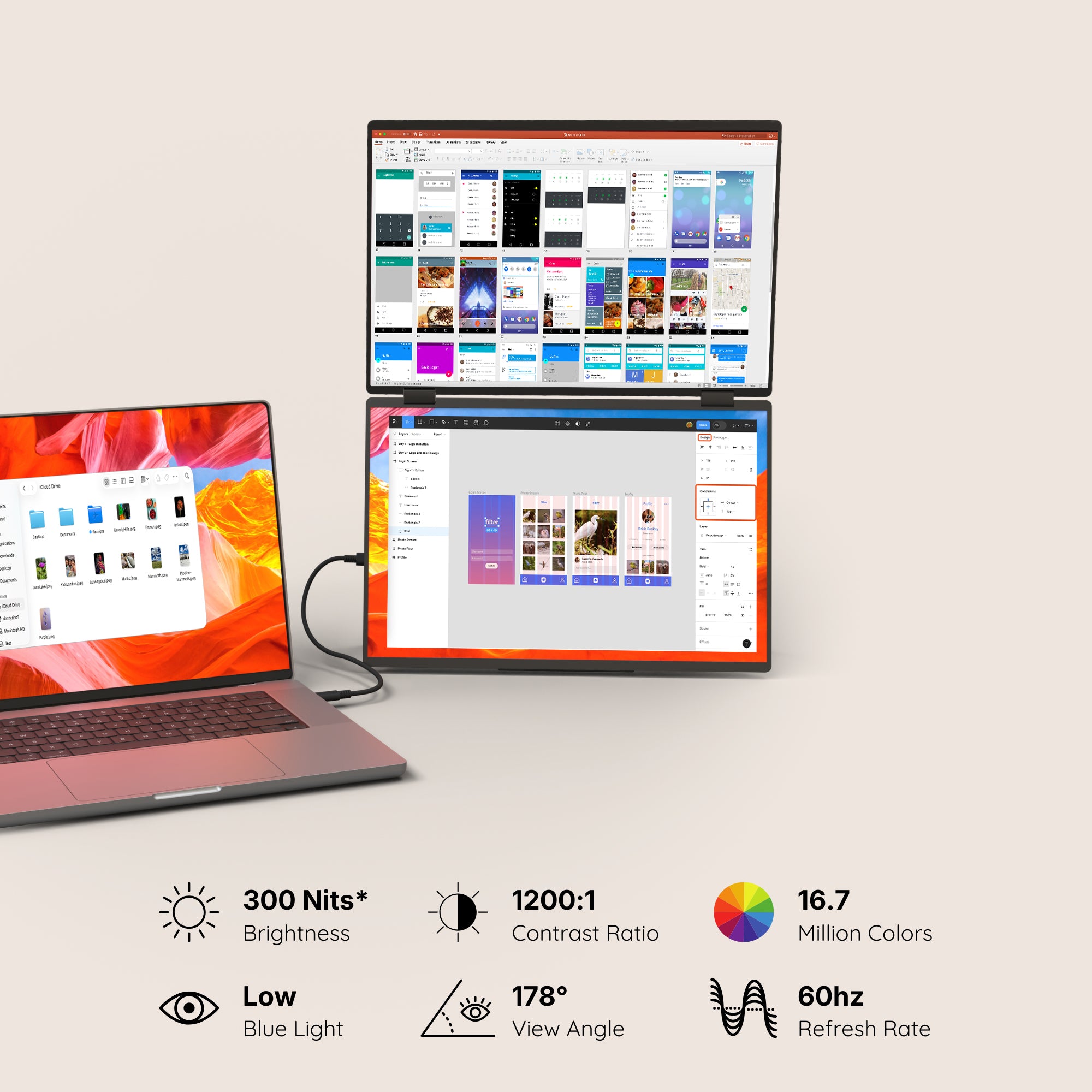
And be clear what the panel is. Dual Book Pro (Gen 2) is 280 to 300 nits by variant, and no product page in our catalogue declares a colour gamut. Good for a deck, a spreadsheet or a PDF; not a surface for judging what a colour looks like to the person at the other end.
The setup we recommend, and the cheaper one
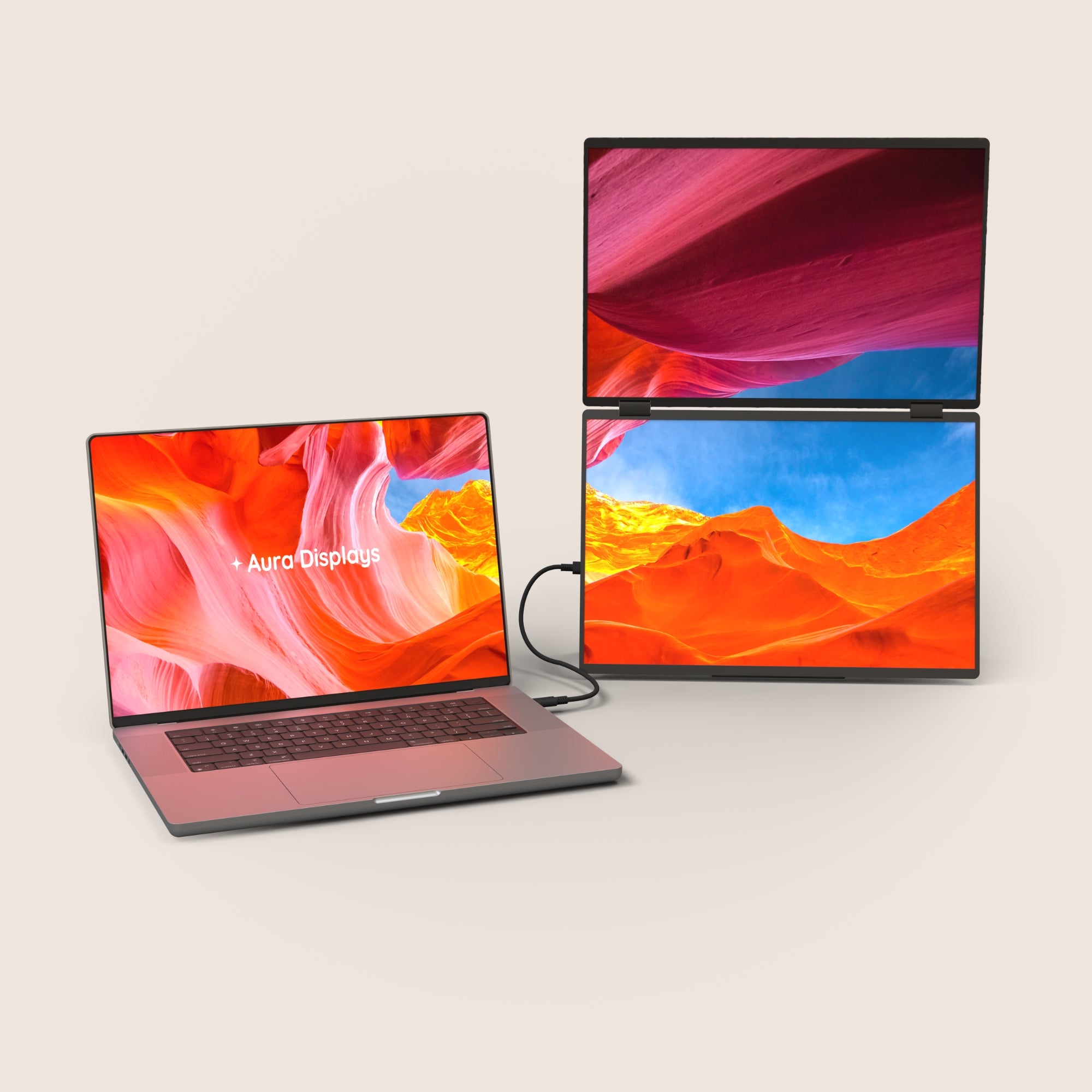
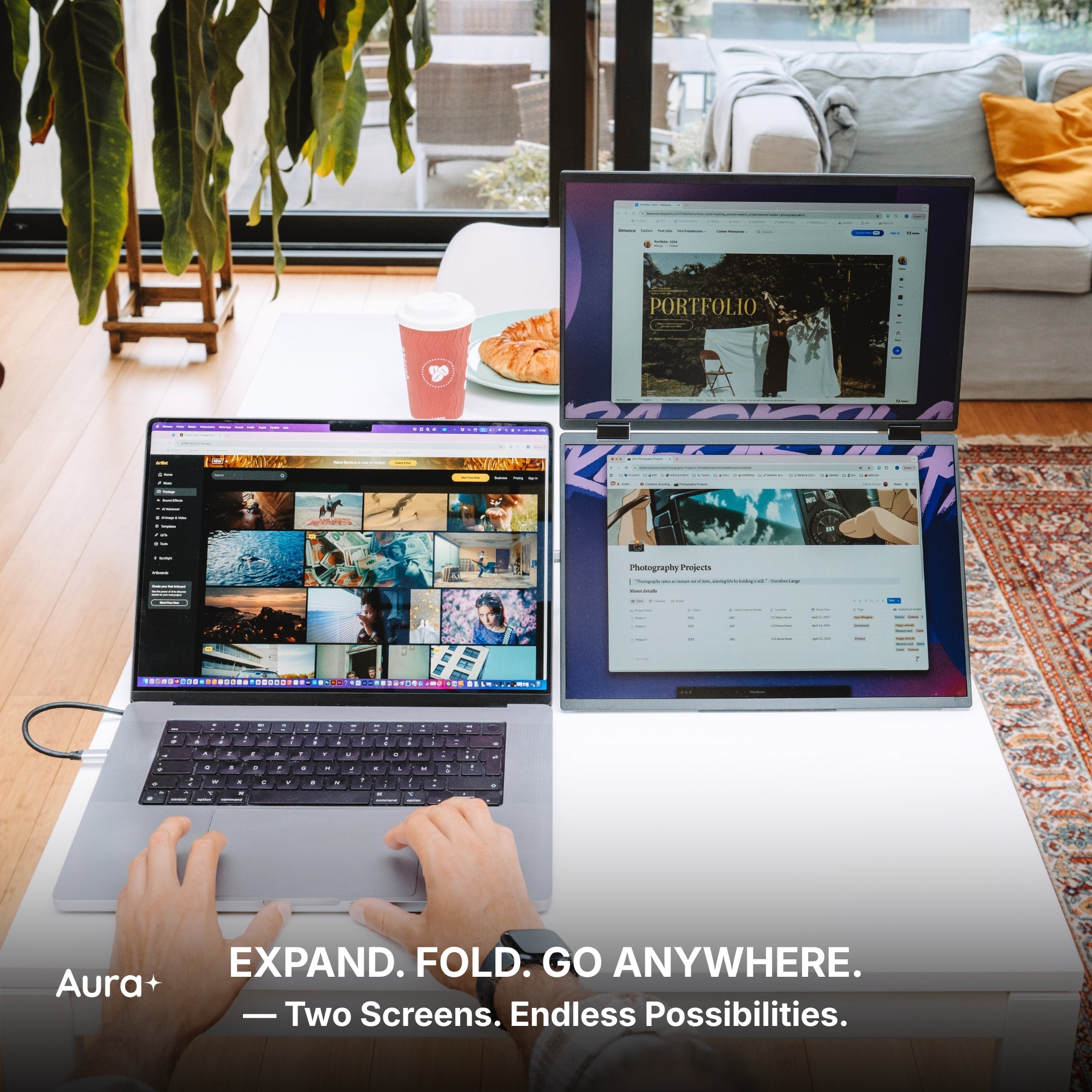
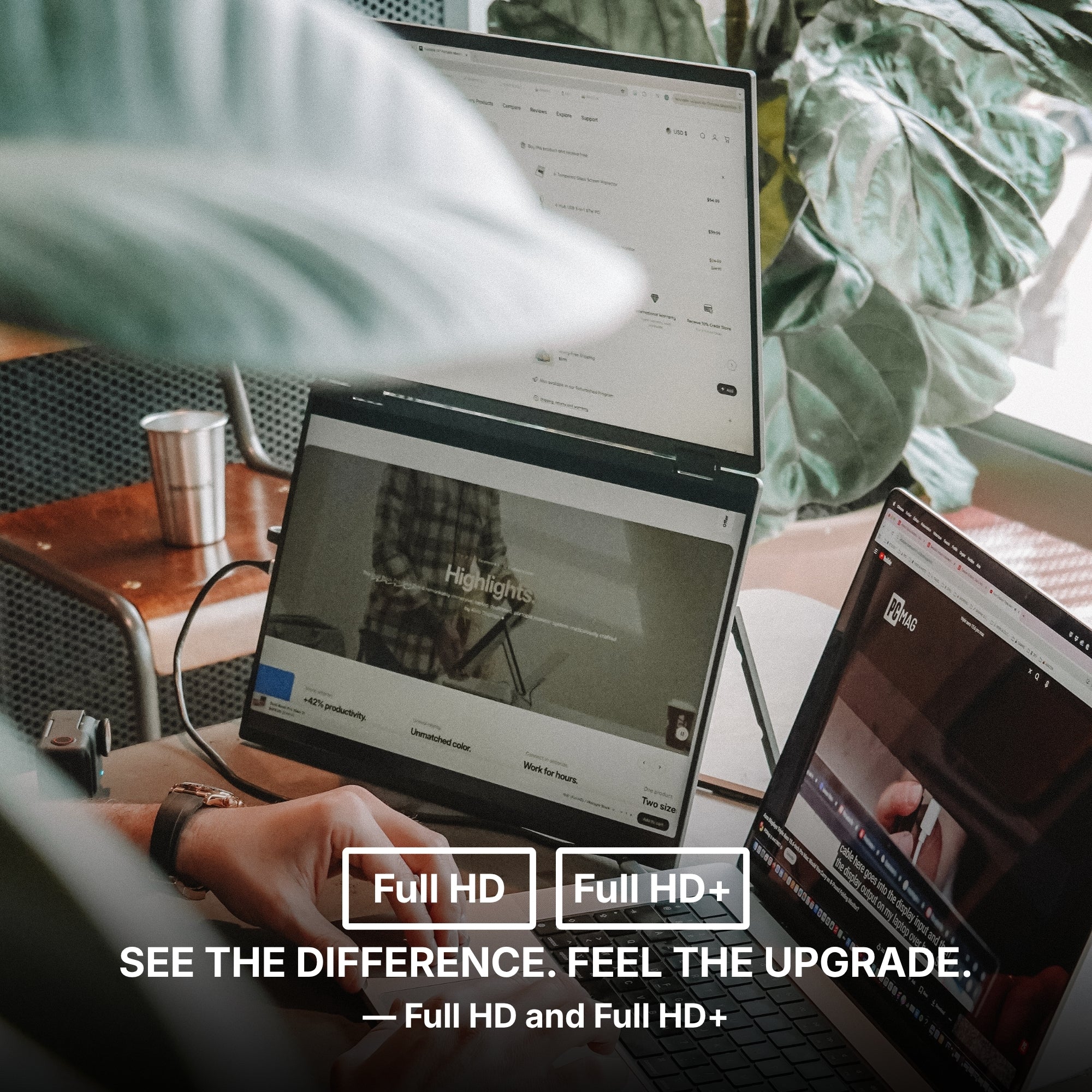
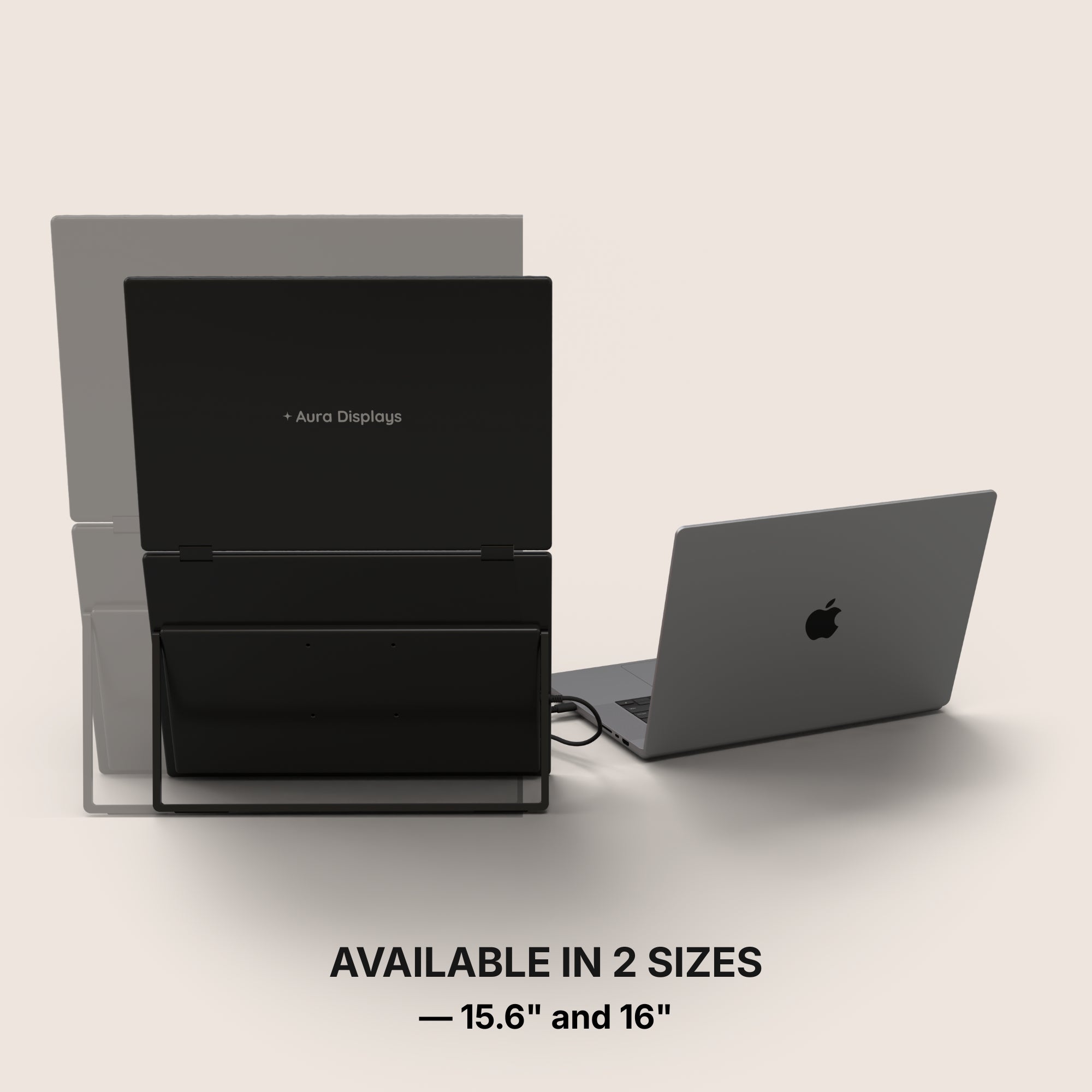
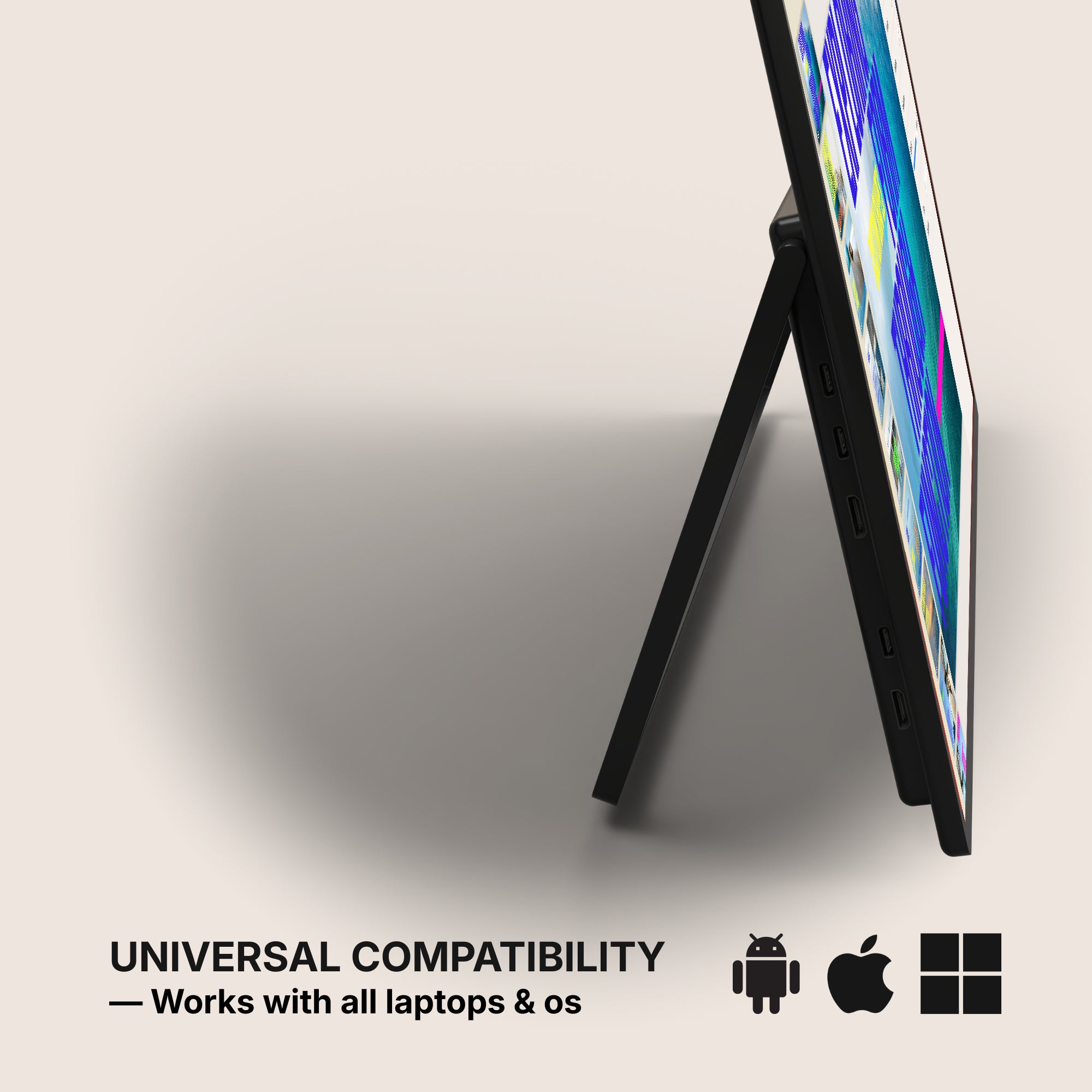
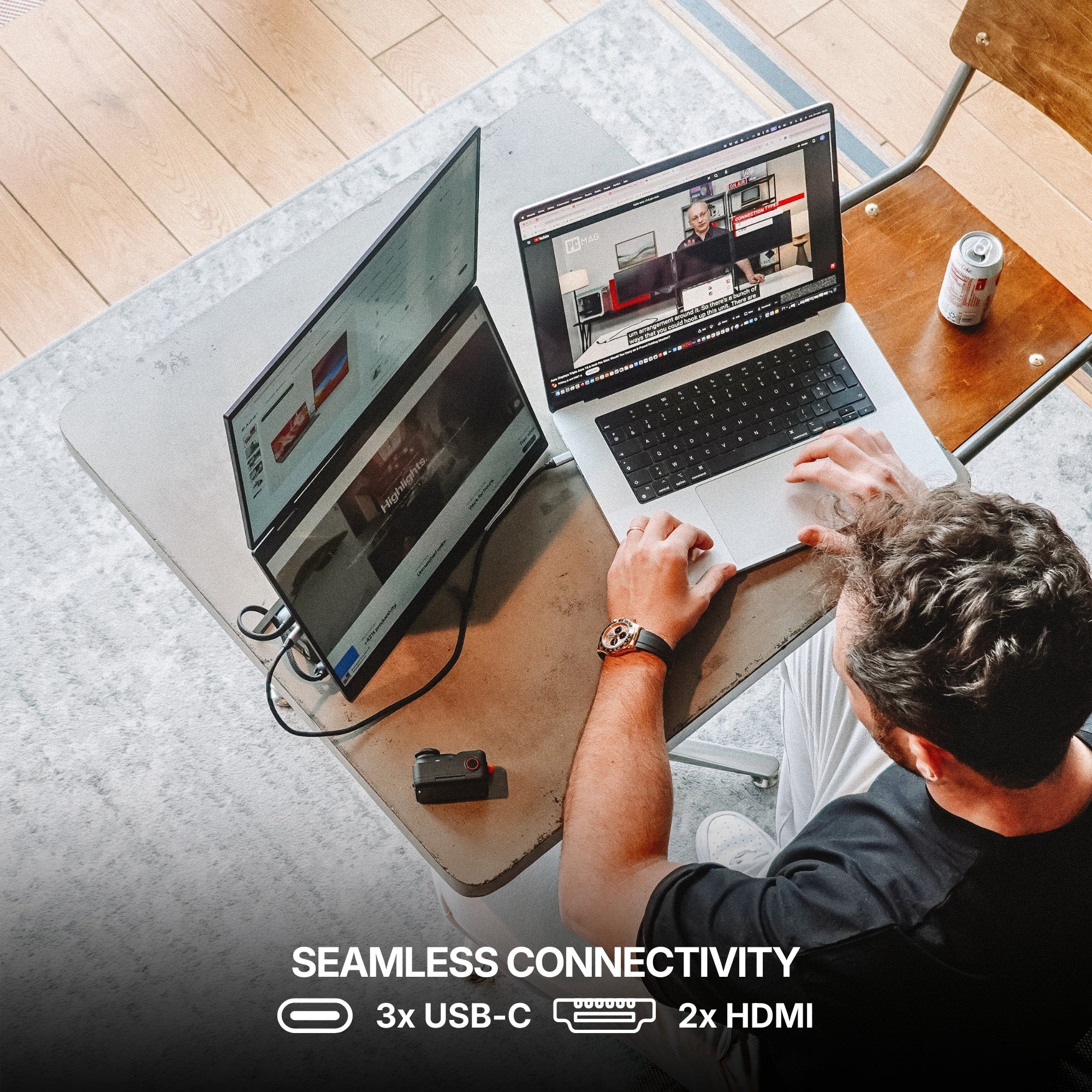
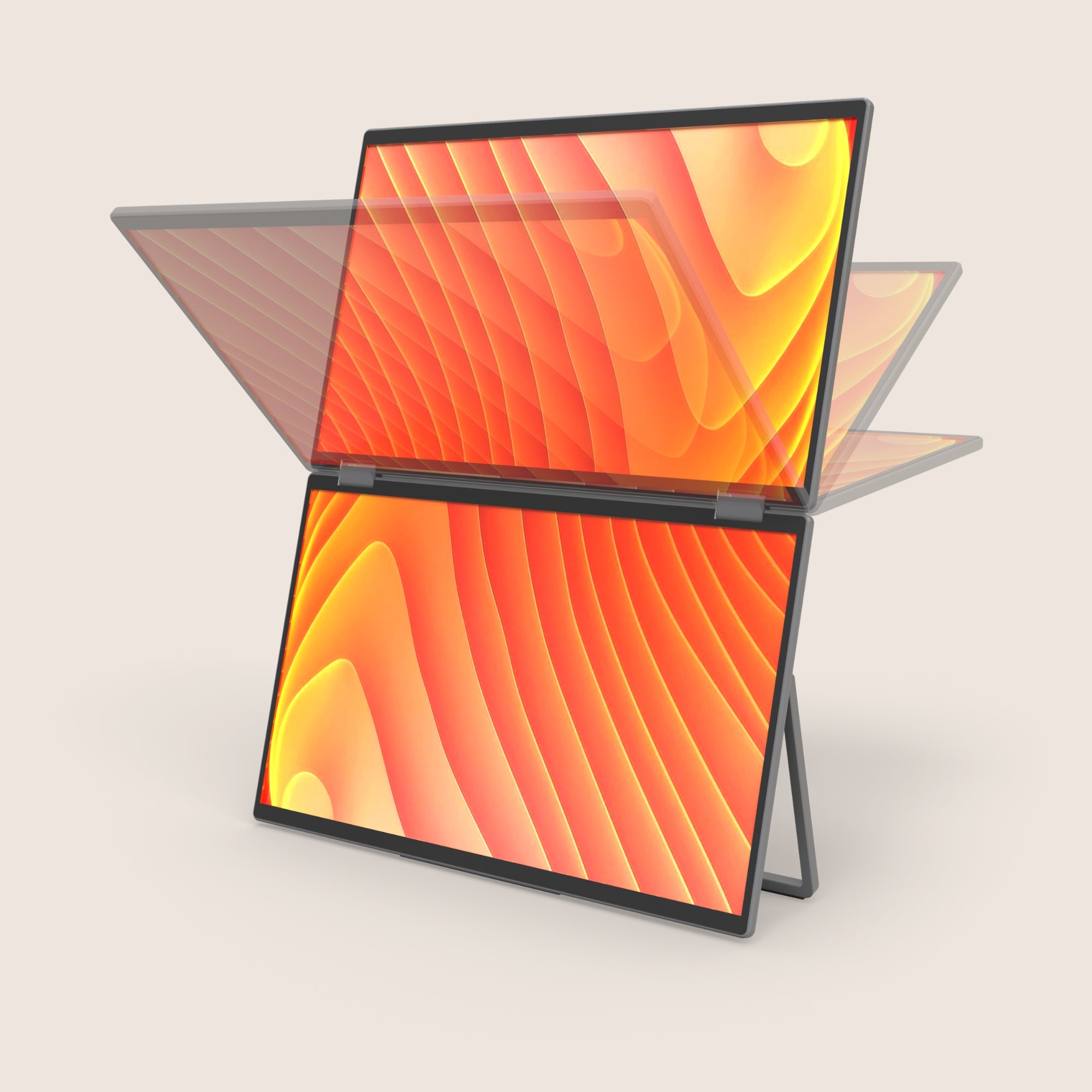
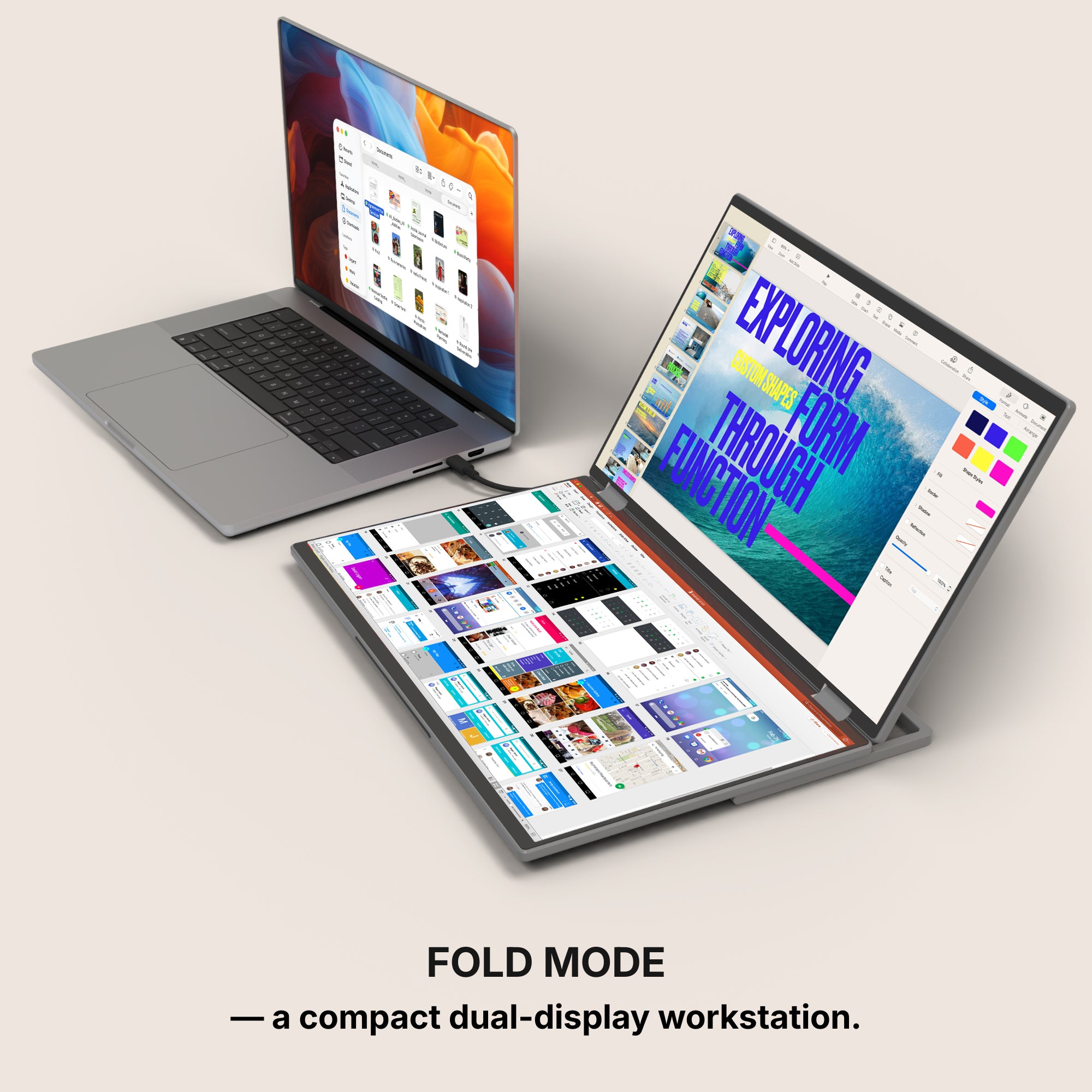
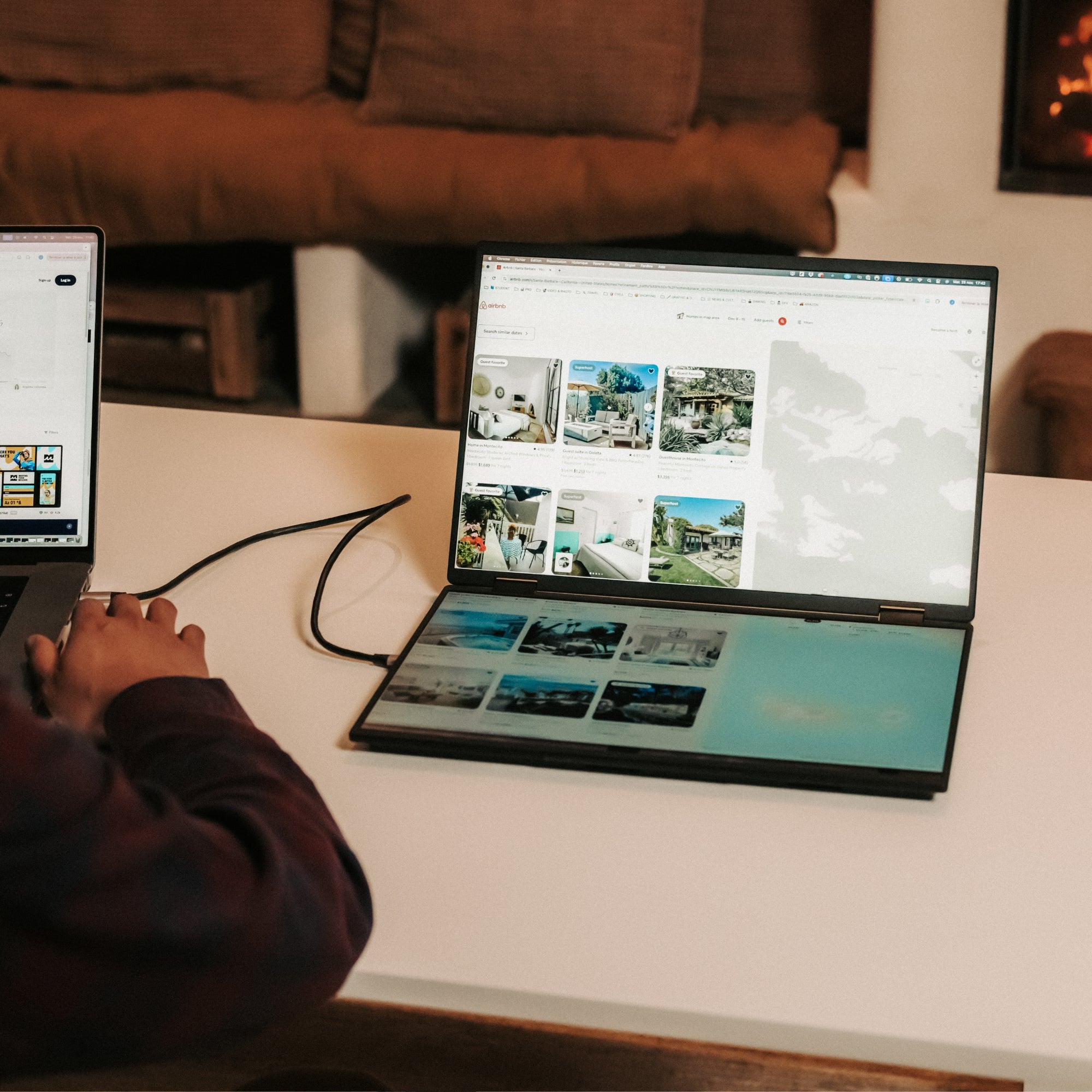
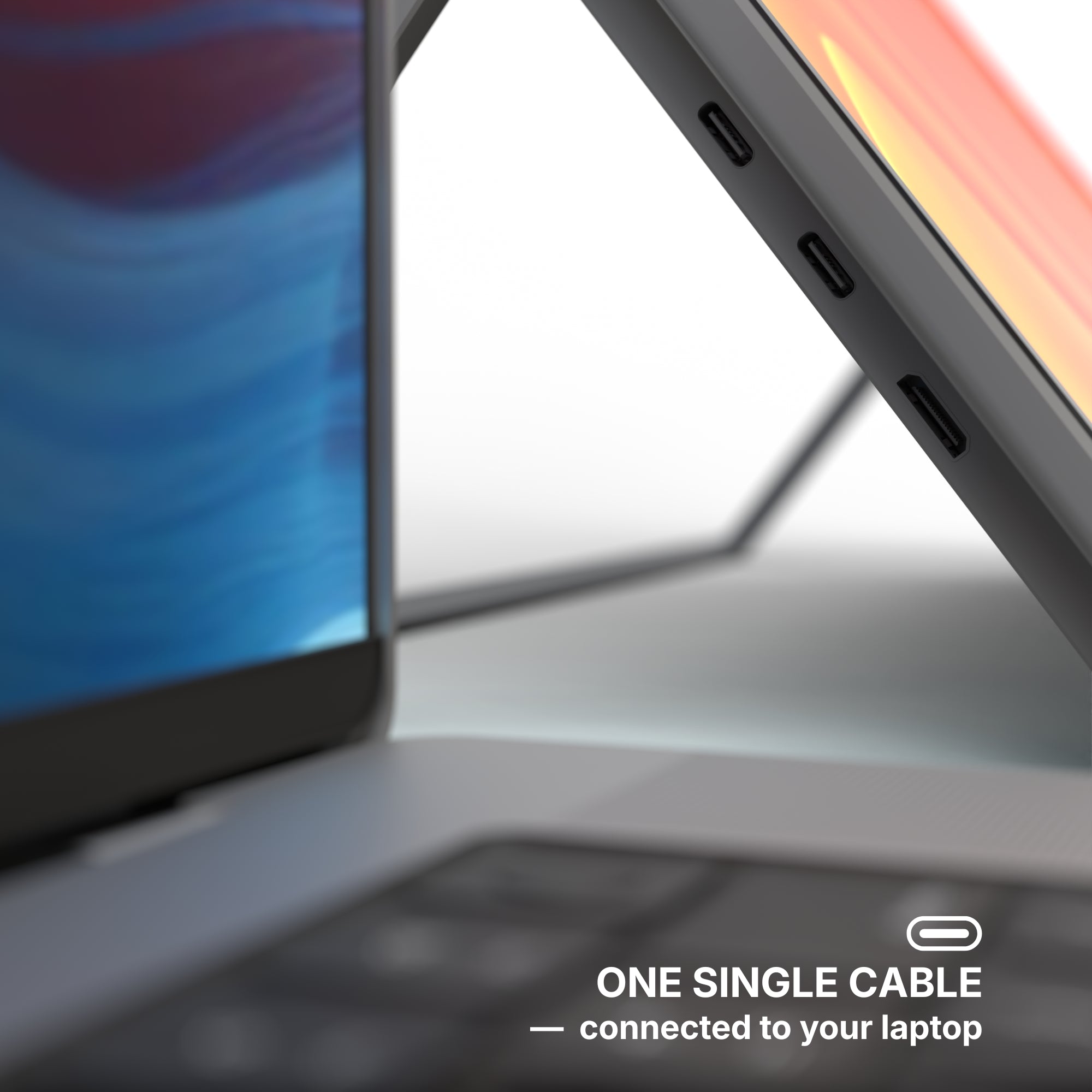
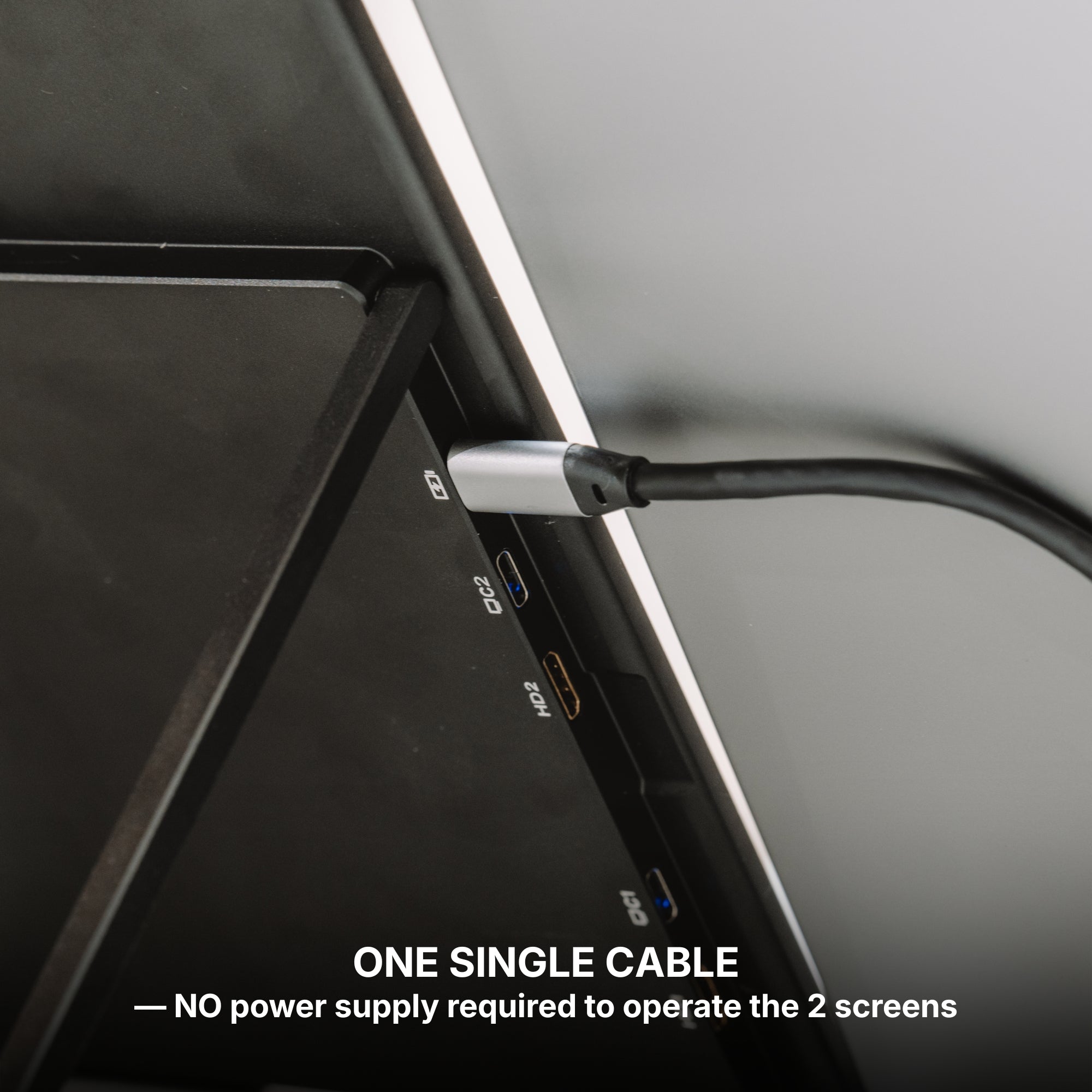
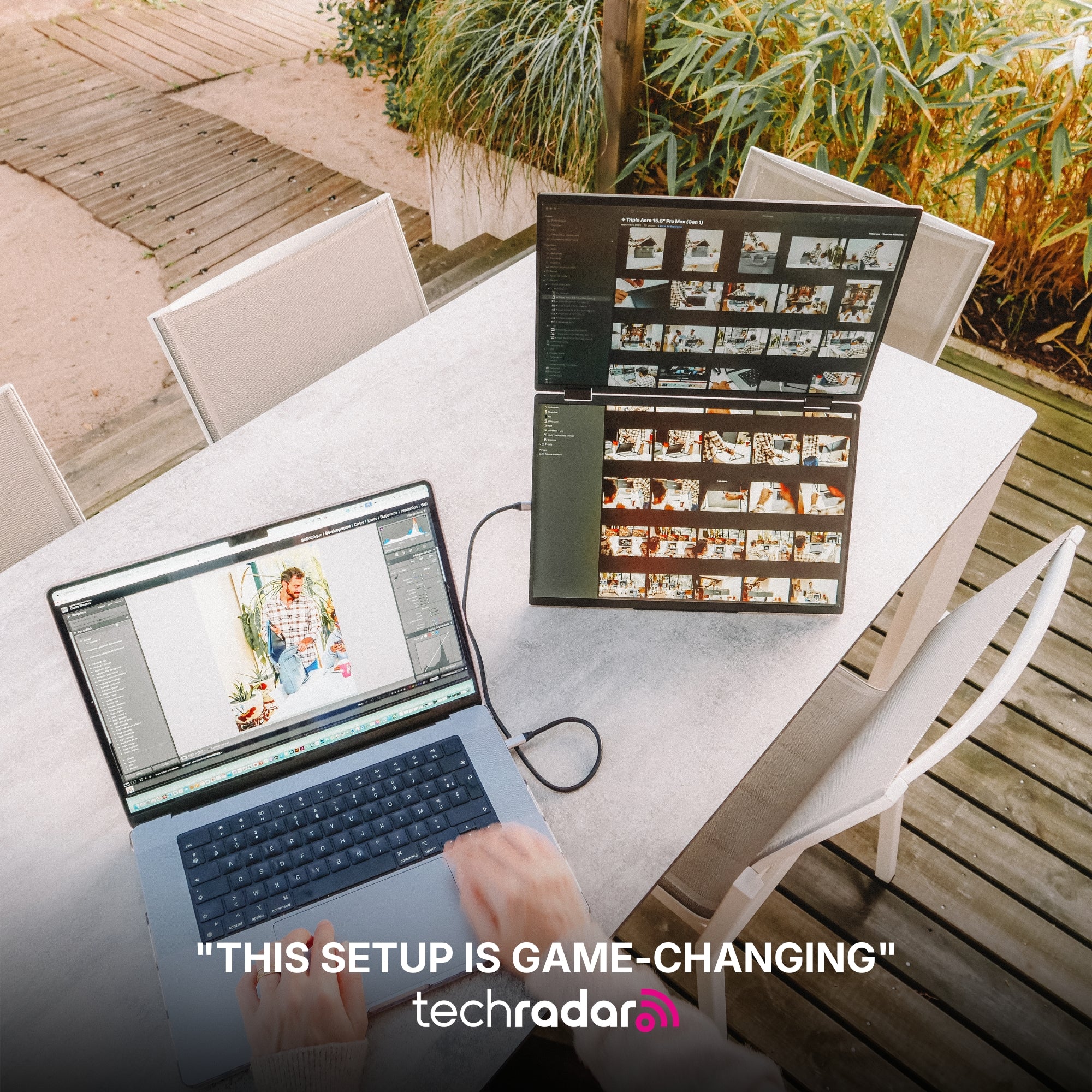
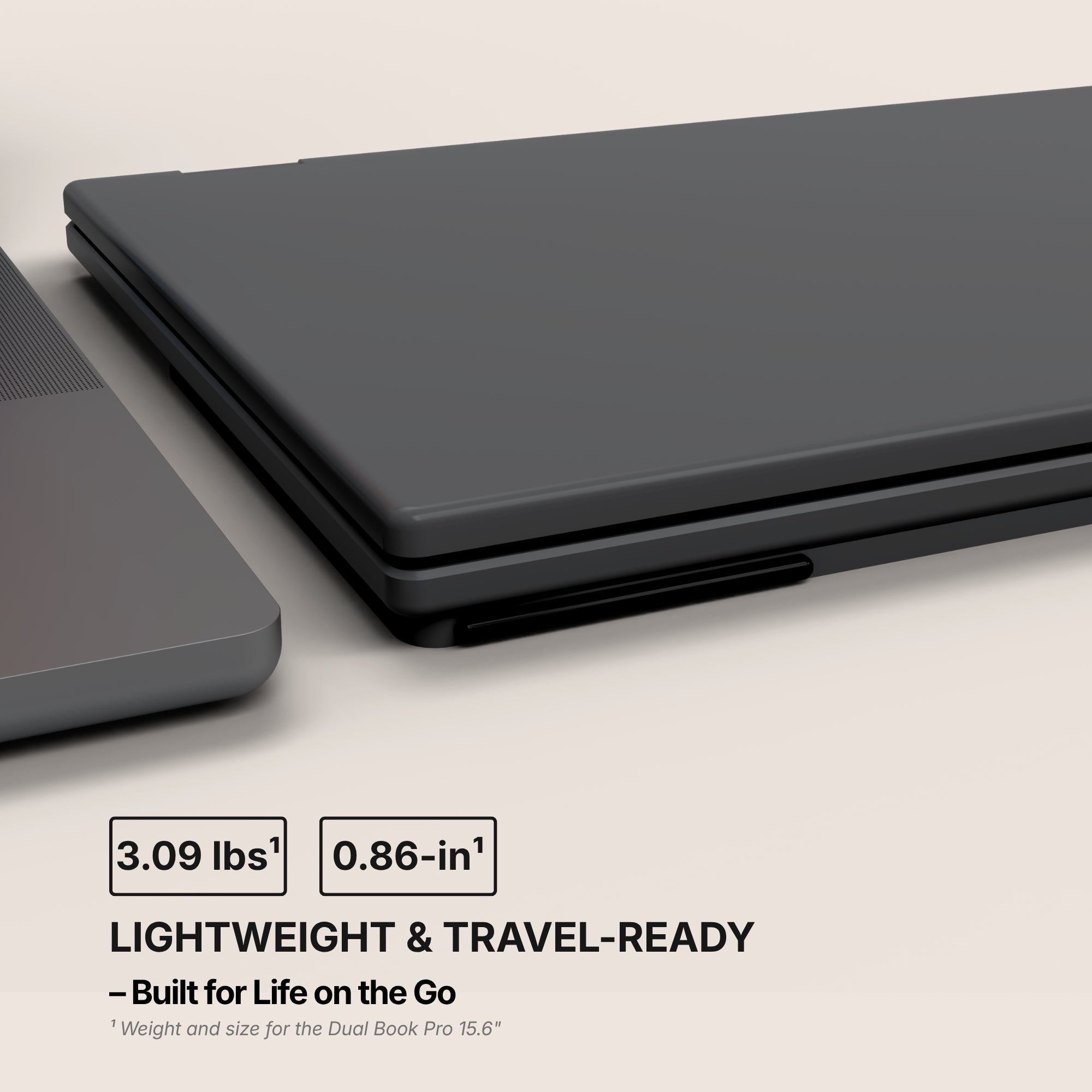
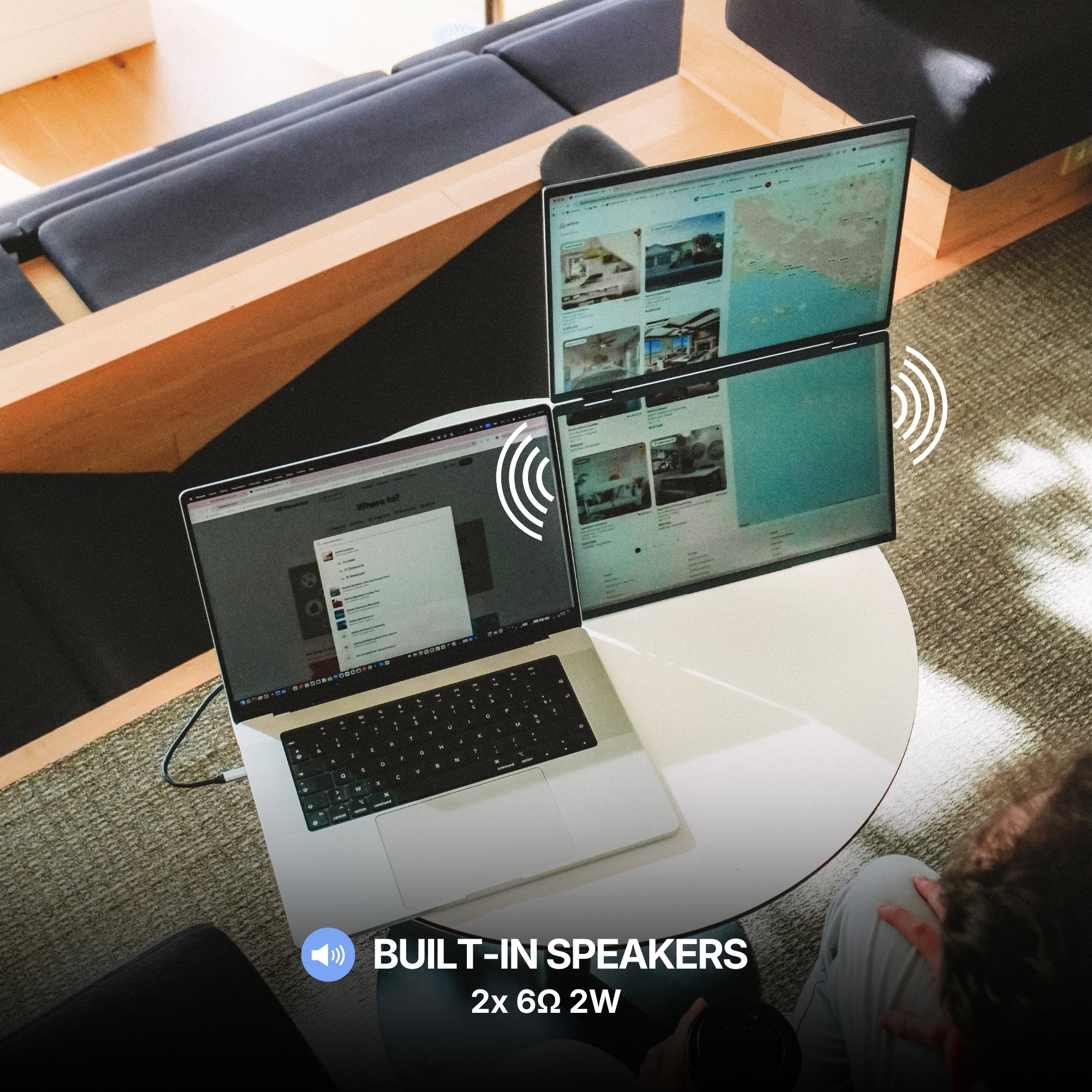
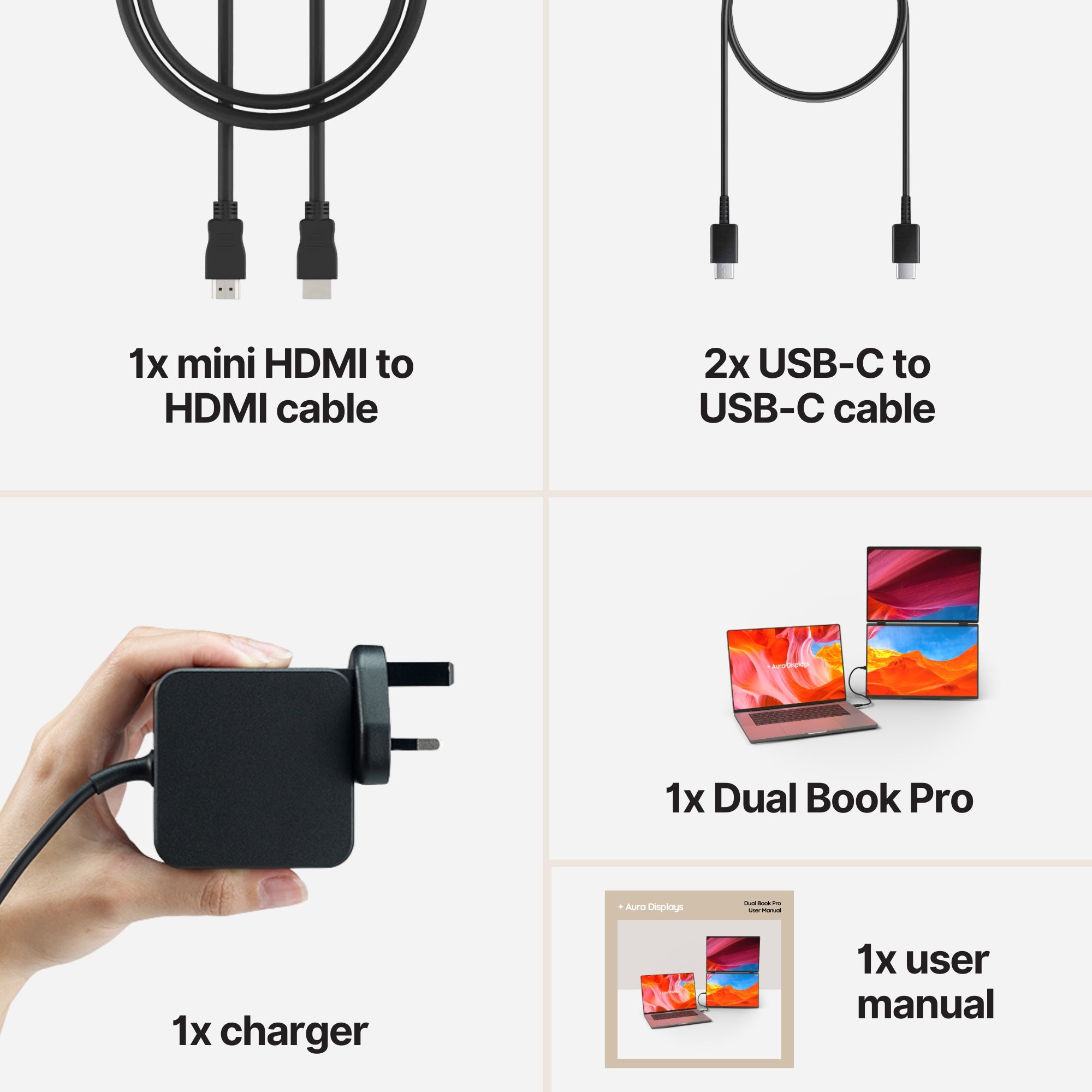
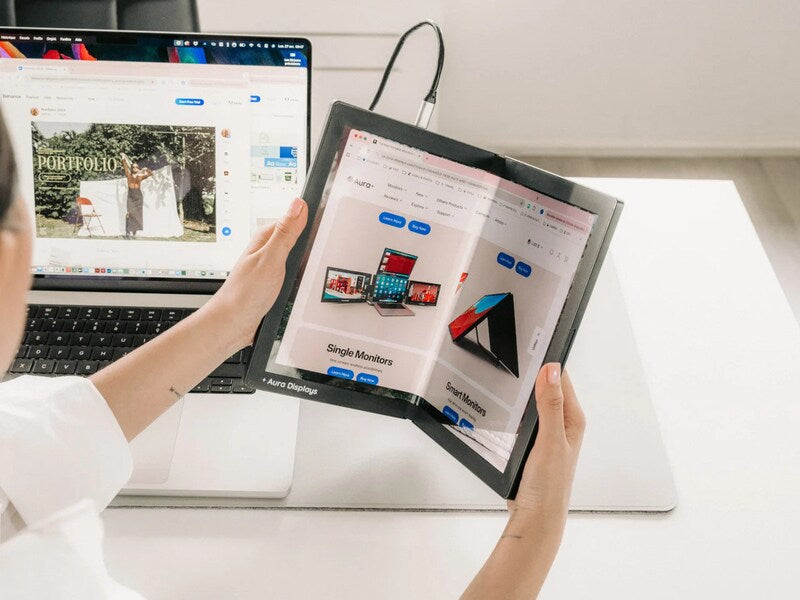
Our recommendation: Dual Book Pro (Gen 2), from $389. Two attachable panels, plug and play with no driver, so nothing sits between your screen share and the call. 3× USB-C, 2× mini HDMI and a 3.5 mm jack — the jack matters here, because a wired headset is still the most reliable microphone you own. In 15.6" and 16", Full HD or 1920 × 1200; that extra vertical space is worth more on a document than width. Rated 4.63 out of 5 across 153 reviews.
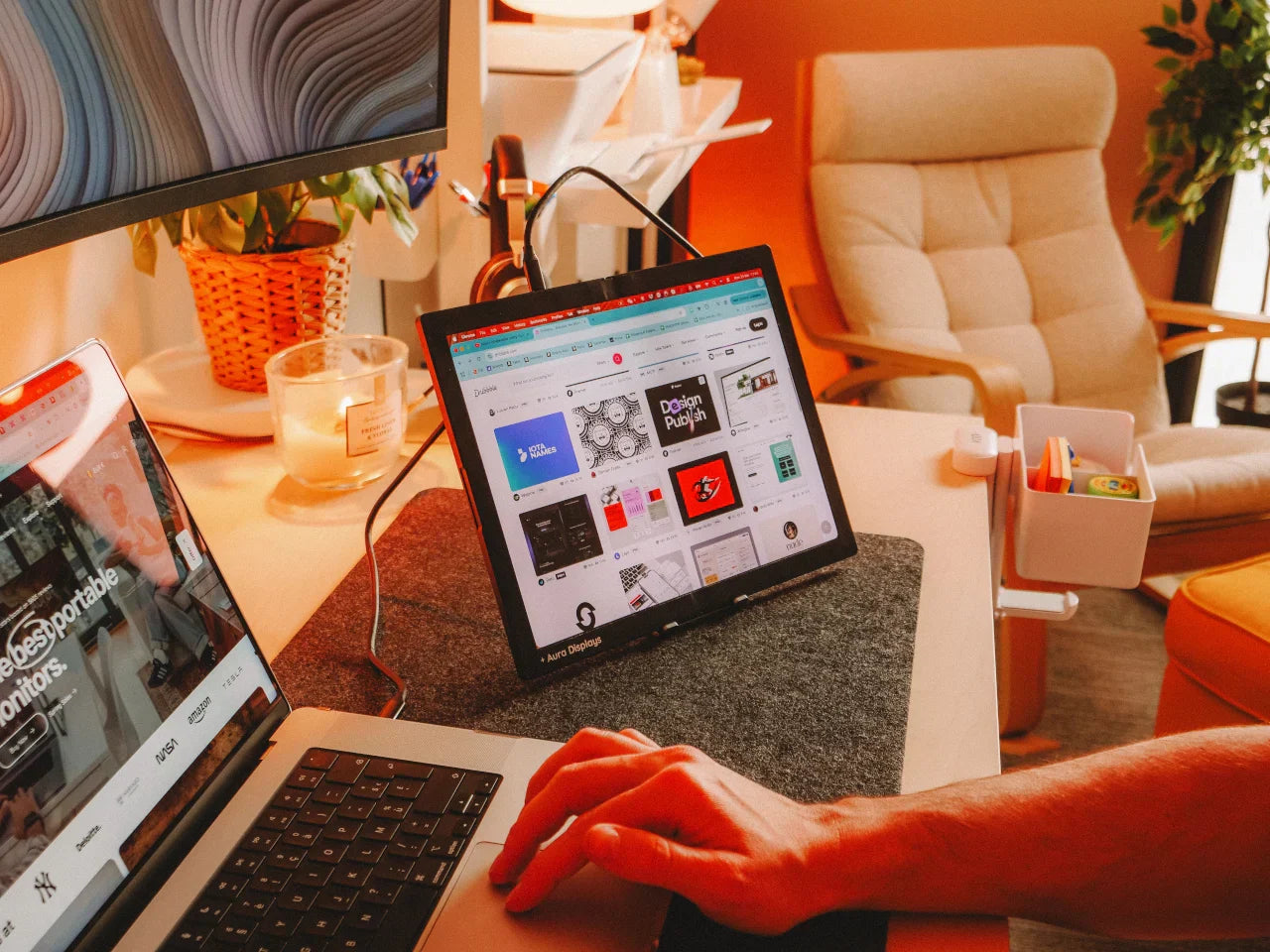
The cheaper option: Single Boost 15.6" (Gen 2) at $249. One panel at 300 nits, the same 3.5 mm jack, and a higher score than our own recommendation — 4.79 out of 5 across 137 reviews. If you present more often than you take notes, one extra panel plus the laptop covers the layout above. It is hard to keep in stock, so check before planning around it.
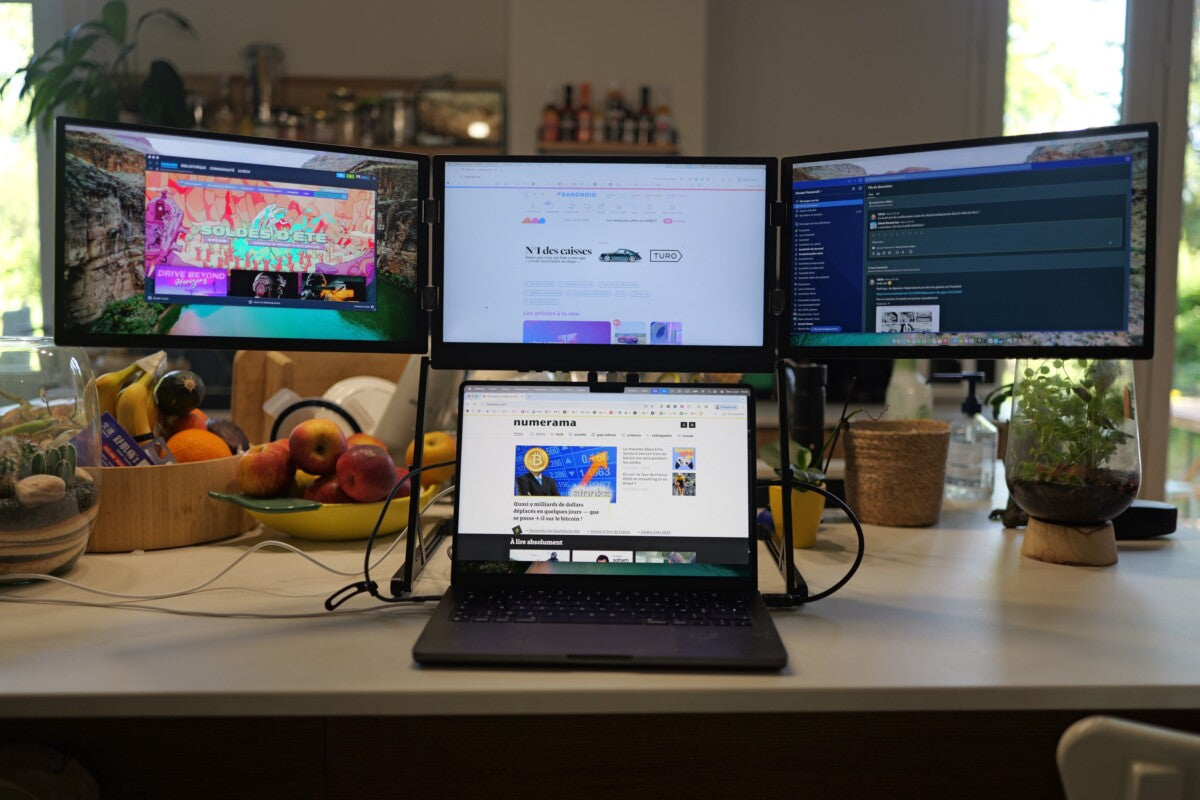
Why we are not selling you more. Triple Go (Gen 3), from $549, reads Software required and lists macOS and Windows only — both working against you on a call. And a call needs three surfaces when you already own one: the laptop. The third panel is the one you switch off.













Share: