


Who this is for
You write for a grade or for a client — essays, memos, case write-ups, decks — and almost everything you write is built out of something you have to read at the same time.
What goes on each screen
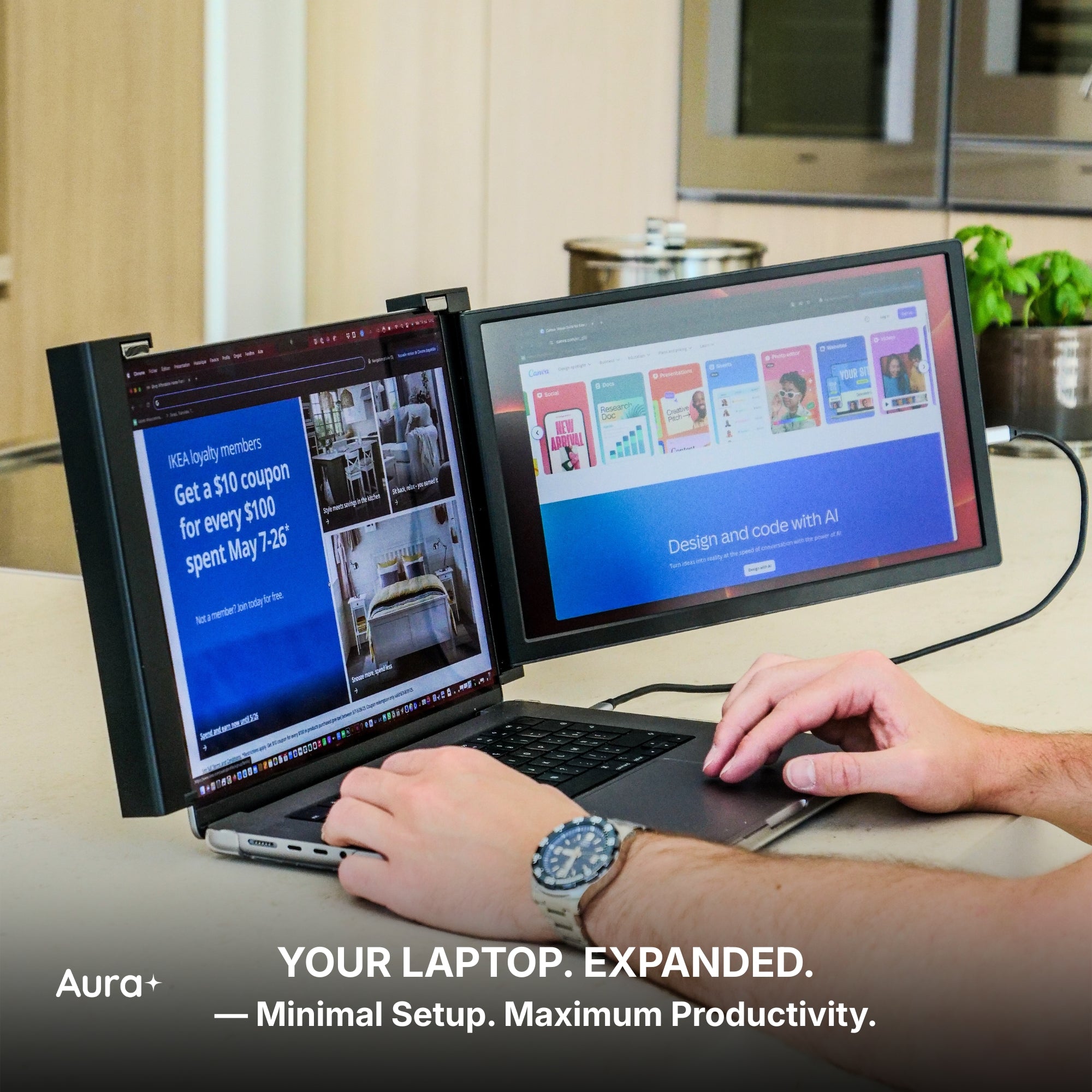
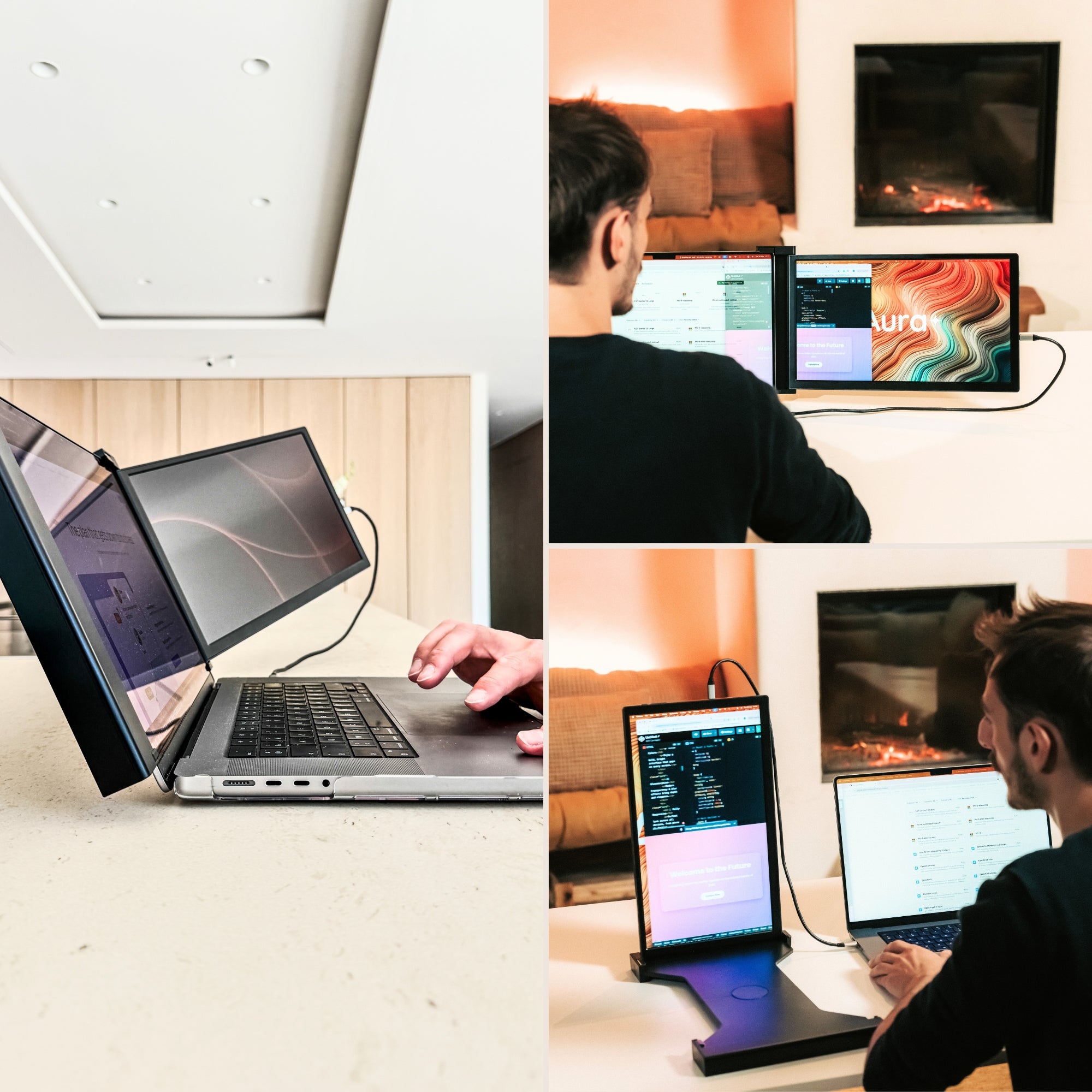
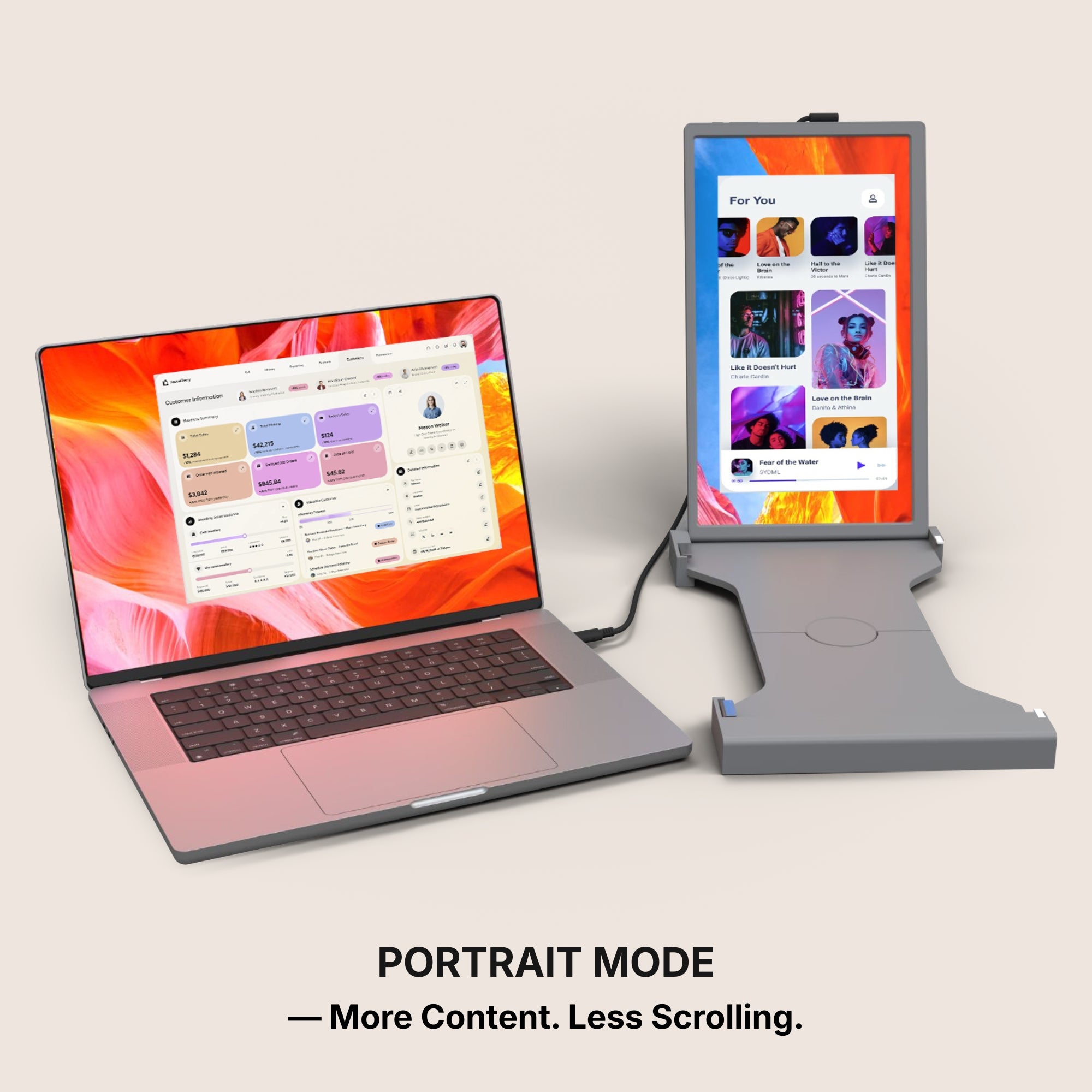
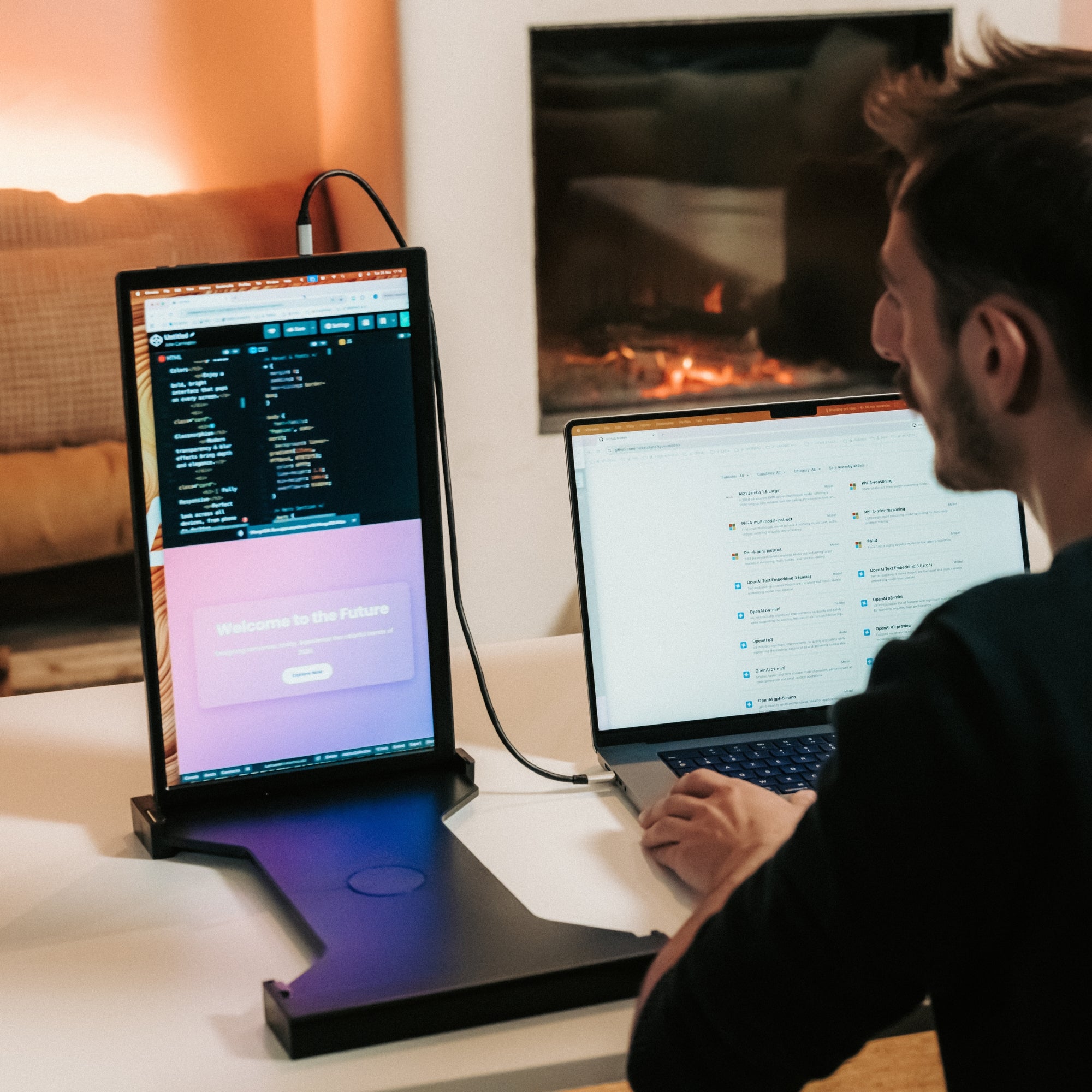
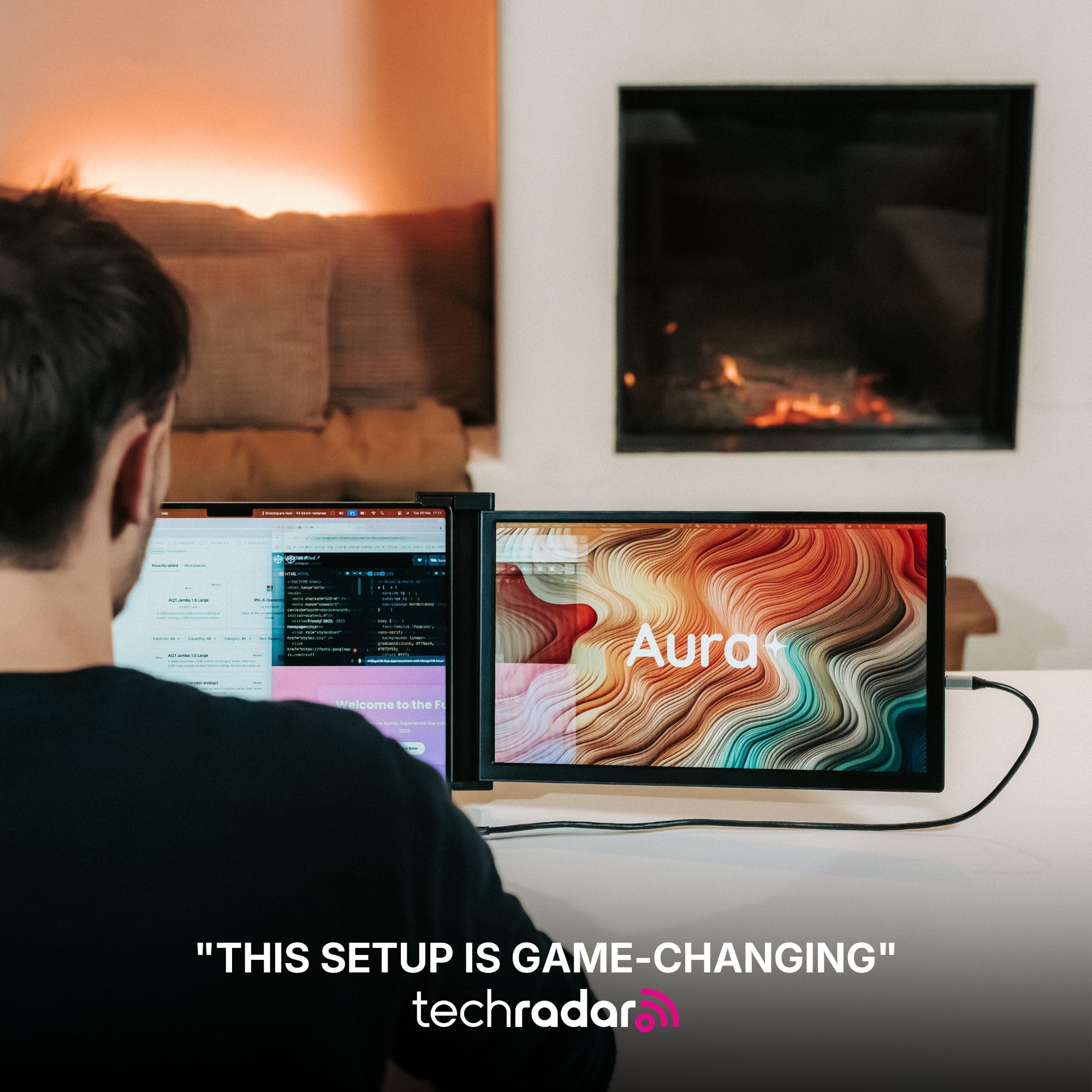
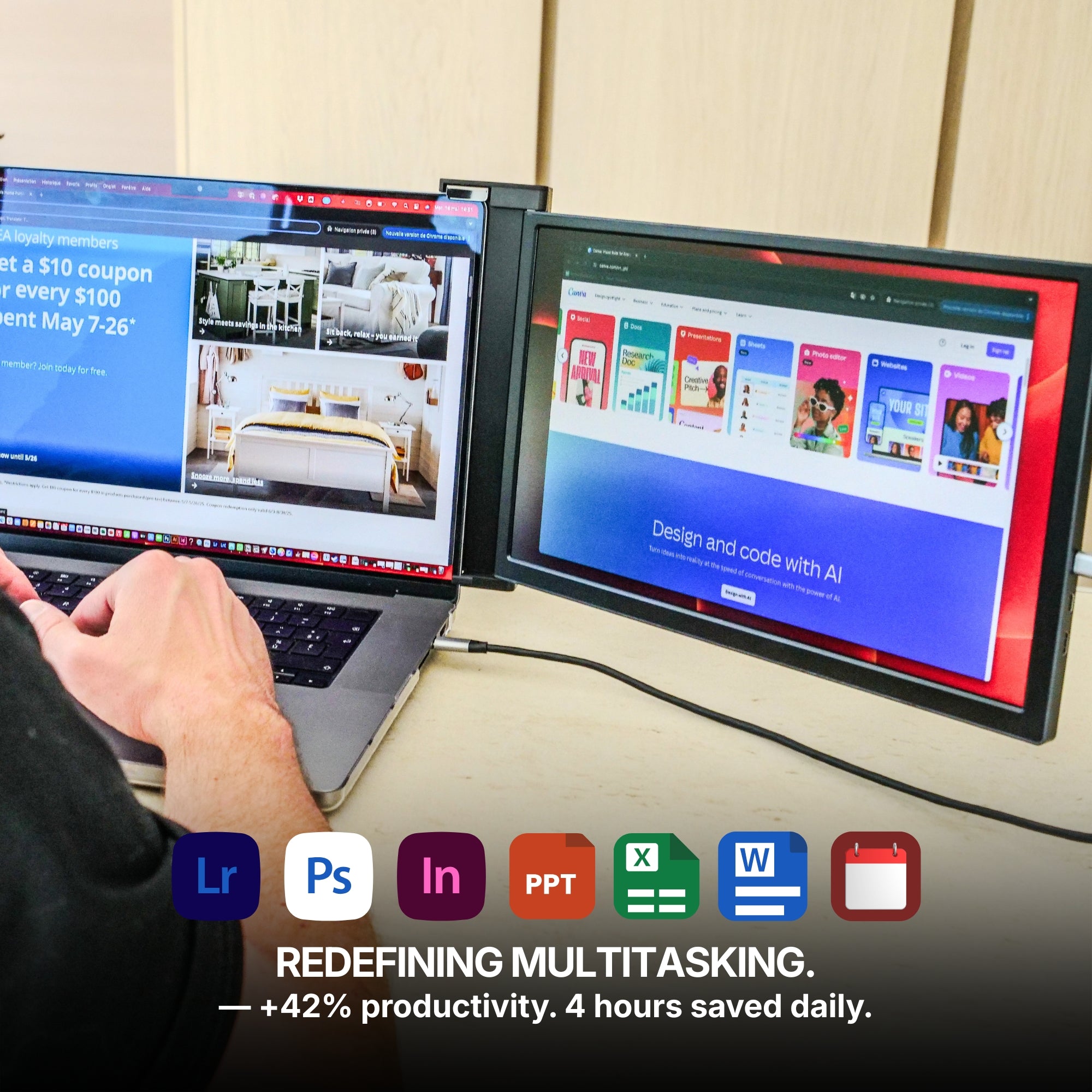
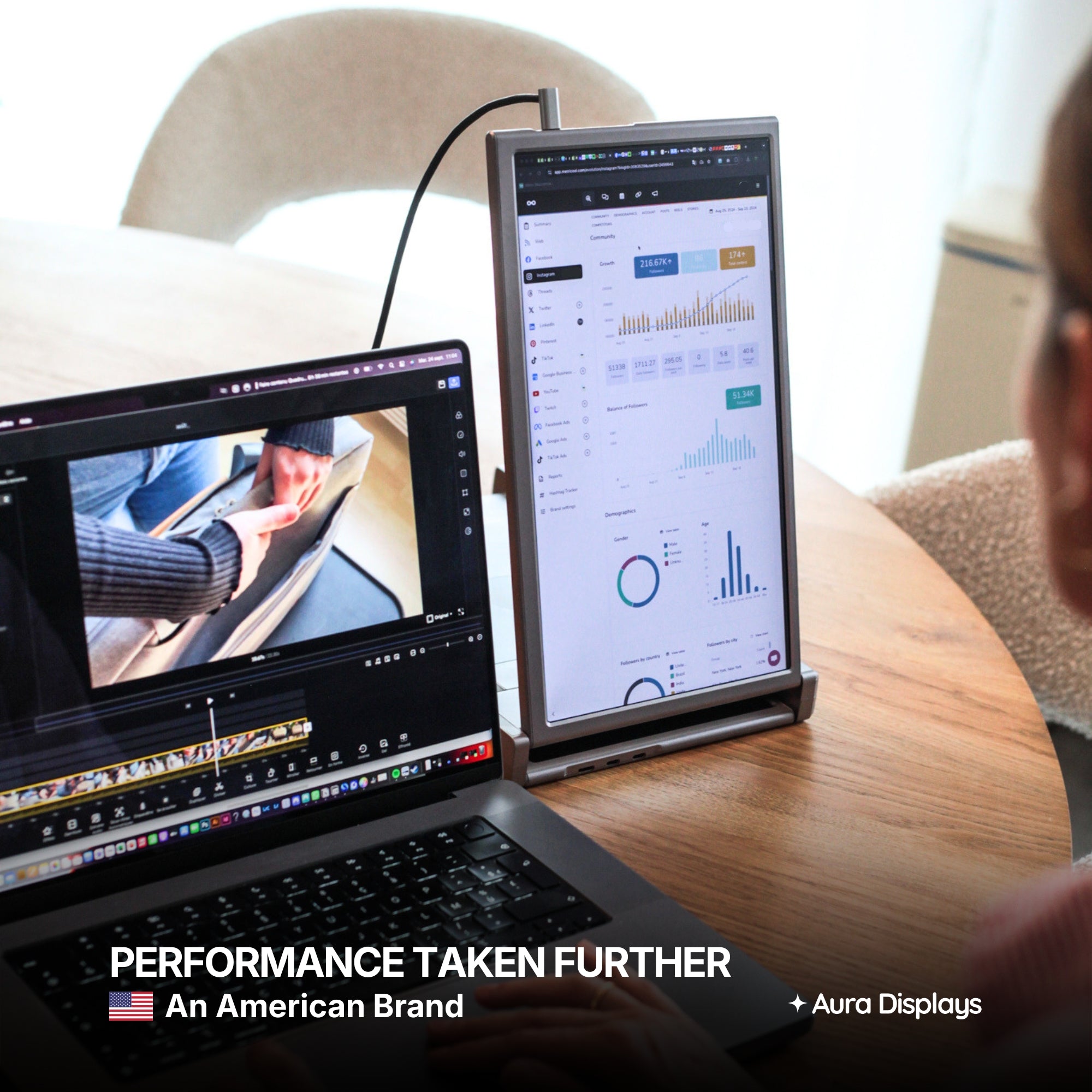
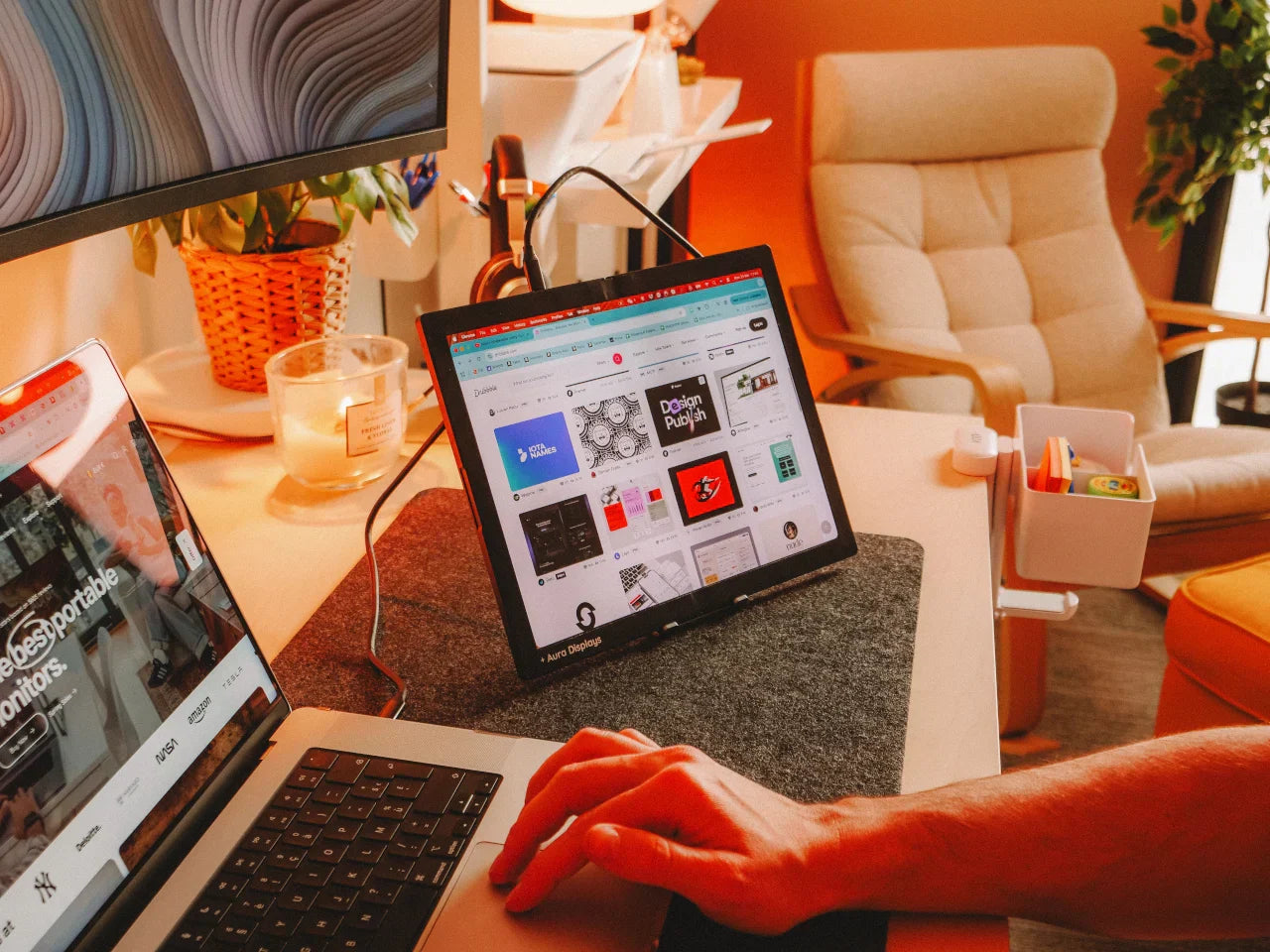
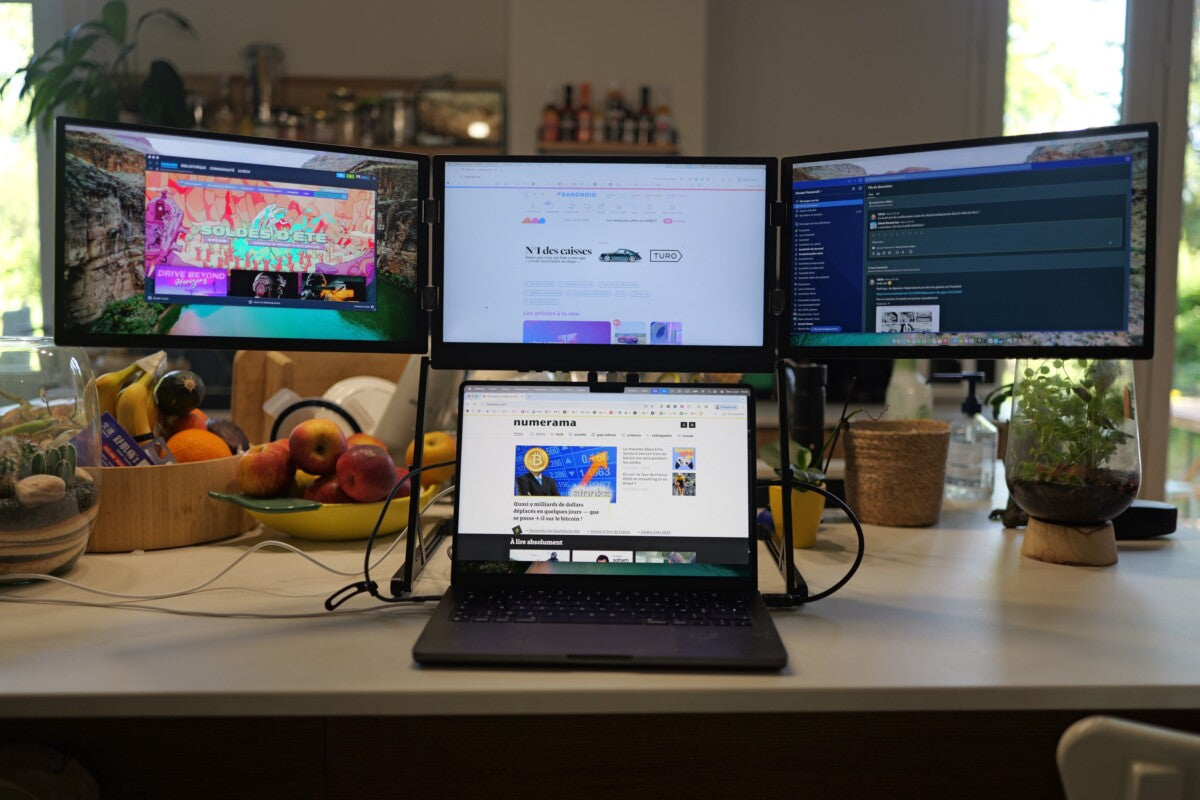
In front of you: the thing you are writing. One document, full height, nothing else. This is the only screen where your cursor ever blinks, and it gets the keyboard and your attention.
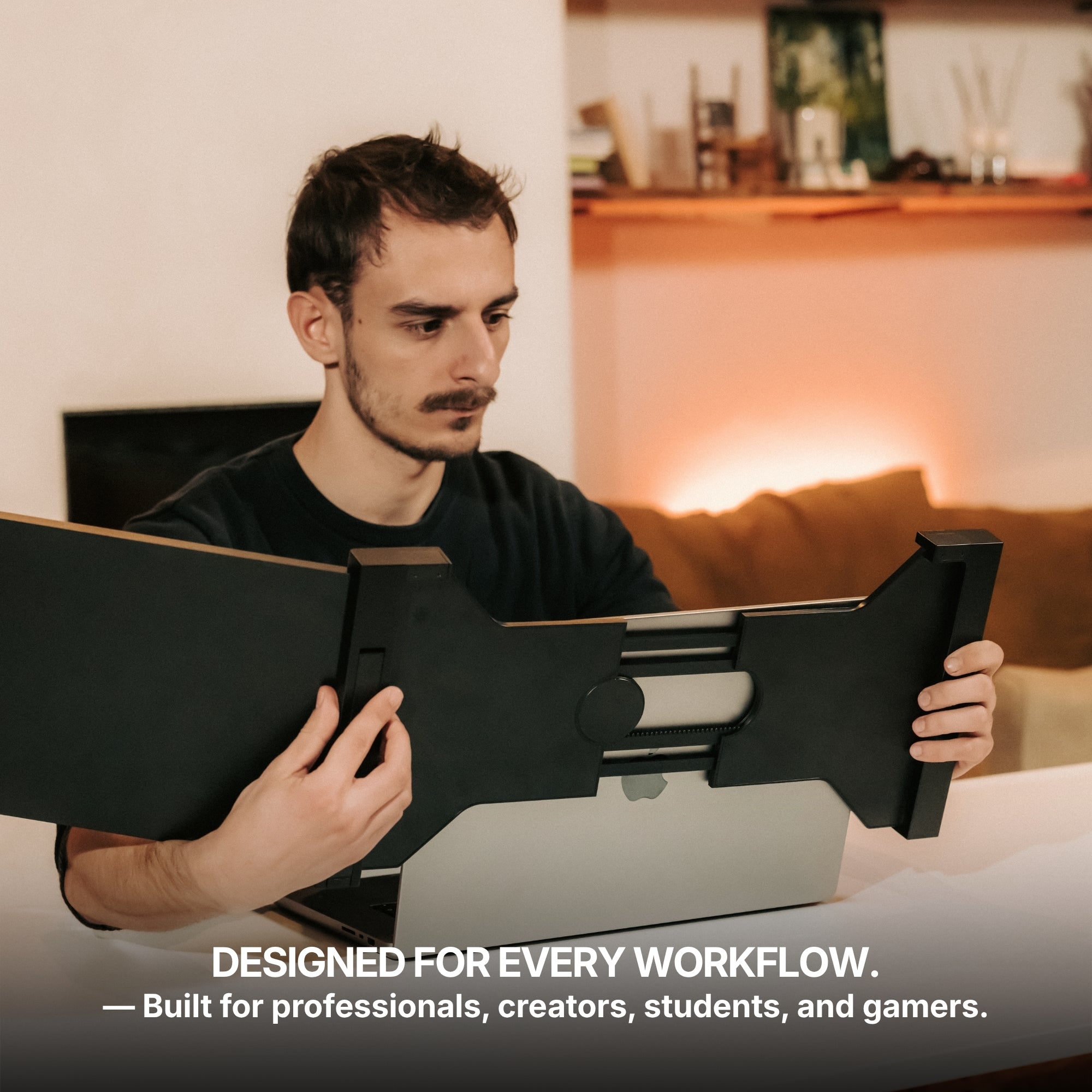
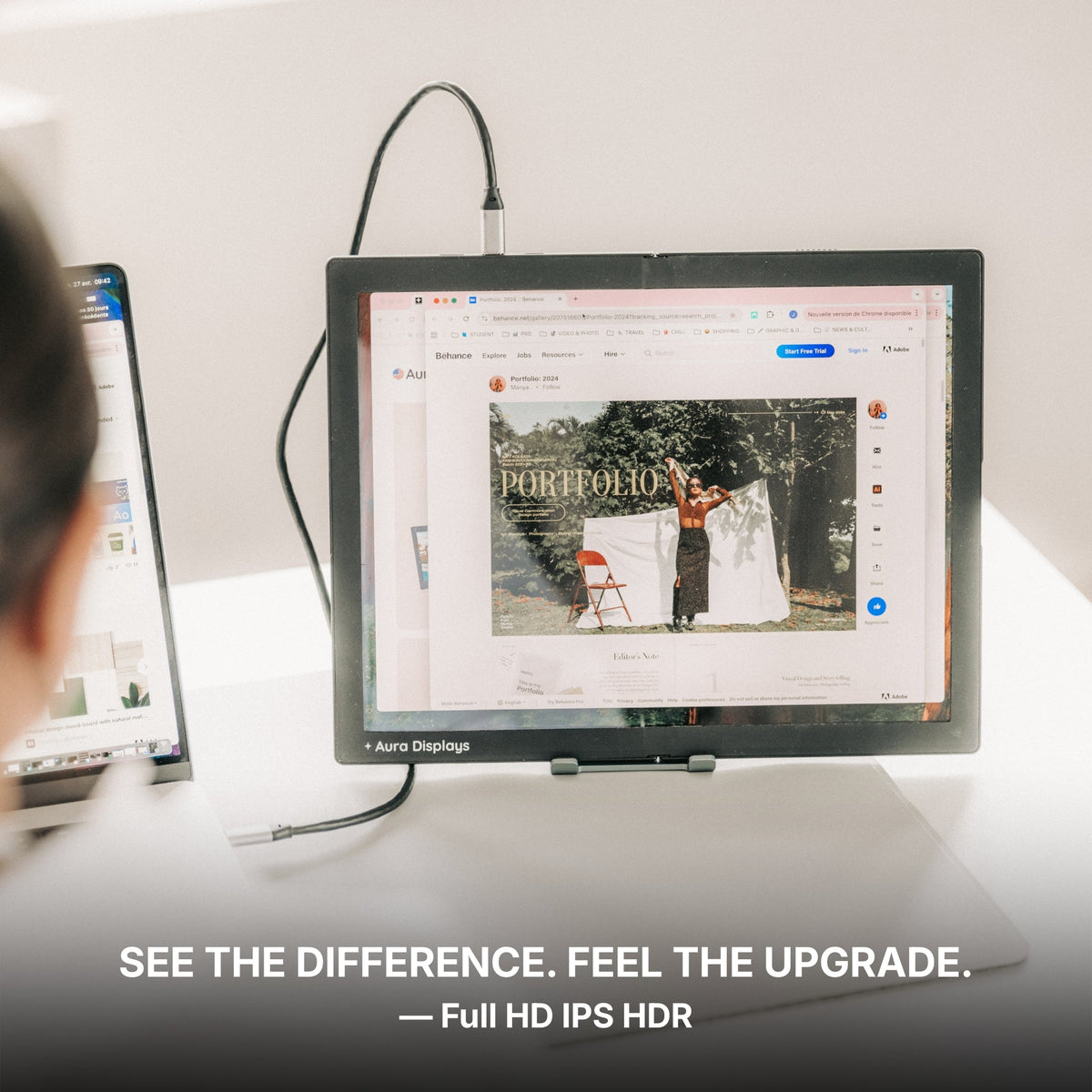
Beside you: everything you are reading. The PDF, the web page, the interview transcript, the brief. Split that panel into two halves and keep two sources visible rather than cycling through six tabs.
Two rules keep it from collapsing: nothing you are writing ever moves to the side panel, and nothing you are reading ever comes back to the centre. The moment a source lands in front of you, you are tab-switching again with extra steps.
On a video call the layout flips in one specific way. Put the call on the side panel at roughly eye height and keep your notes on the laptop. Do it the other way round and you spend the meeting visibly looking away from the camera.
The software settings that make it usable
- Acrobat Reader: View > Page Display > Two Page Scrolling. Two source pages side by side on the side panel, scrolling as one. Then Ctrl+H for Read Mode, which drops the toolbars: on a 14" or 15.6" panel they eat about a fifth of your reading area.
- Preview on macOS: View > Two Pages, plus View > Thumbnails.
- Word: View > Navigation Pane. A headings column down the left of your writing screen. On anything past ten pages this replaces scrolling entirely.
- Word: References > Insert Citation, then References > Bibliography. Build the source list as you write instead of reconstructing it at 2am. The layout only works if you never leave the writing screen, and this is what makes that possible.
- Windows 11: Win + Left and Win + Right snap a window to half a panel; turn on Settings > System > Multitasking > Snap layouts so hovering the maximise button offers fixed halves. On recent macOS, Window > Move & Resize does the same job.
- Chrome: right-click a tab > Move tab to new window. Park it on the side panel and leave it there.
- Zoom: Settings > General > Use dual monitors. Shared content and the gallery then separate across your two screens instead of stacking on one.
- Windows 11: Settings > System > Notifications > Do not disturb > Turn on do not disturb automatically. This is the configuration trap of the job: you share a screen in a client call and a personal message banner lands on it. Set the rule before your next call, not after.
What these screens will not do for you
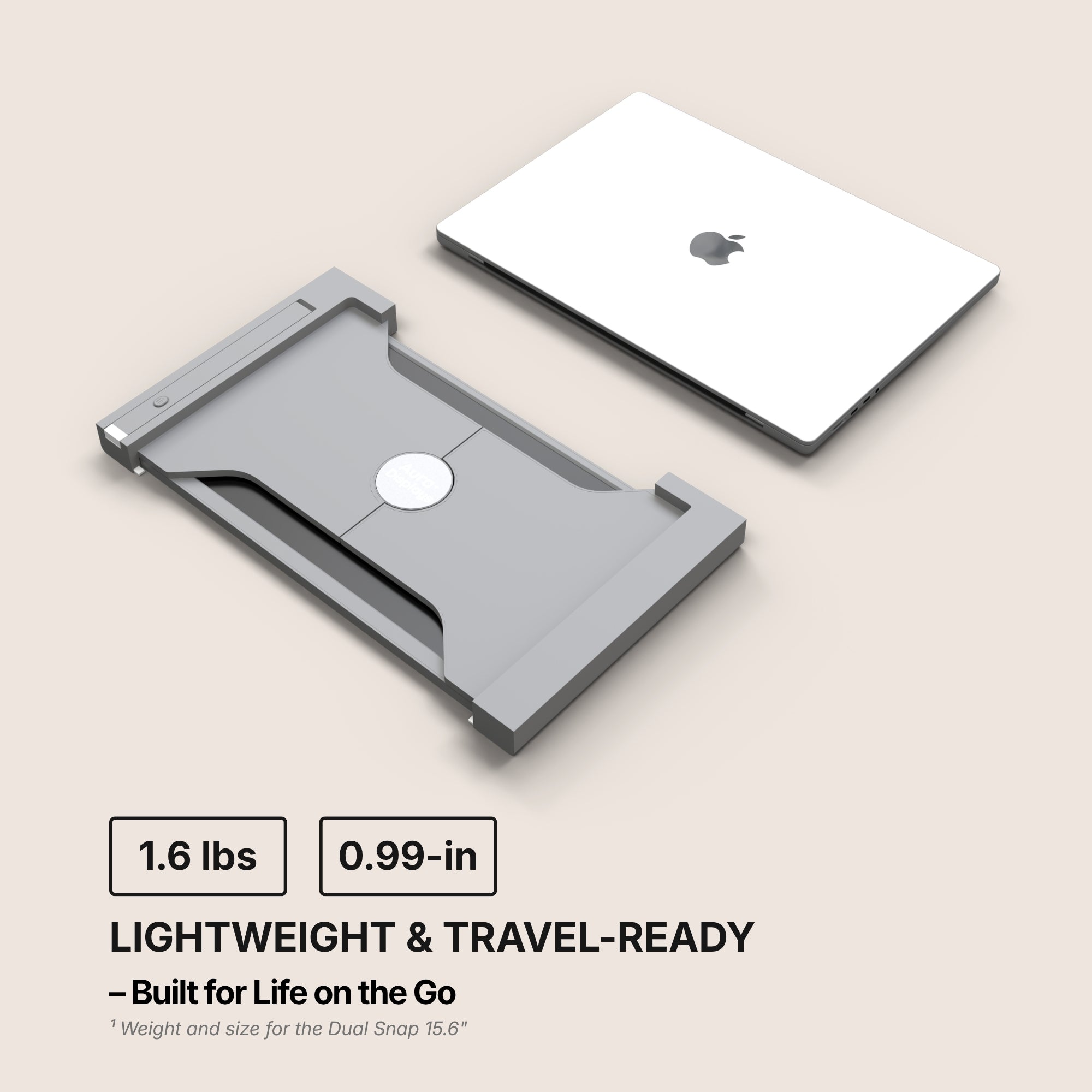
One extra panel is enough for this work, and that is the honest limit. Buying a triple here is paying for weight you will not carry: if you commute to a library, a client site or a lecture hall, the third panel is the one that stays home after week two.
The panel also does not read for you. It removes the switching, not the work, and if you only glance at your sources a few times an hour you will not feel this layout at all. Try it for a week with a window snapped to half your laptop screen first.
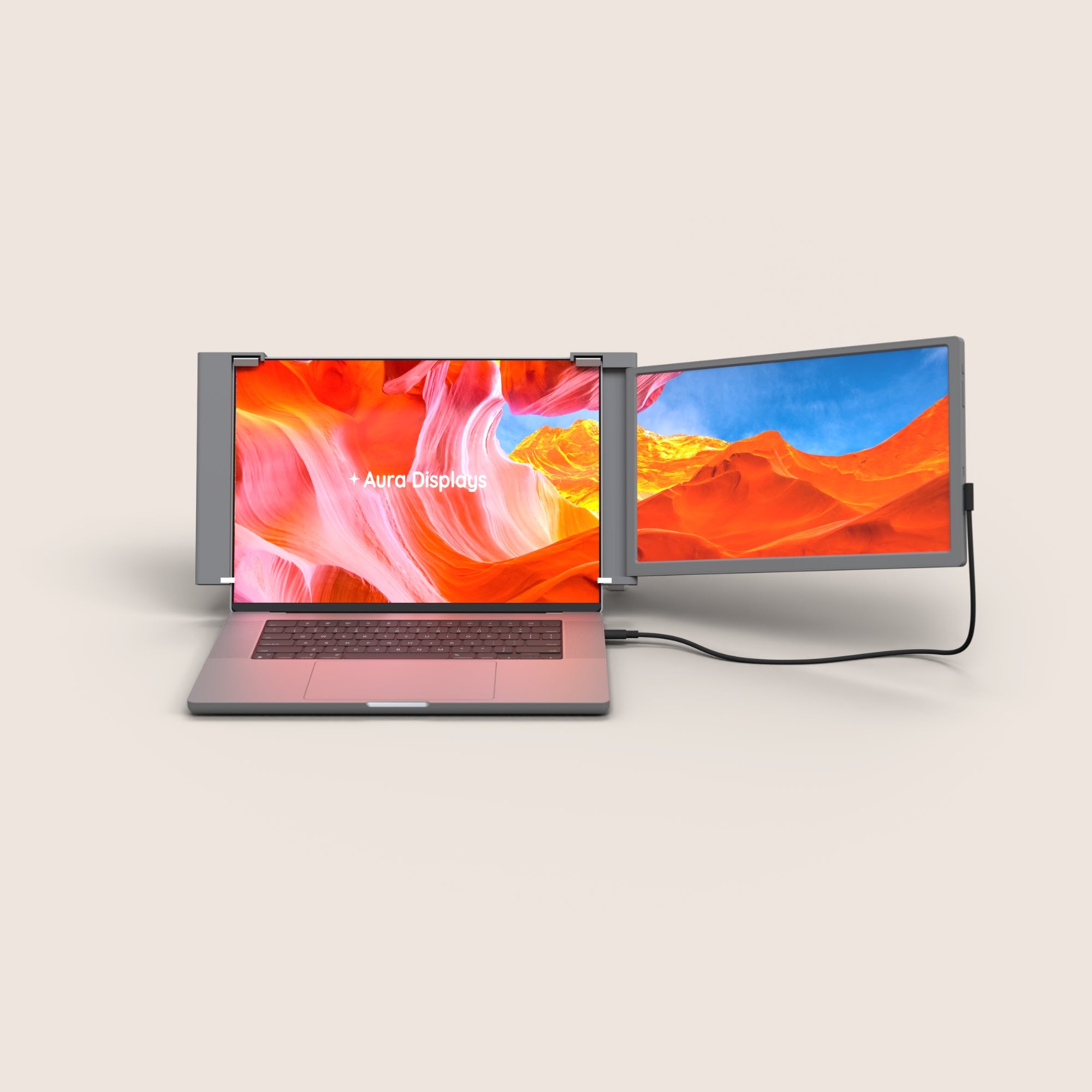
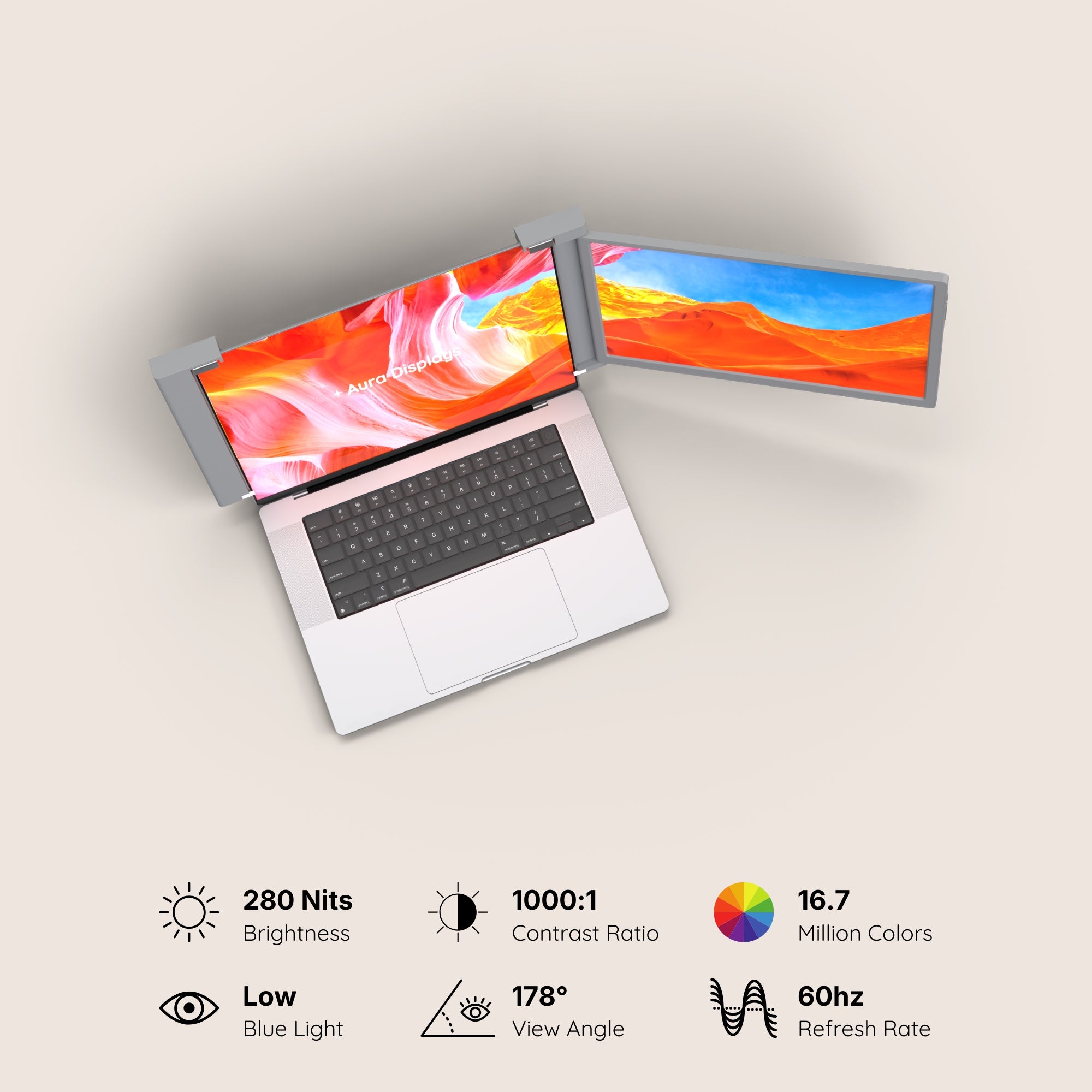
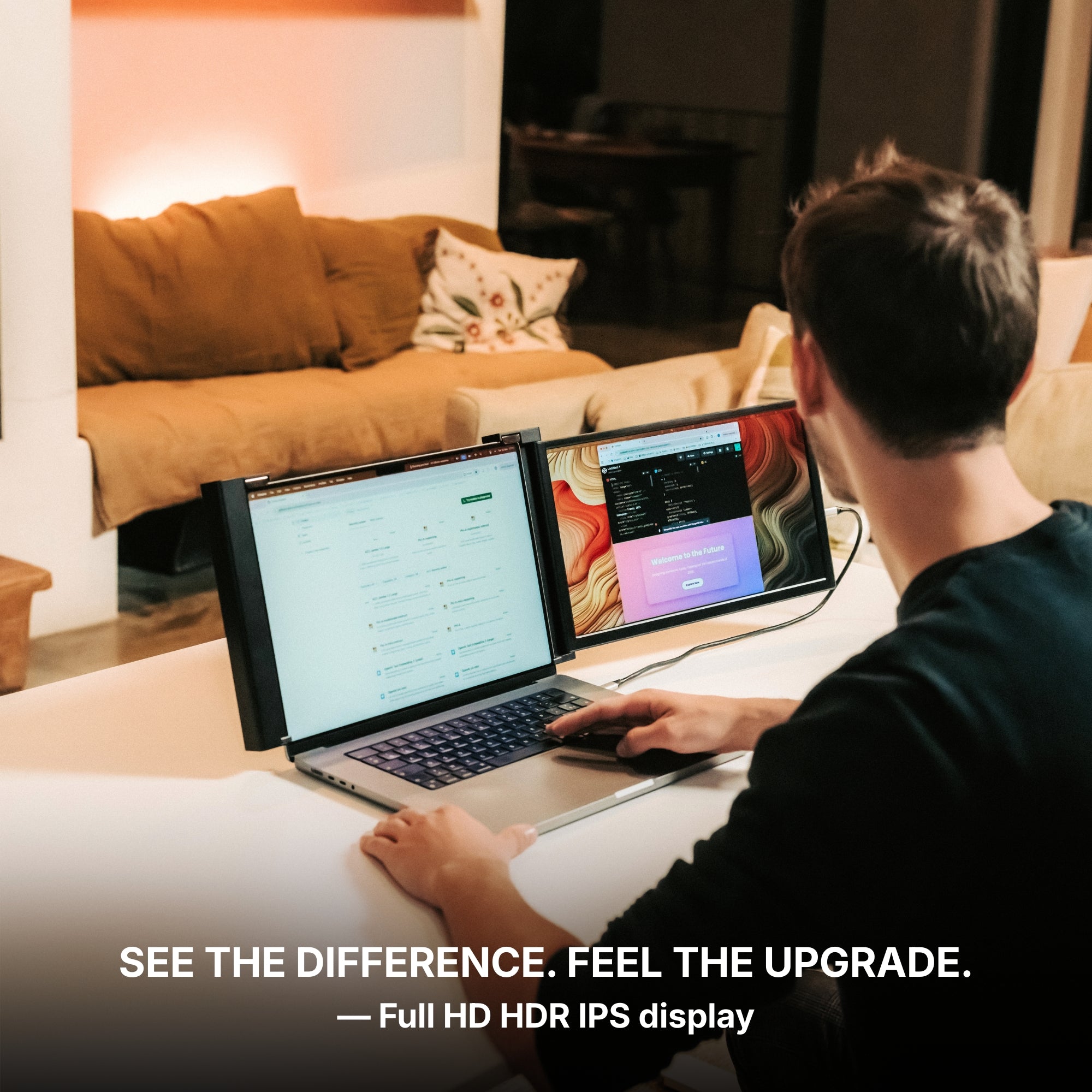
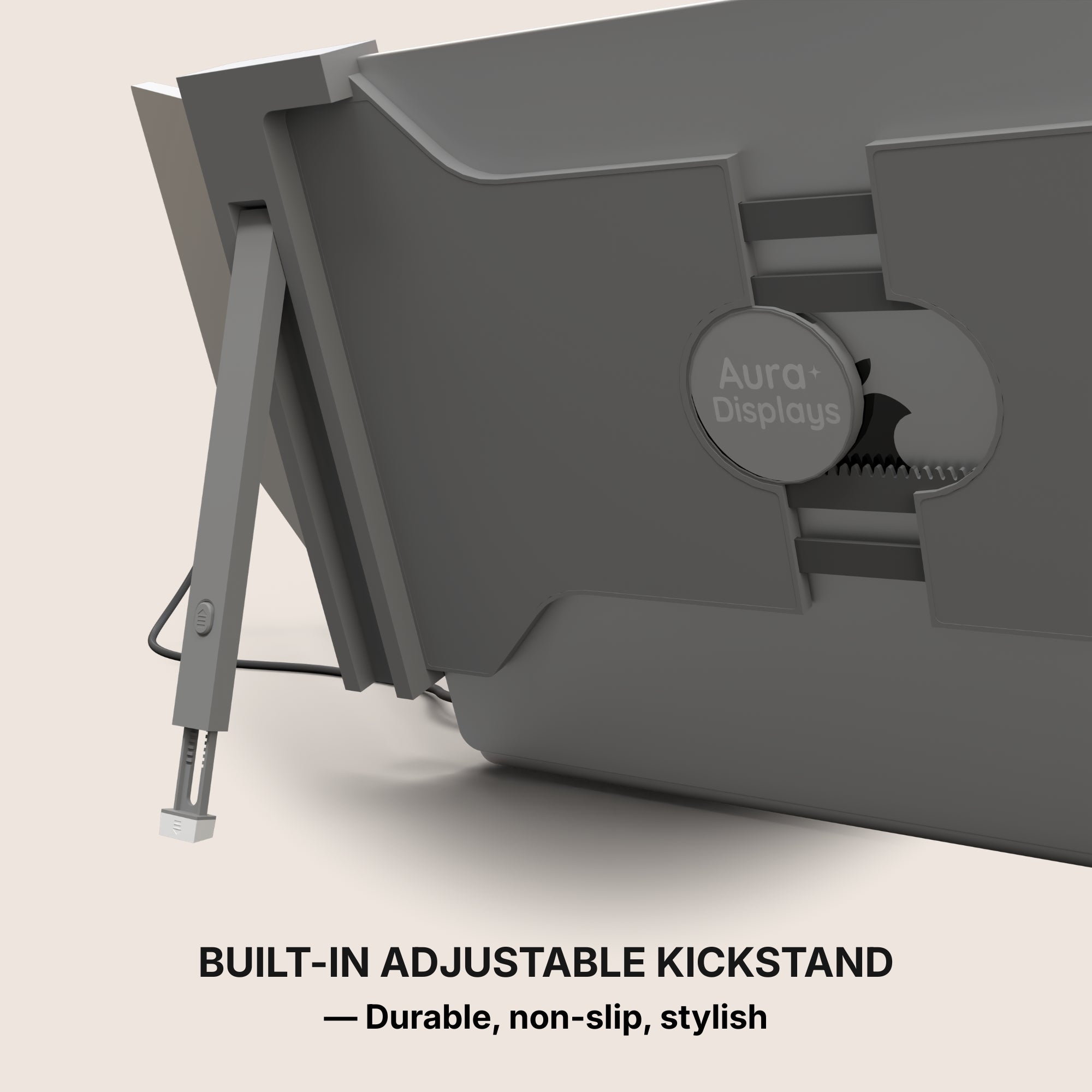
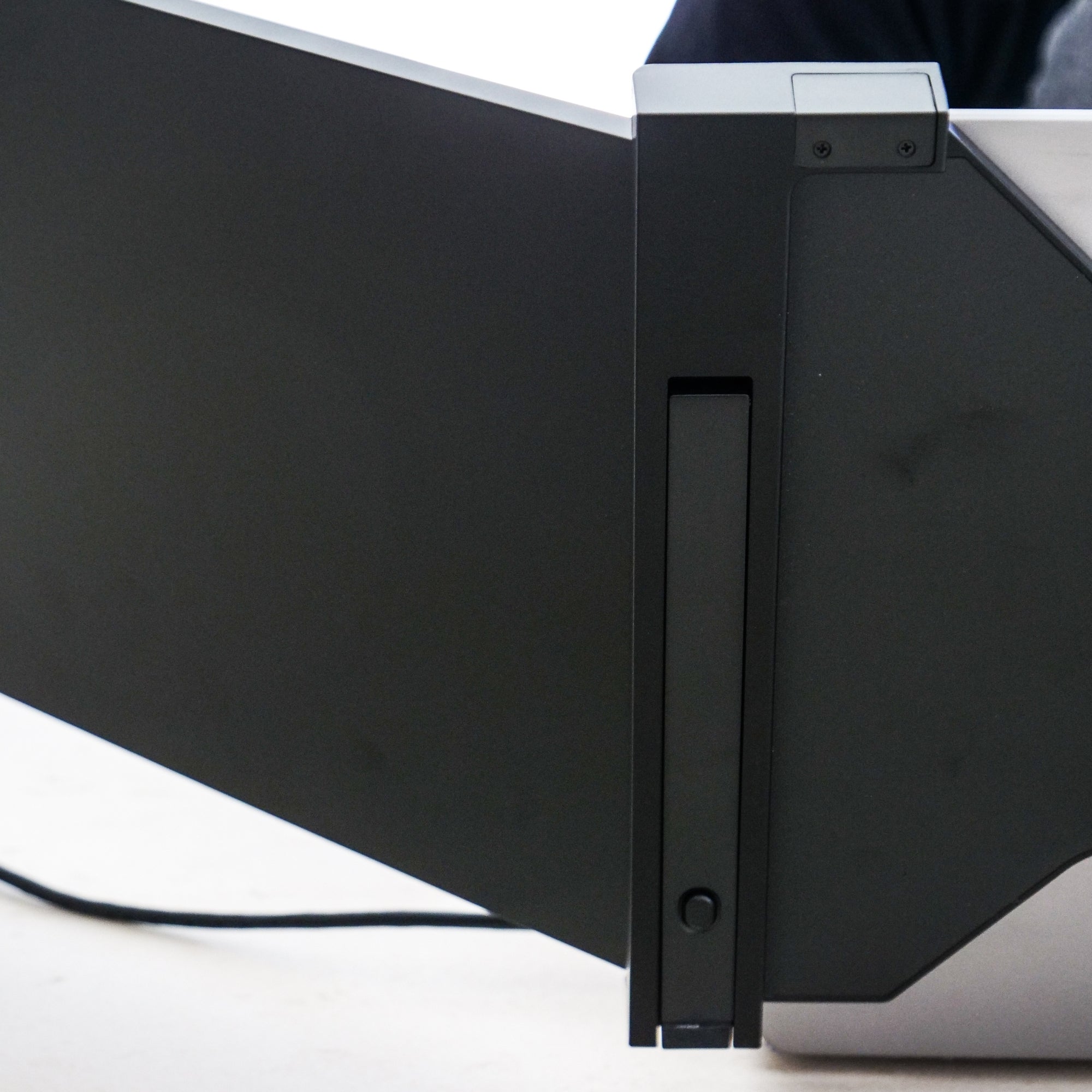
And be clear about what the panel is. Single Play (Gen 2) is Full HD at 280 nits, the lowest brightness tier we publish. That is a good reading surface in normal room light; it is not a second writing surface, and in a bright café window seat it will be the weaker of your two screens. No gamut is declared anywhere in our range, so it is not a panel for judging an image. And a deployed side panel needs desk depth and draws from your laptop battery: on a small table, expect to plug in sooner.
The setup we recommend, and the cheaper one
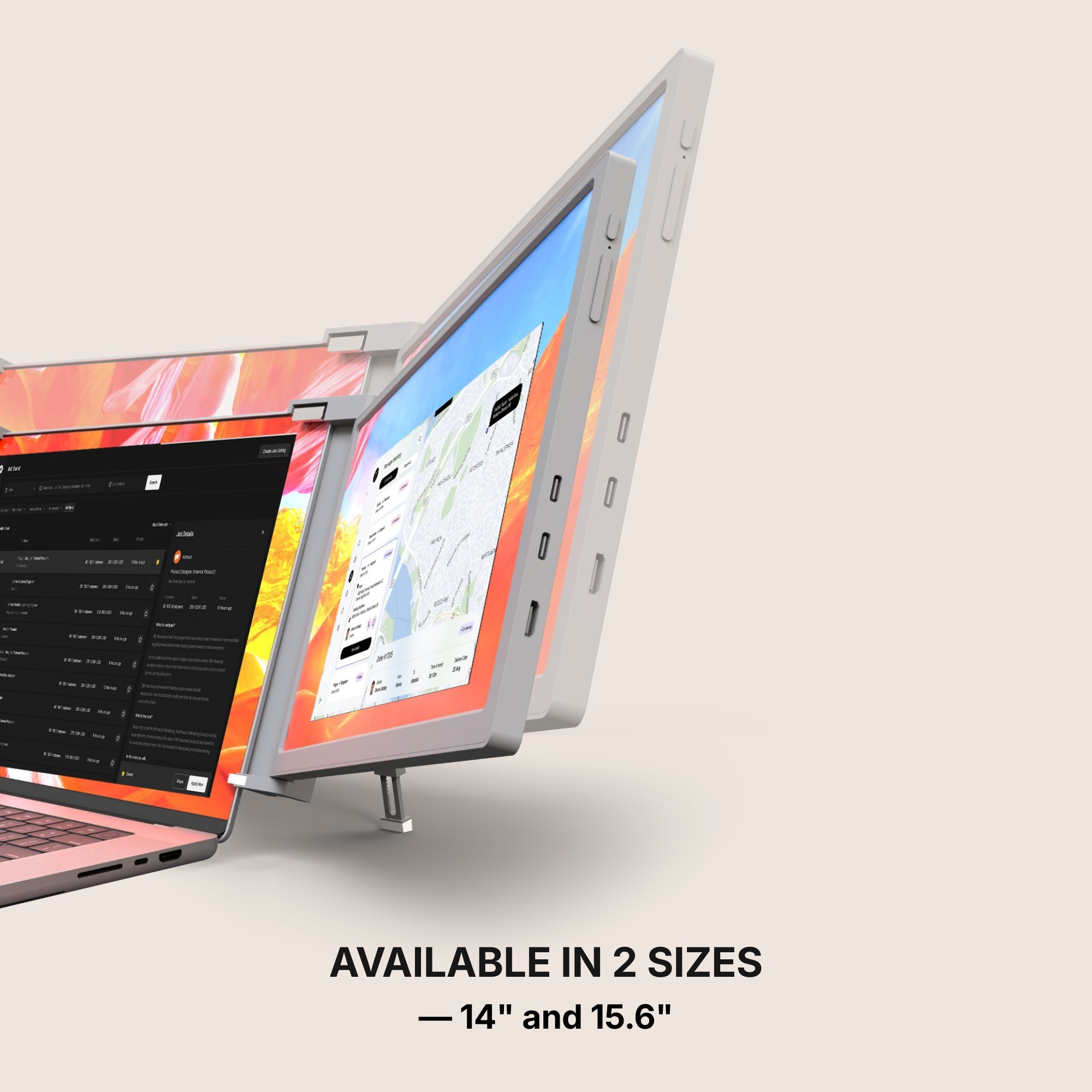
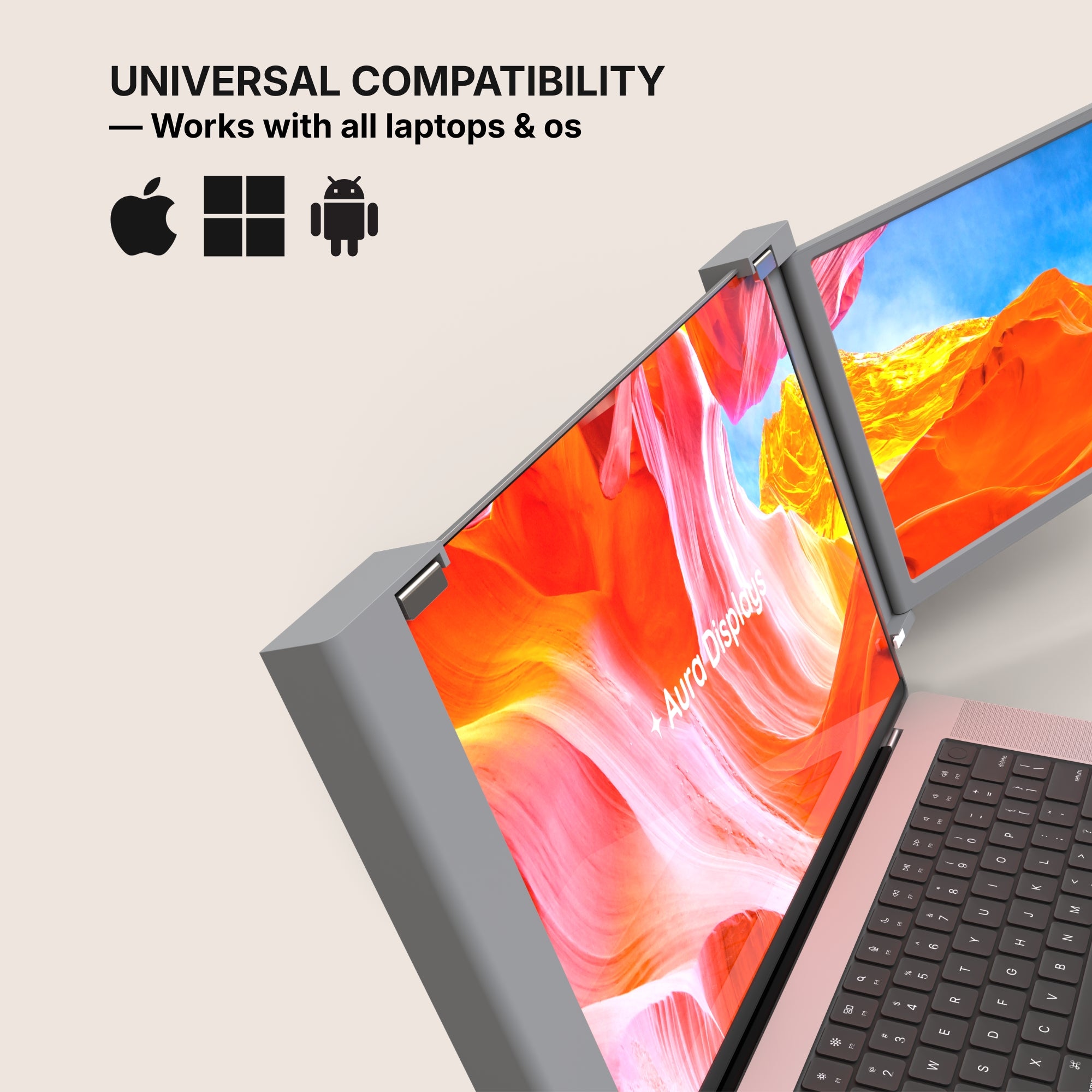
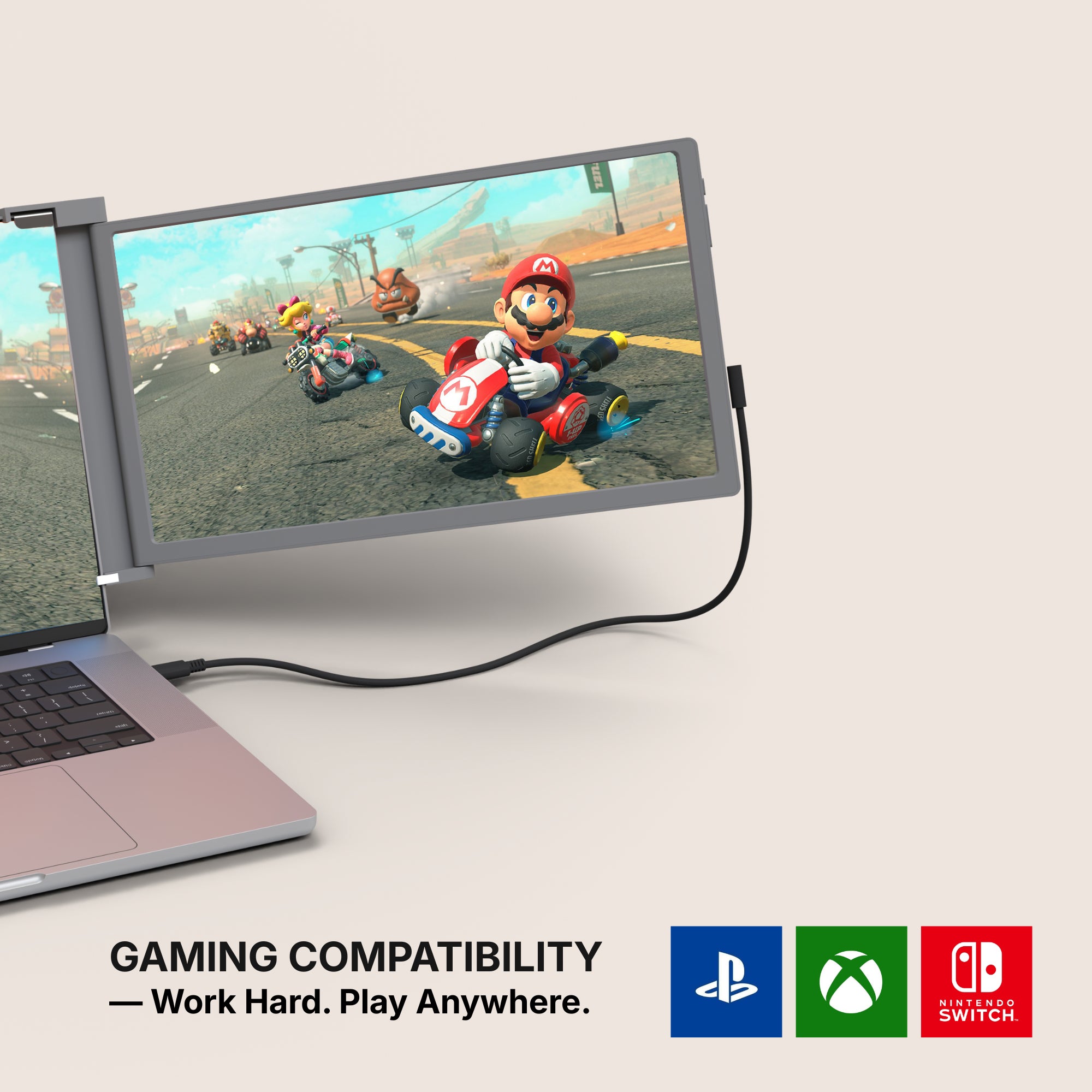
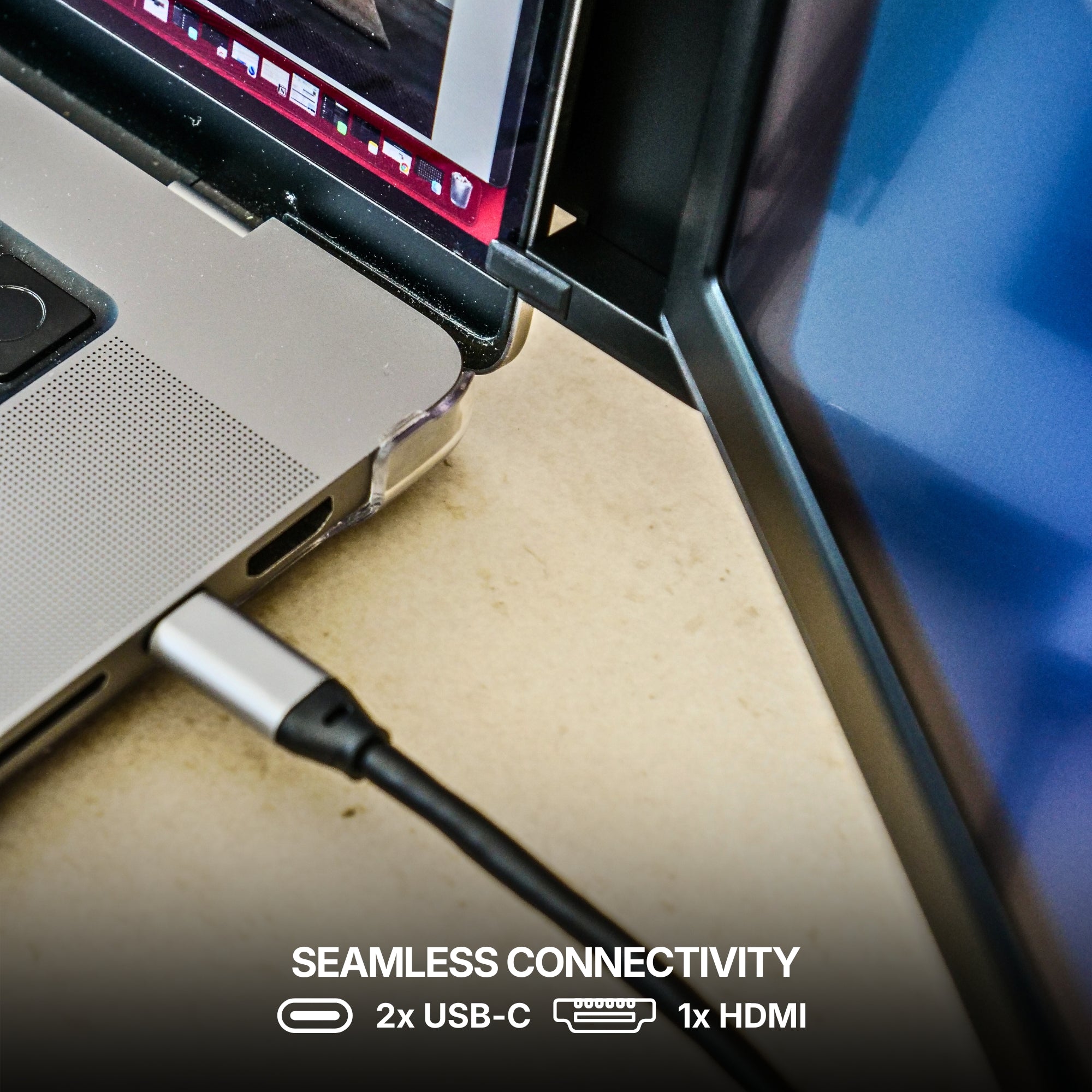
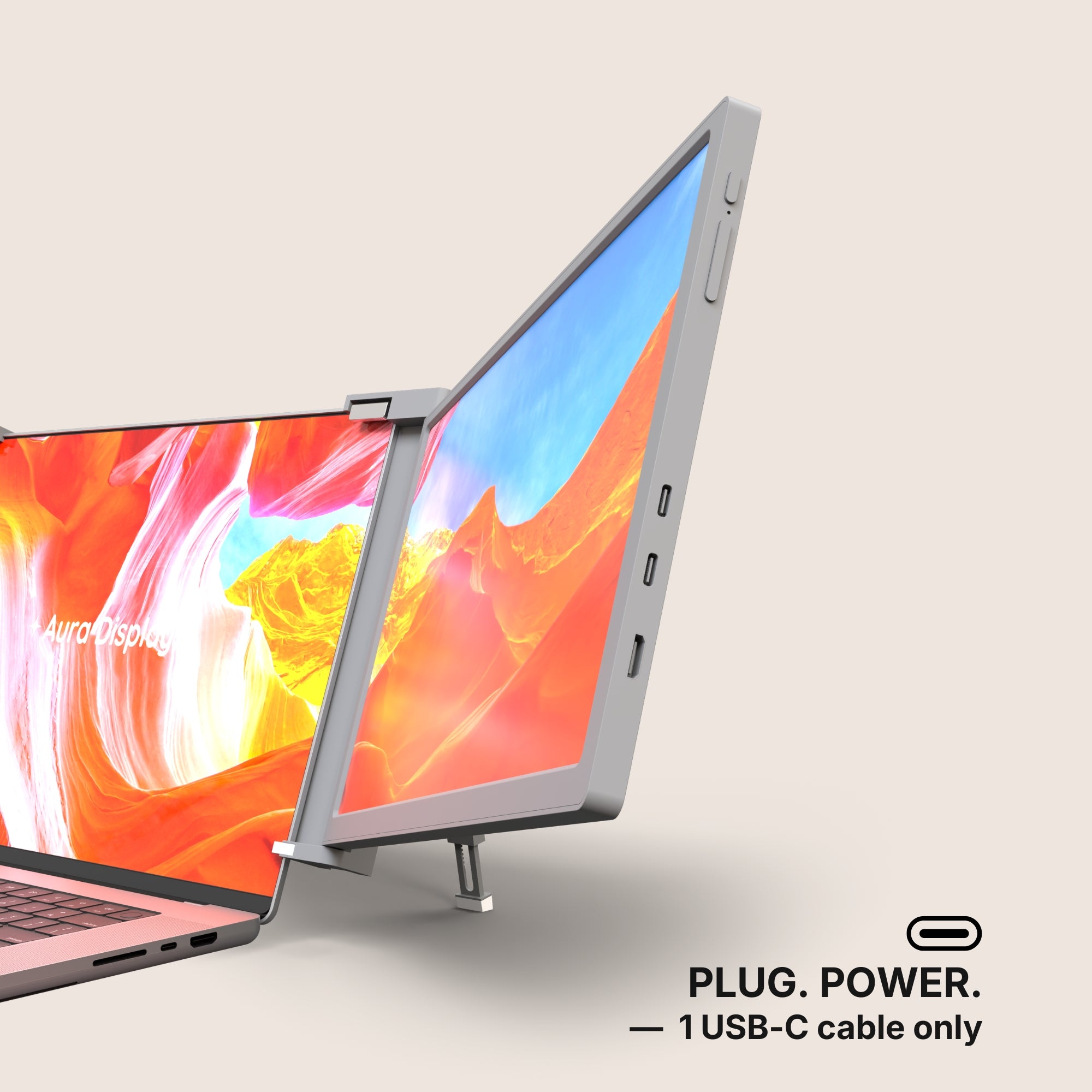
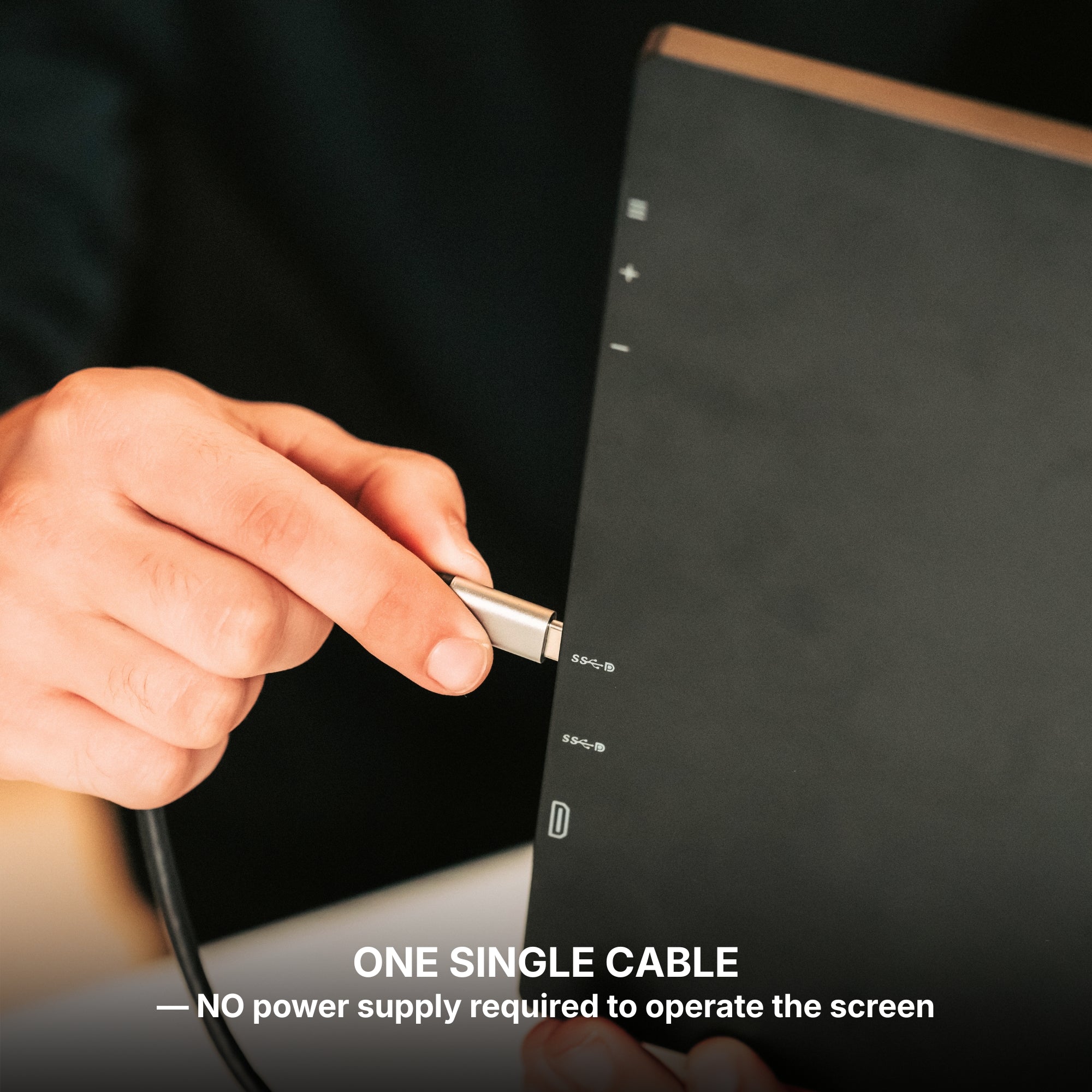
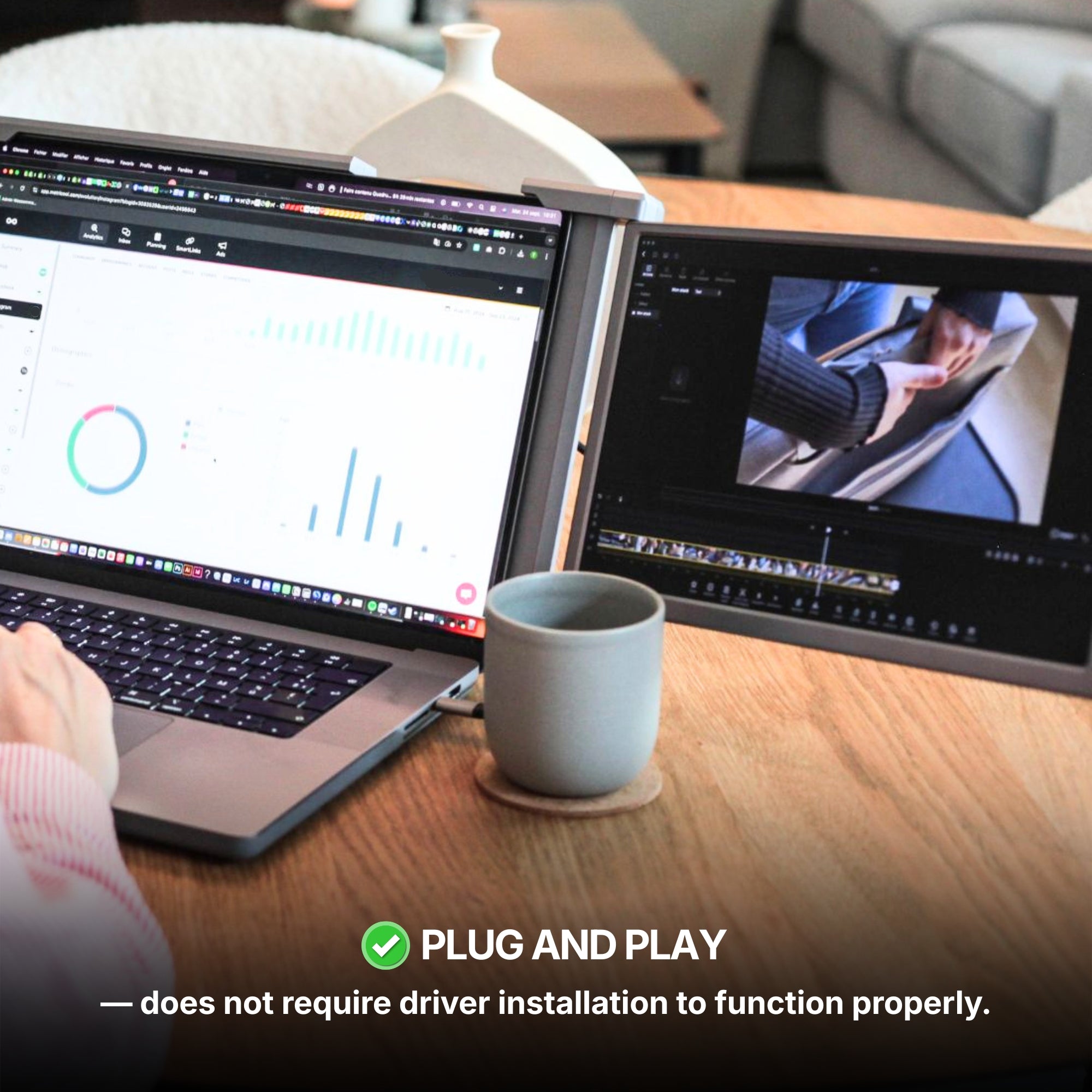
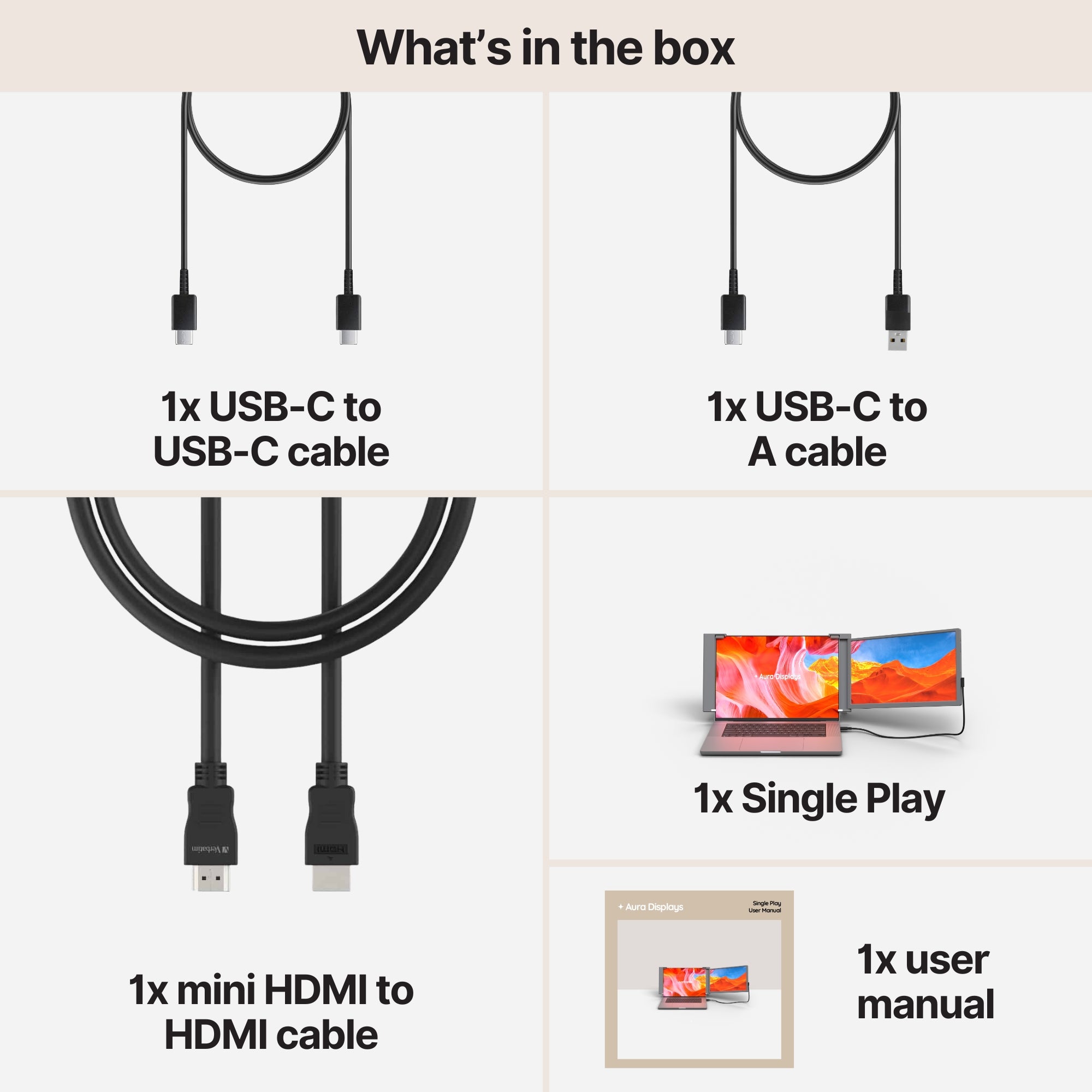
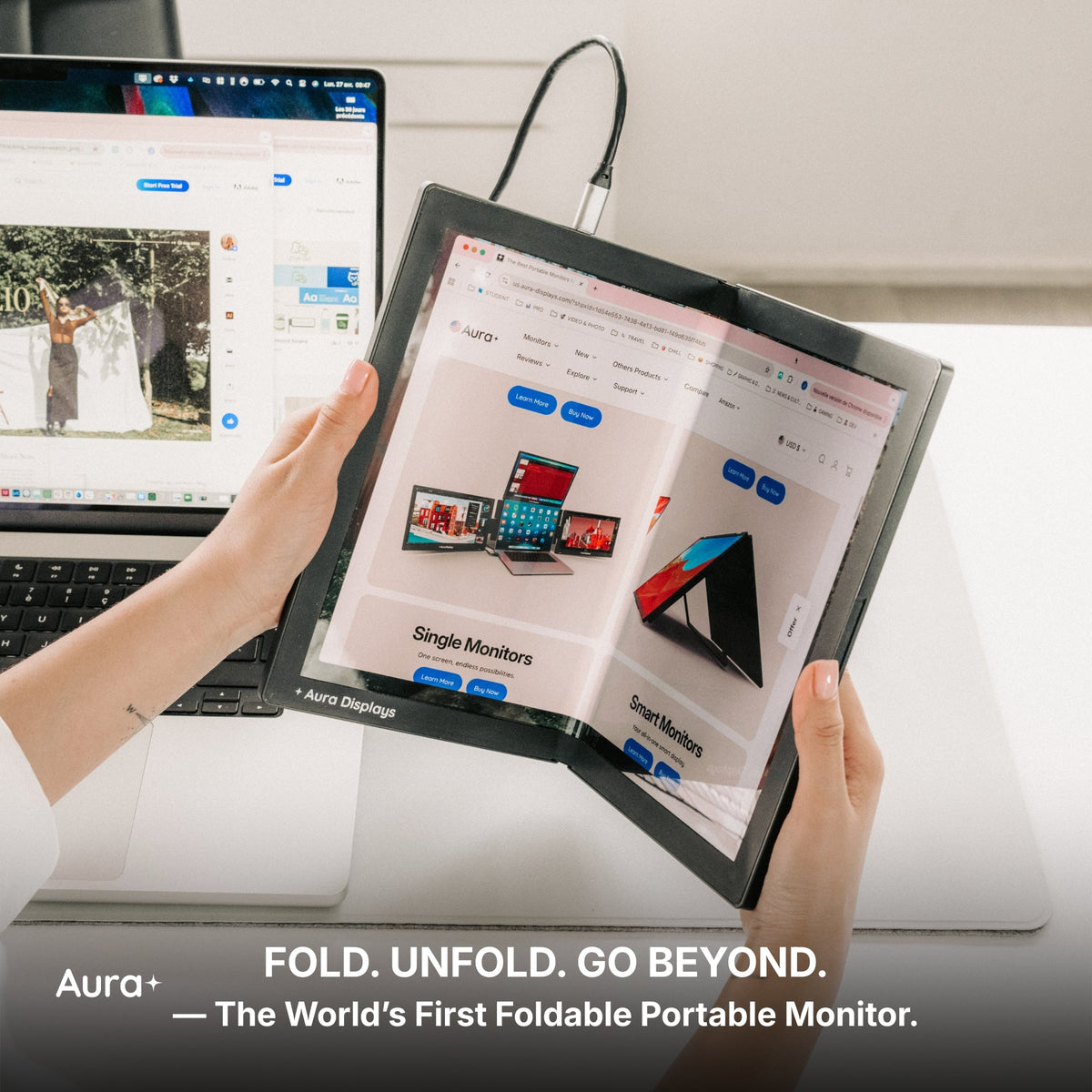
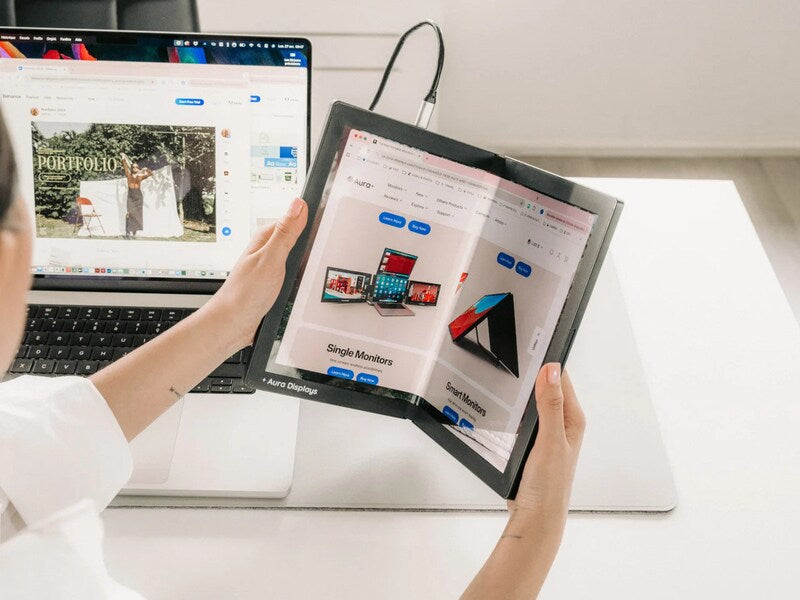
Our recommendation: Single Play (Gen 2), $289 for the 14" and $299 for the 15.6". One panel, plug and play with no driver, and it declares 1 USB-C cable only, which matters when you set up on a table you did not choose. 2× USB-C and 1× mini HDMI, Full HD, 280 nits. The operating-system list covers macOS, Windows, Android, Chromebook, Linux, Surface, game consoles, and iPhone and iPad over USB-C, so it works on the tablet you already carry too. Rated 4.78 out of 5 across 379 reviews. Take the 14" if it lives in a bag.
The cheaper option: Single Boost 15.6" at $249. Forty dollars less, 300 nits instead of 280 — so it is the brighter panel — plus a 3.5 mm jack. It only comes in 15.6", which makes it the desk answer rather than the bag answer, and we find it hard to keep in stock. If you work in one place and you can get one, take it over our own recommendation.
Why we are not selling you more. Triple Go (Gen 3), from $549, reads Software required and lists macOS and Windows only: no Chromebook, no iPad, which rules out a lot of student machines before weight enters the argument. If you really do keep two sources open side by side all day, the honest step up is Dual Play (Gen 3) at $369, not a third panel.










Share: