


Who this is for
You play on a laptop or a console, you keep dropping out of the game to check a map, a build guide, a voice channel or a stream dashboard, and you have started to wonder whether a second panel would end the alt-tabbing. It would. What follows is where everything goes, and where it must not go.
What goes on each screen
The main screen: the game. Only the game. Nothing docked to the edge, nothing peeking in, no overlay.
The second screen: everything you glance at. Voice chat member list at the top, where you can see who is talking. Below it, whichever one thing you actually consult mid-match: a map, a wiki page, a build guide, a crafting table. Then the launcher, the download queue and the music player, parked there so they never steal focus from the game again.
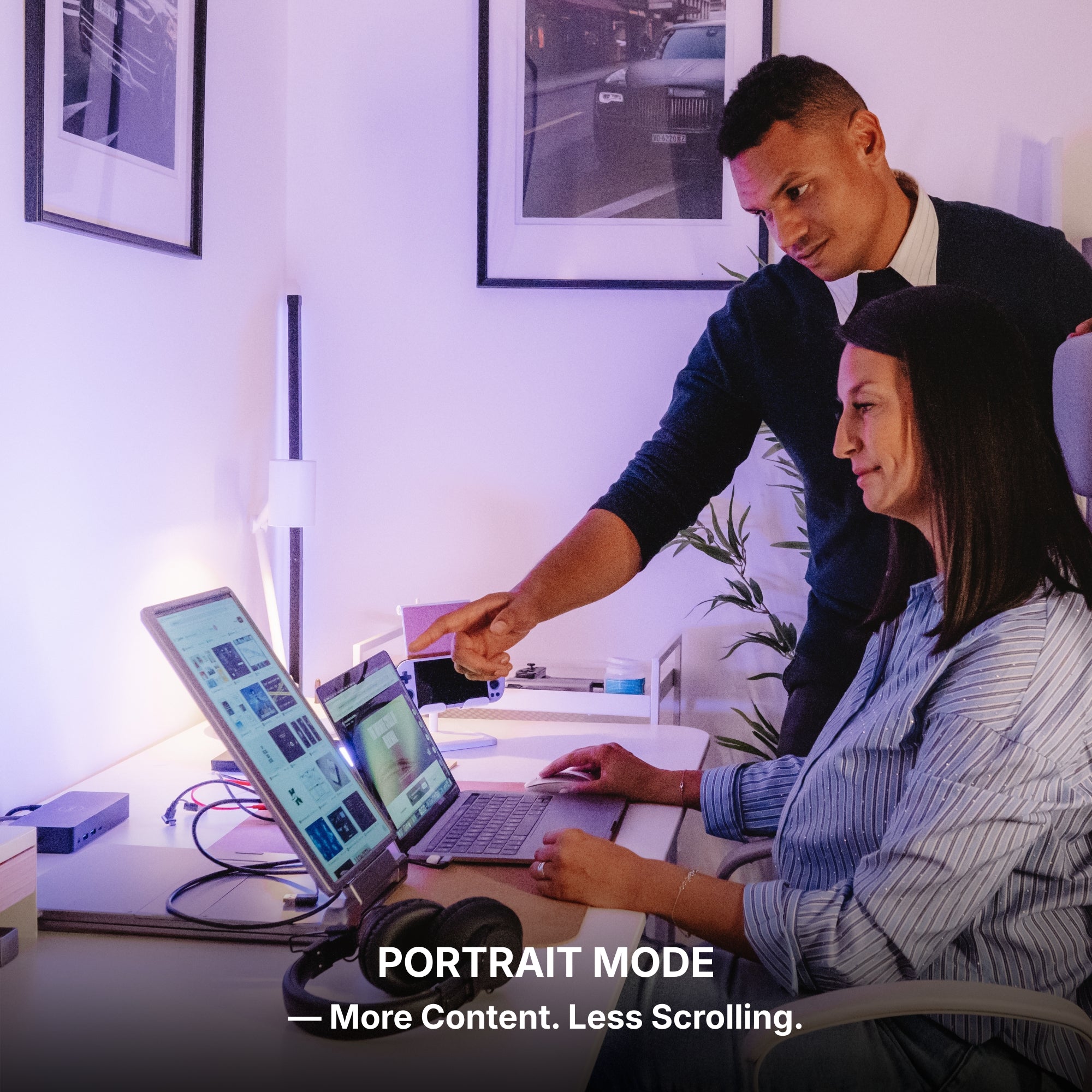
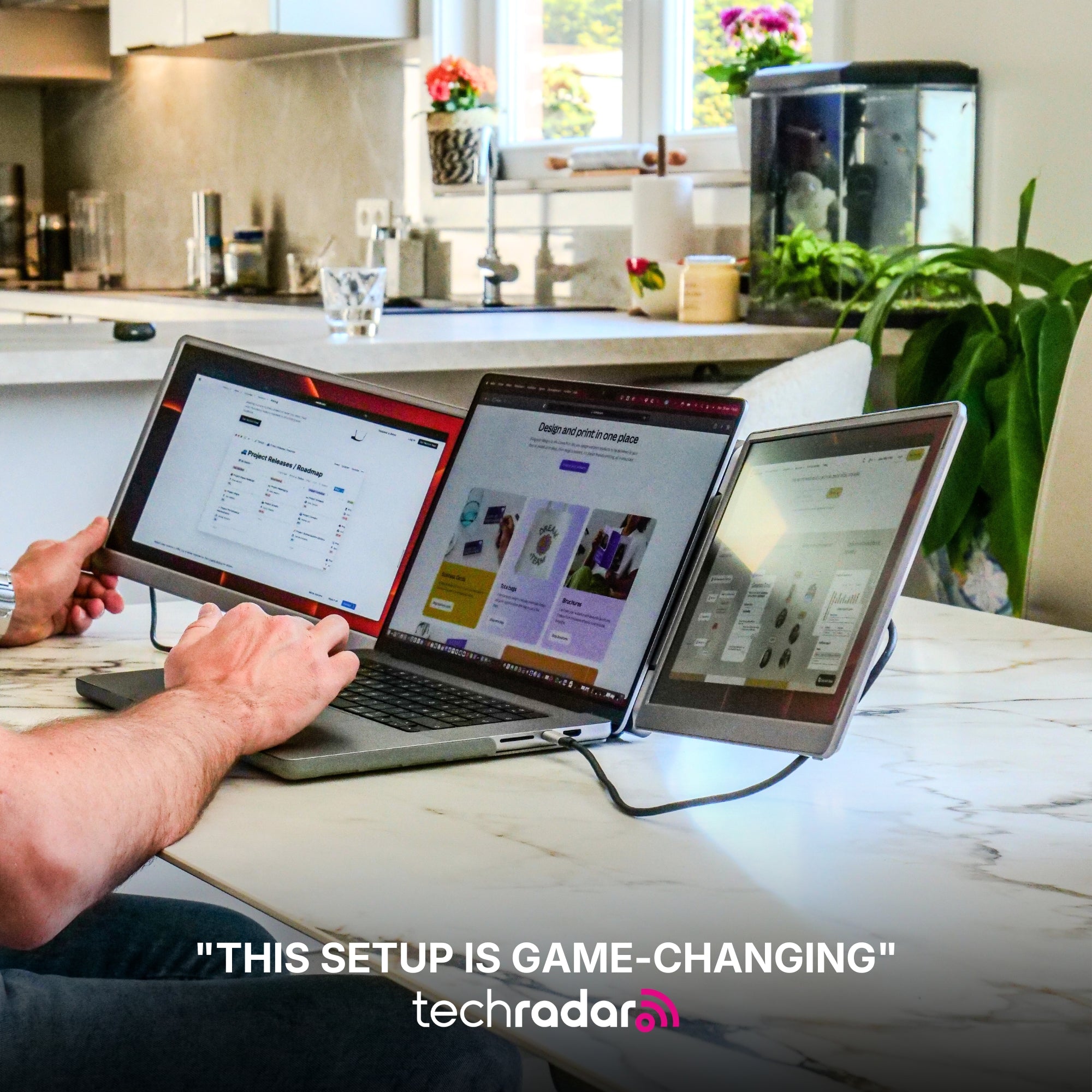
Angle the second panel inward, 20 to 30 degrees, and set it slightly lower than the main screen. You are going to glance at it, not read it.
There is no third screen in this layout. A panel you look at twice an hour is weight, not an upgrade.
The software settings that make it usable
- Run the game borderless windowed, not exclusive fullscreen. This is the single setting that decides whether the layout works. Exclusive fullscreen minimises or flickers the moment you click the other panel; borderless windowed does not. It costs a sliver of performance and saves you every crash back to the desktop.
- Windows 11: Settings > System > Display > Graphics > turn on Optimizations for windowed games. That recovers most of what borderless windowed costs you. Do this immediately after the previous step.
- Make the game panel your main display. Settings > System > Display, select it, tick Make this my main display. Otherwise launchers and full-screen games open on the wrong screen and you spend the evening dragging windows.
- Get the taskbar off the second panel. Settings > Personalization > Taskbar > Taskbar behaviors, uncheck Show my taskbar on all displays.
- Discord: turn the in-game overlay off, then pop the voice panel out. User Settings > Game Overlay, off. The overlay is what costs frames; the same member list in a window on another panel costs nothing. Then set push-to-talk in User Settings > Voice & Video so an open mic is not broadcasting your keyboard.
- OBS: put Multiview on the second panel, and point Display Capture at the game panel. Aim Display Capture at the screen OBS itself is sitting on and you get the infinite tunnel.
- macOS: System Settings > Desktop & Dock > turn on Displays have separate Spaces. Without it, a fullscreen game blacks out your other panel instead of leaving it usable.
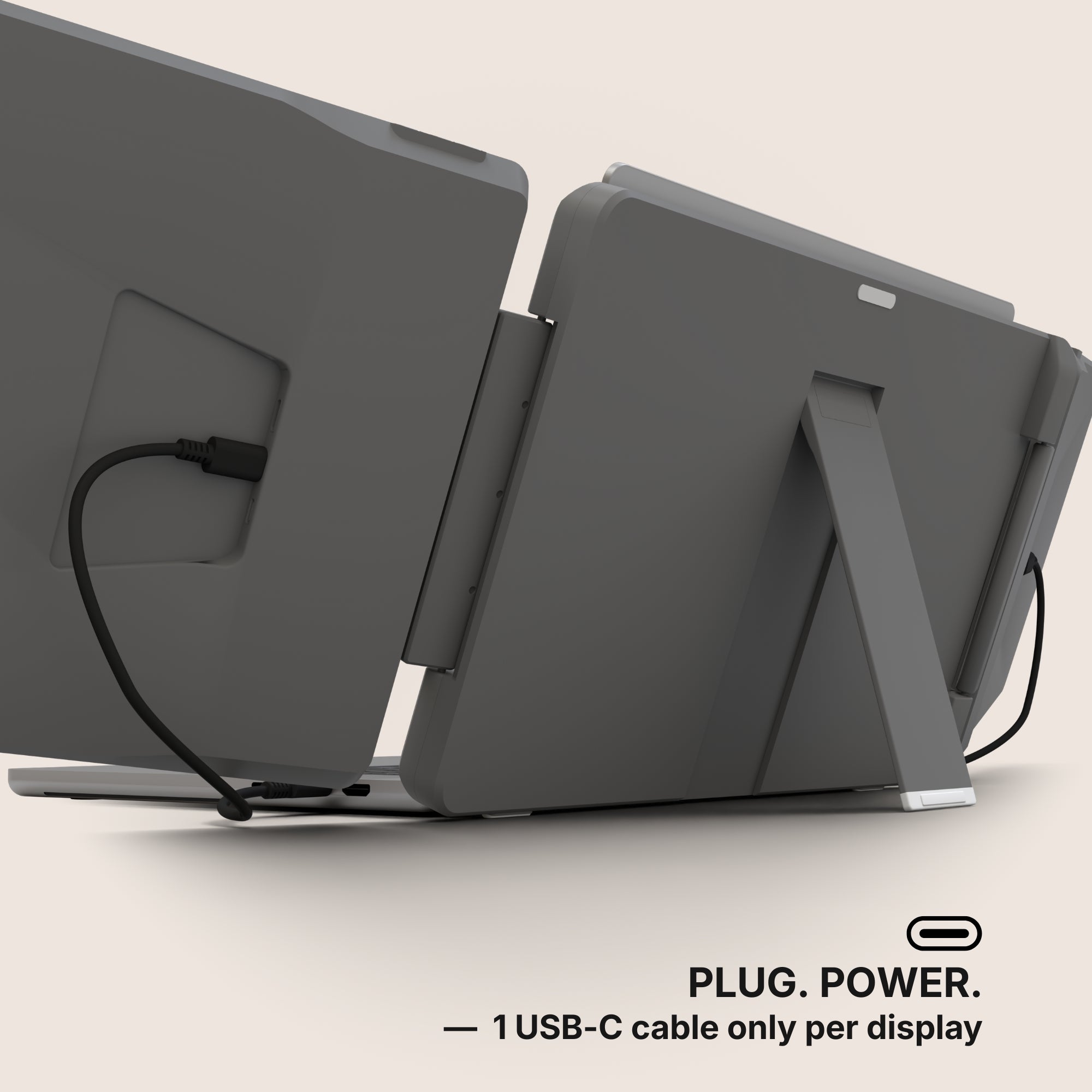
- Console: the console drives one picture, and that is all. It cannot put its voice chat or a browser on your second panel, because it is not driving that panel. Feed the second screen from your phone or laptop over USB-C and run the chat and the map there.
What these screens will not do for you
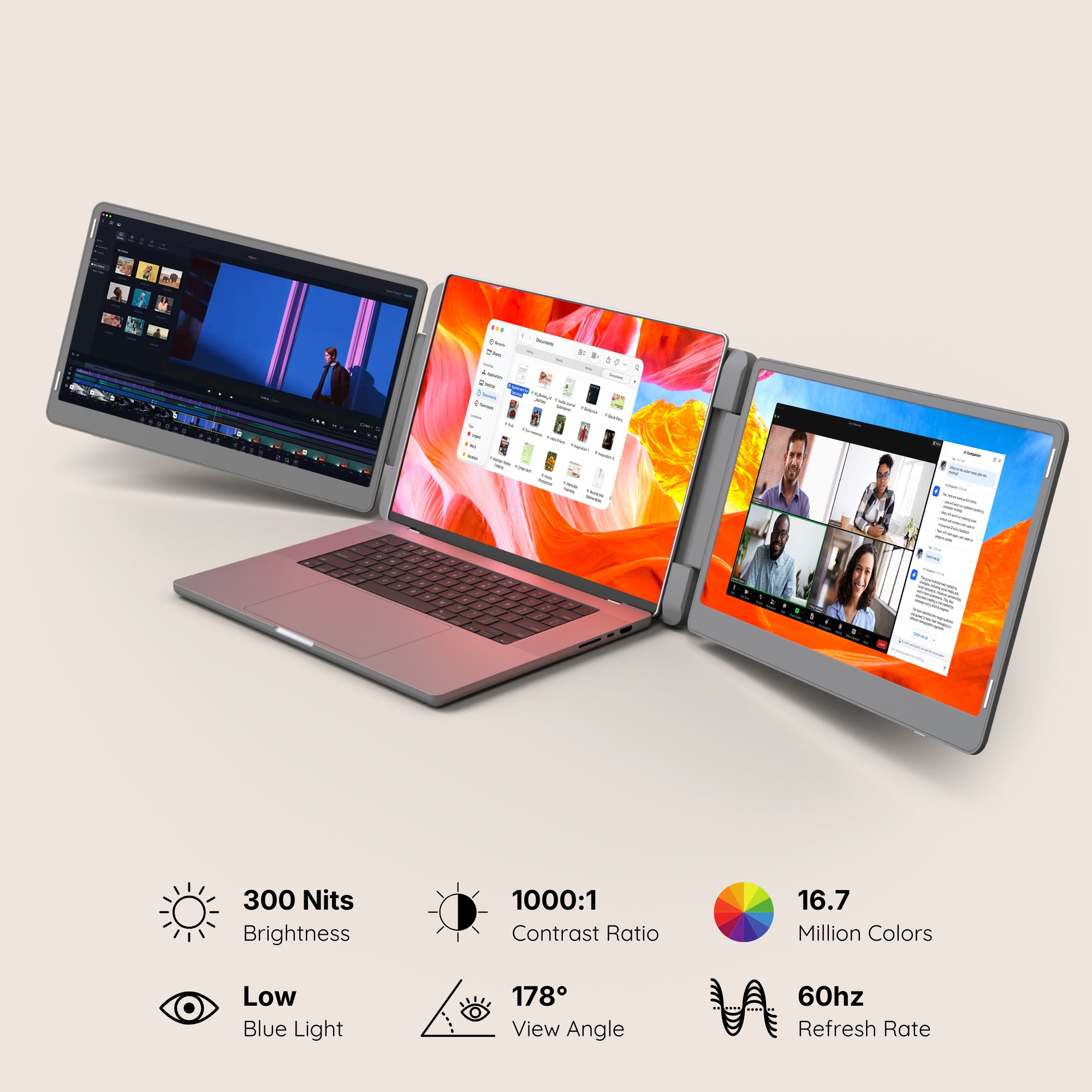
These are not esport panels, and we are not going to imply otherwise. Our product pages declare size, resolution, brightness and connections. They do not declare a refresh rate, so do not assume one. Brightness across the range runs 280 to 350 nits, and no panel we sell declares a colour gamut.
More important than any of that: any extender that builds its screens in software adds latency. So the rule is absolute — the game lives on the panel your machine drives natively, never on a software-built one. That is exactly why the answer below is the plug-and-play line rather than our larger Boost and Go models, even though those are the bigger products. And if you compete for ranking or money, buy a high-refresh desktop monitor for the game itself and use a panel like these for everything that surrounds it.
The setup we recommend, and the cheaper one
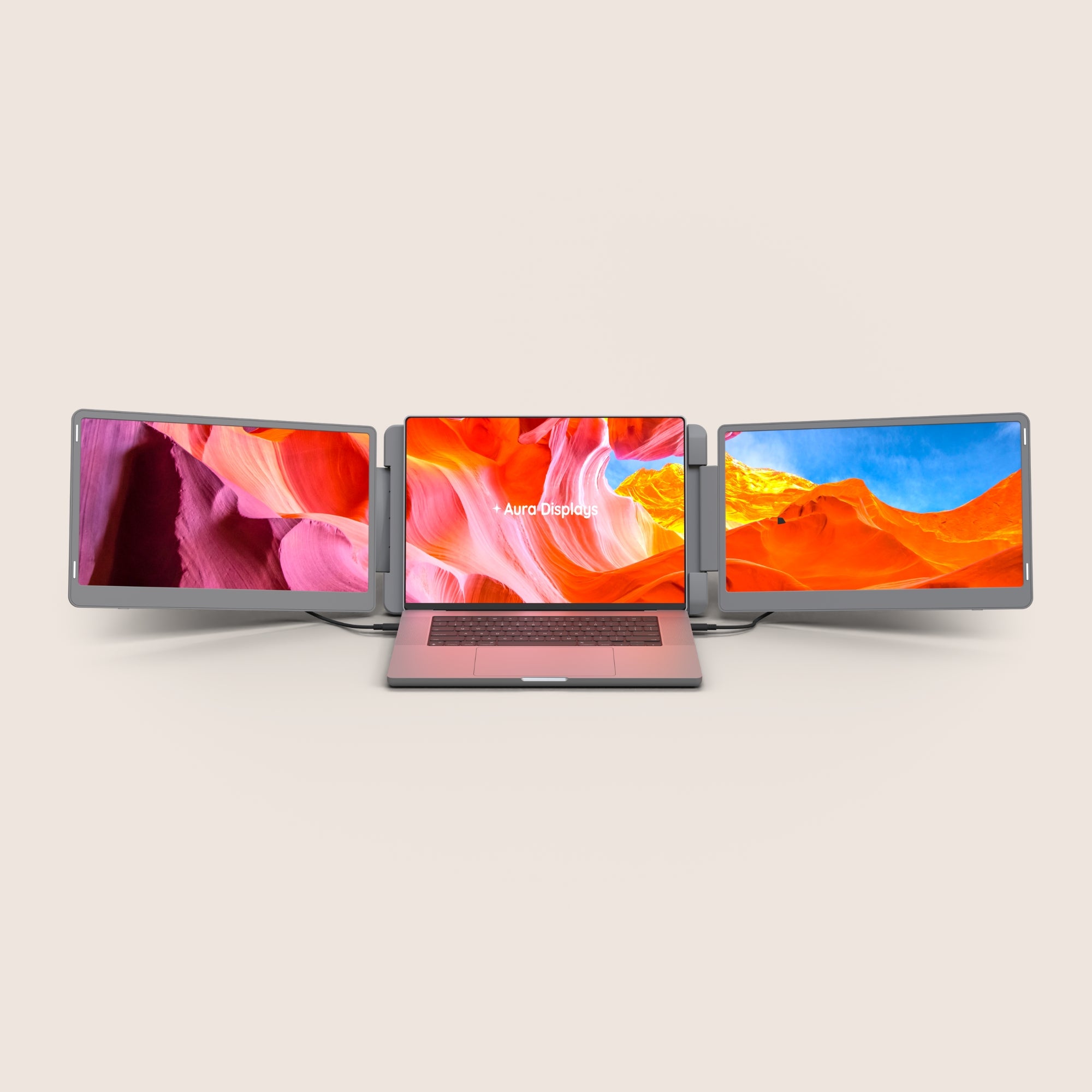
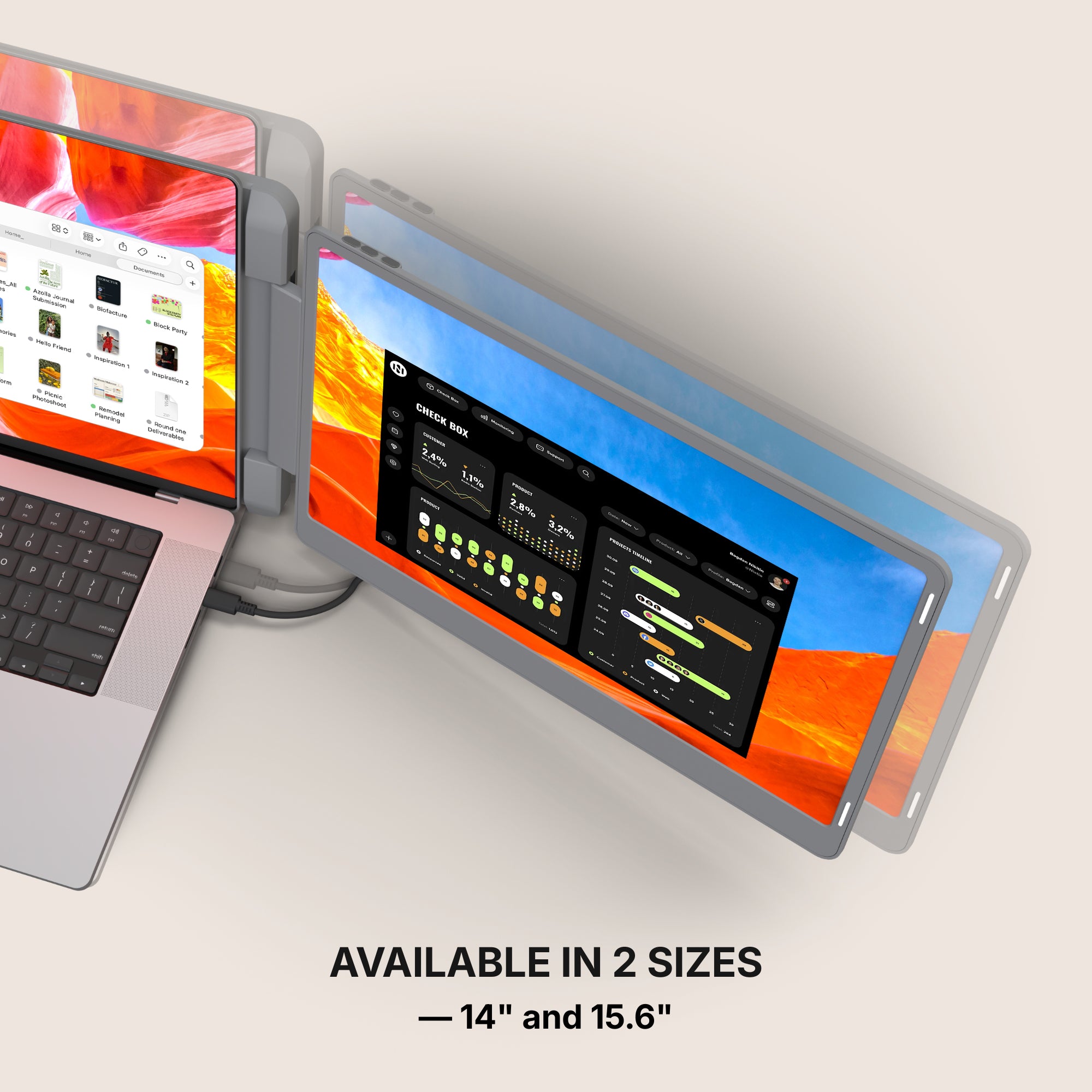
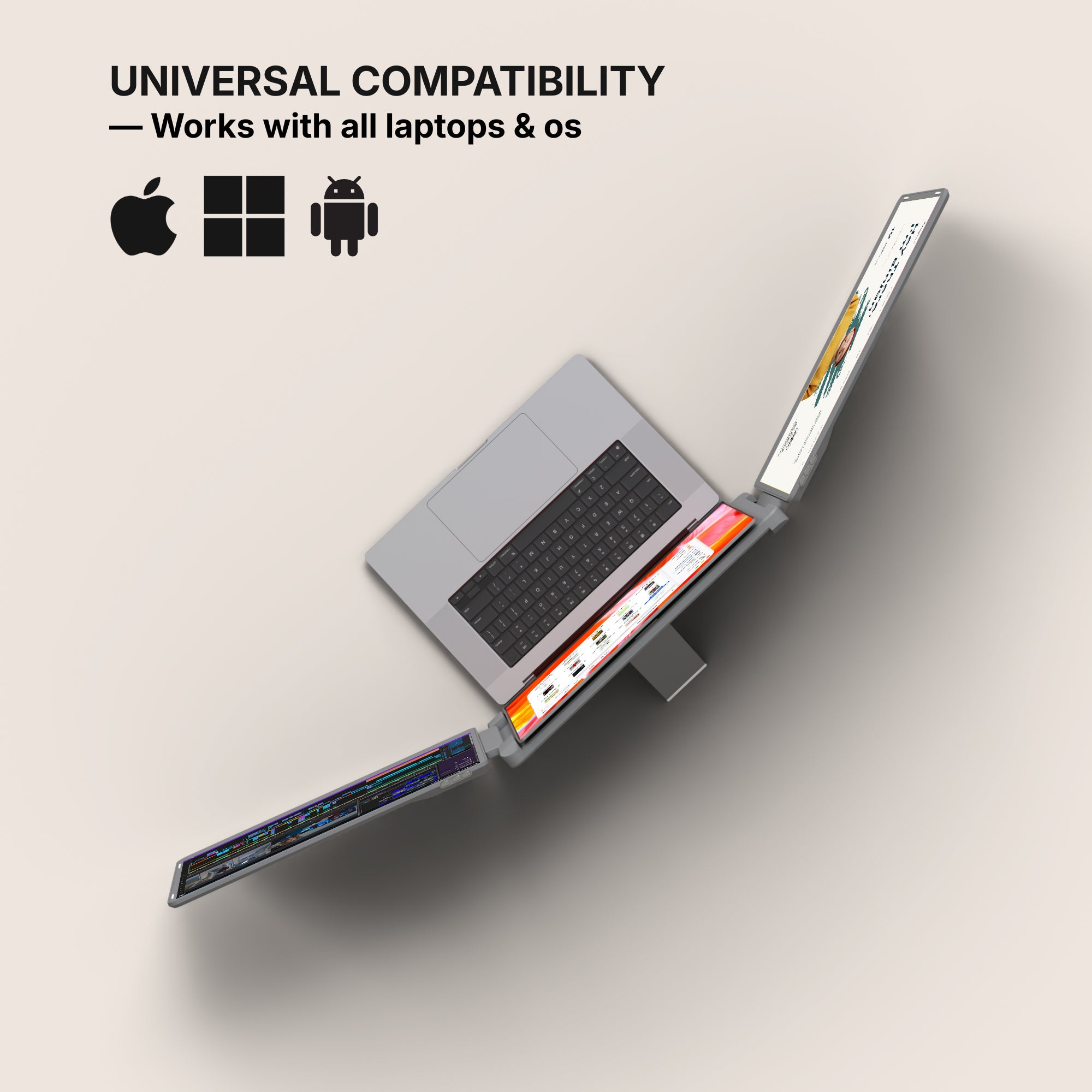
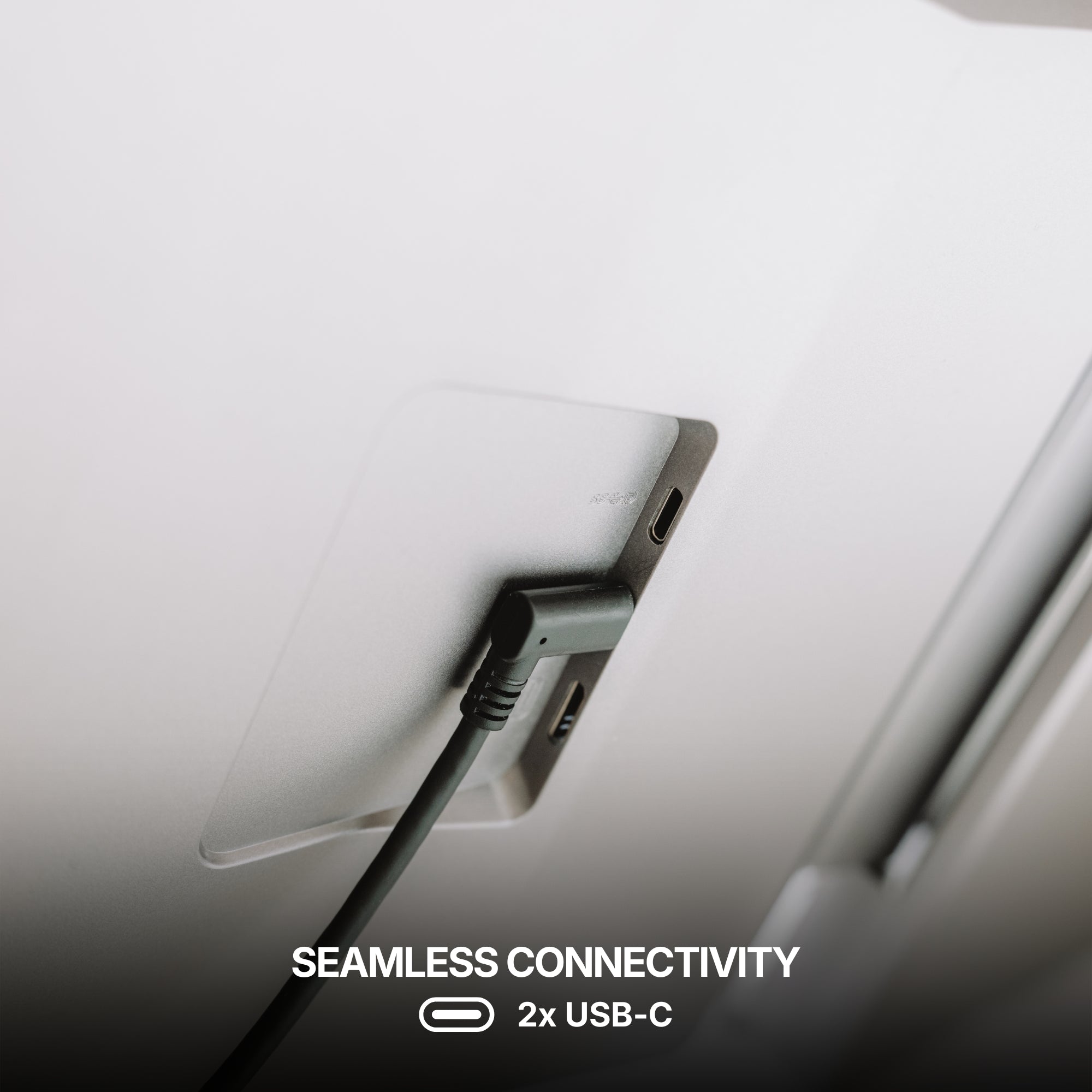
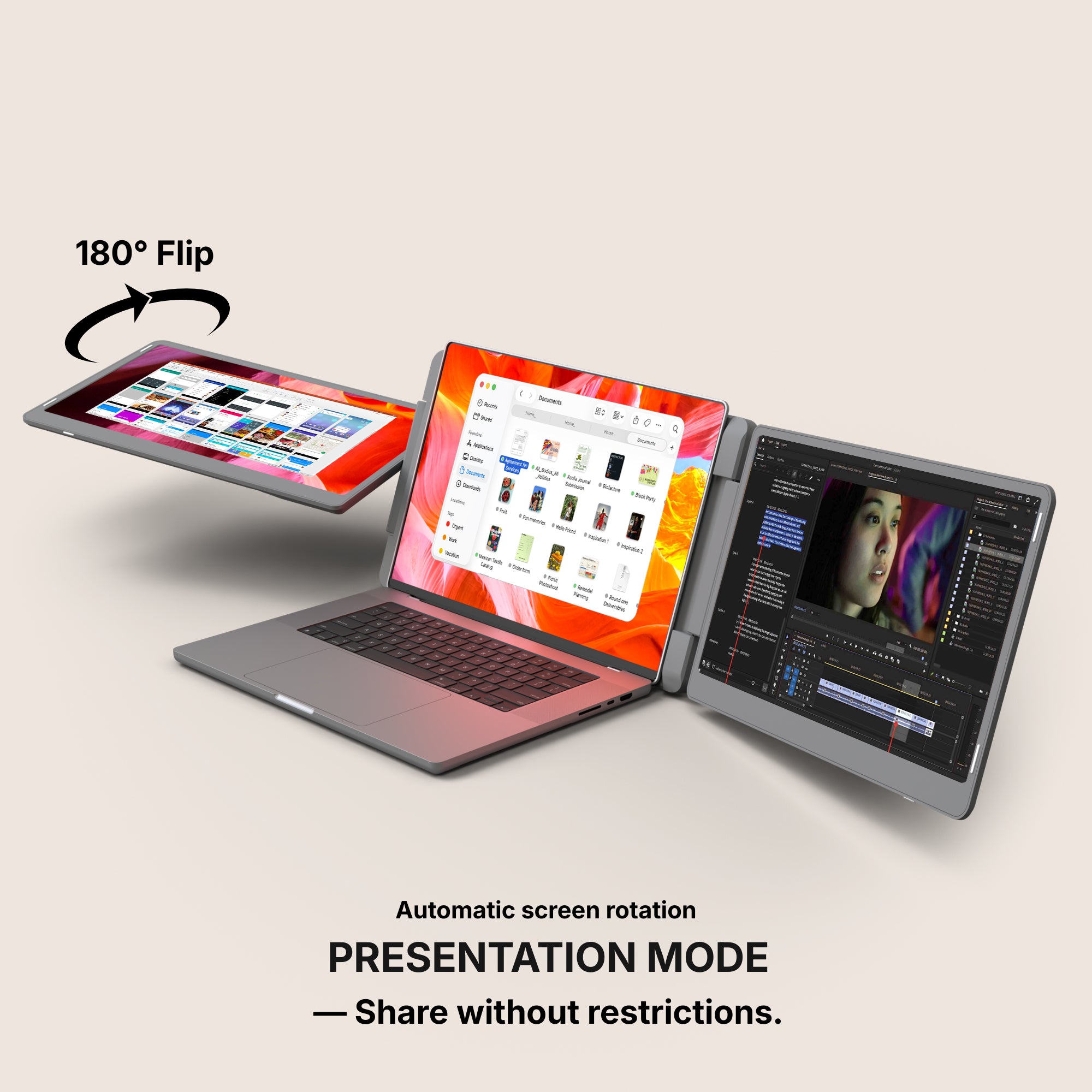
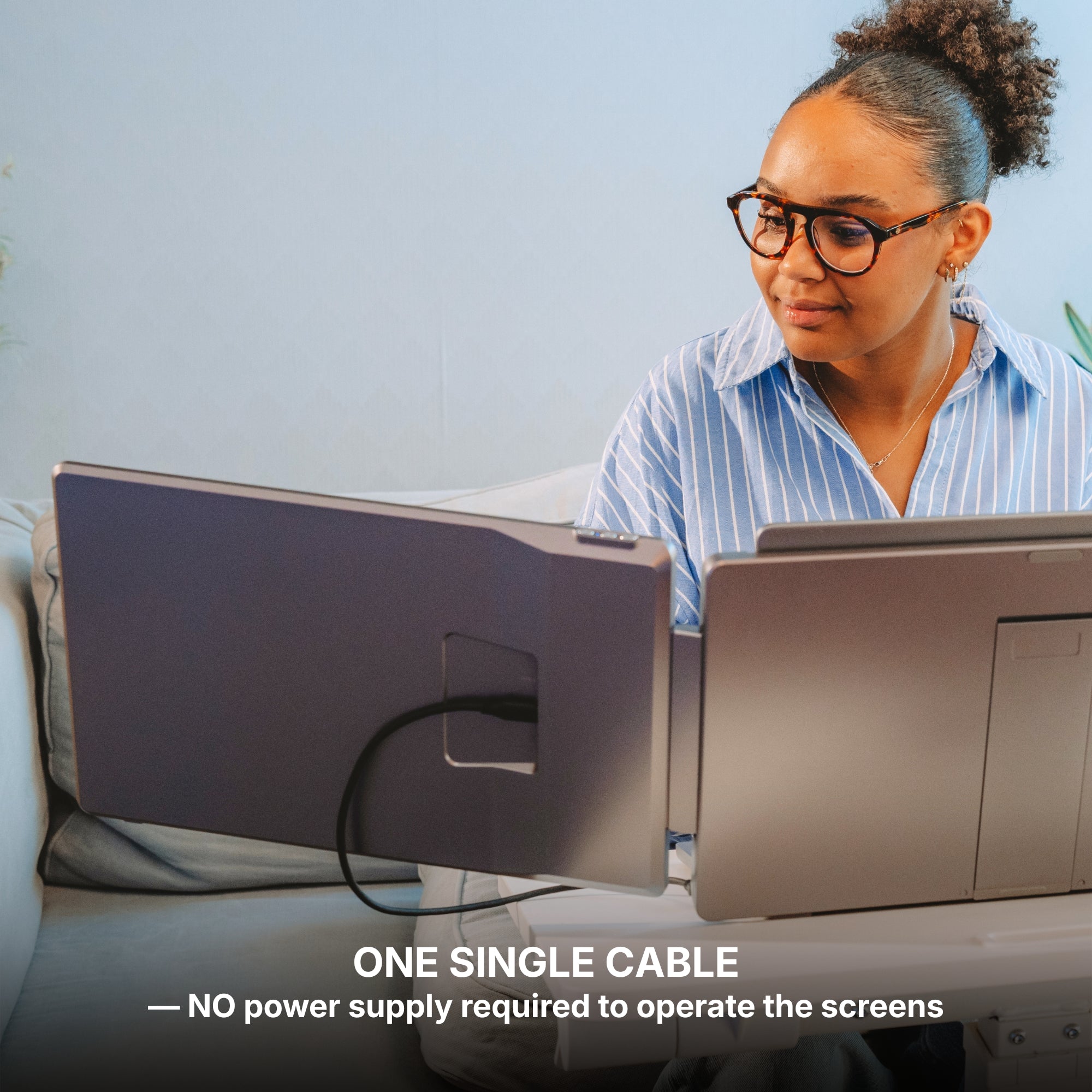
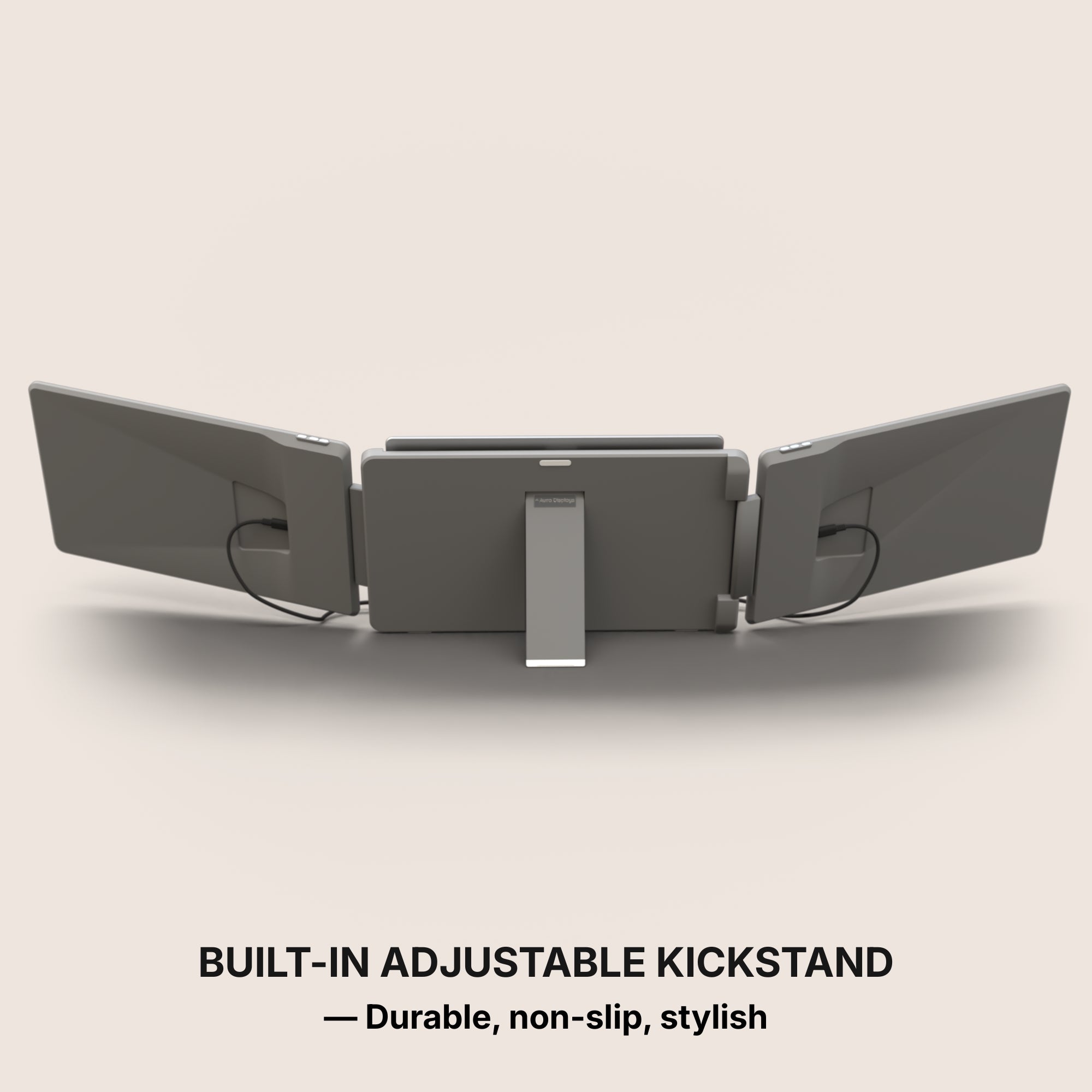
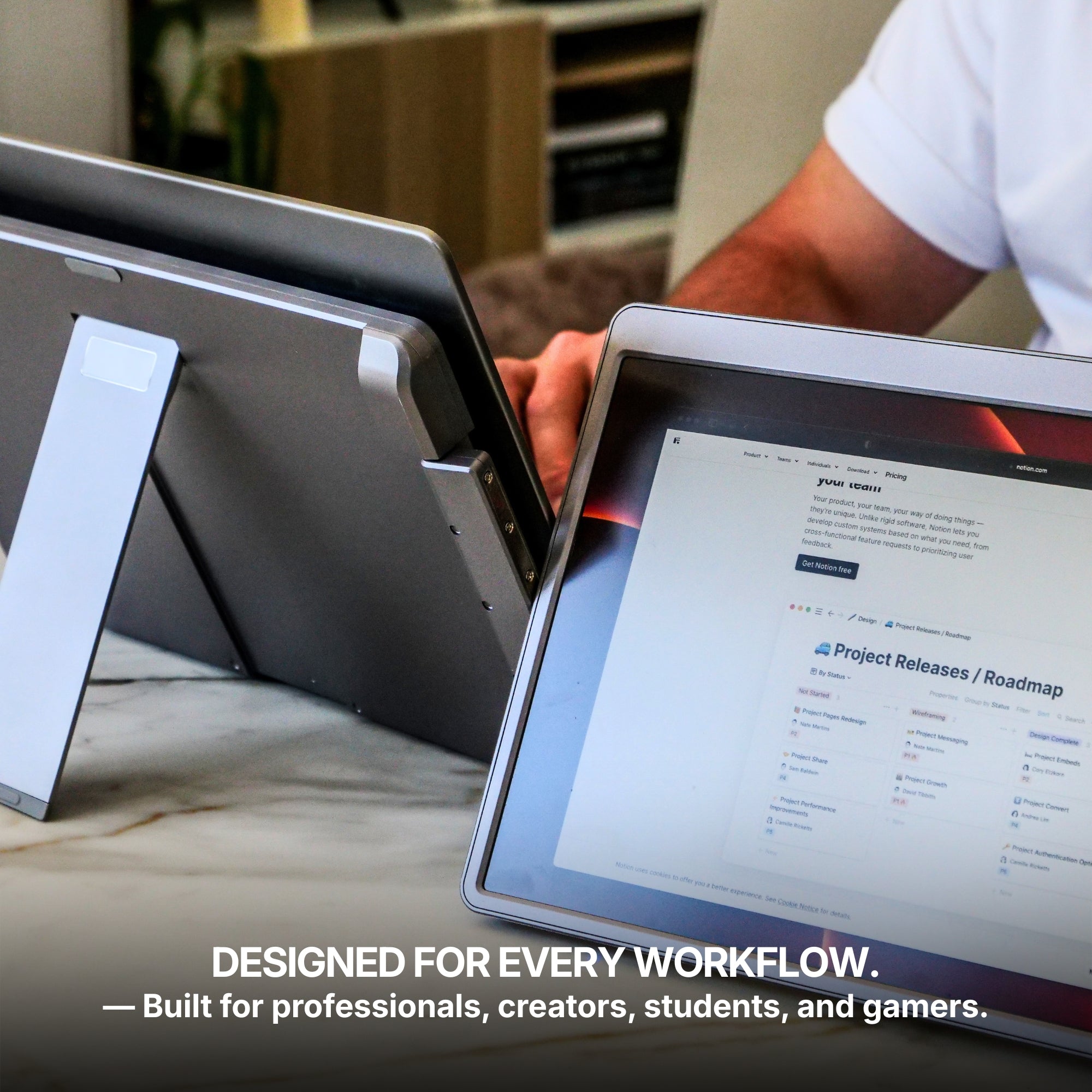
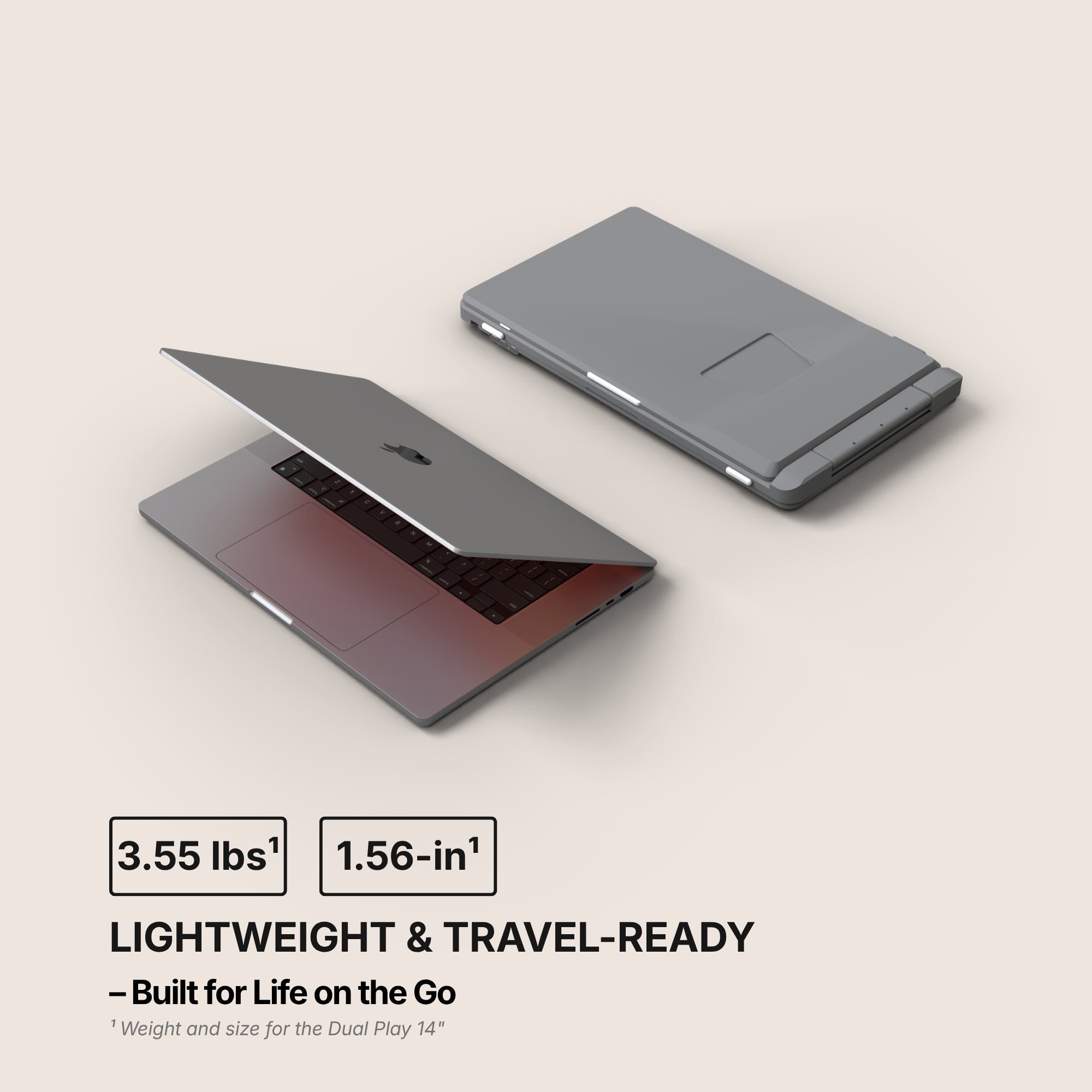
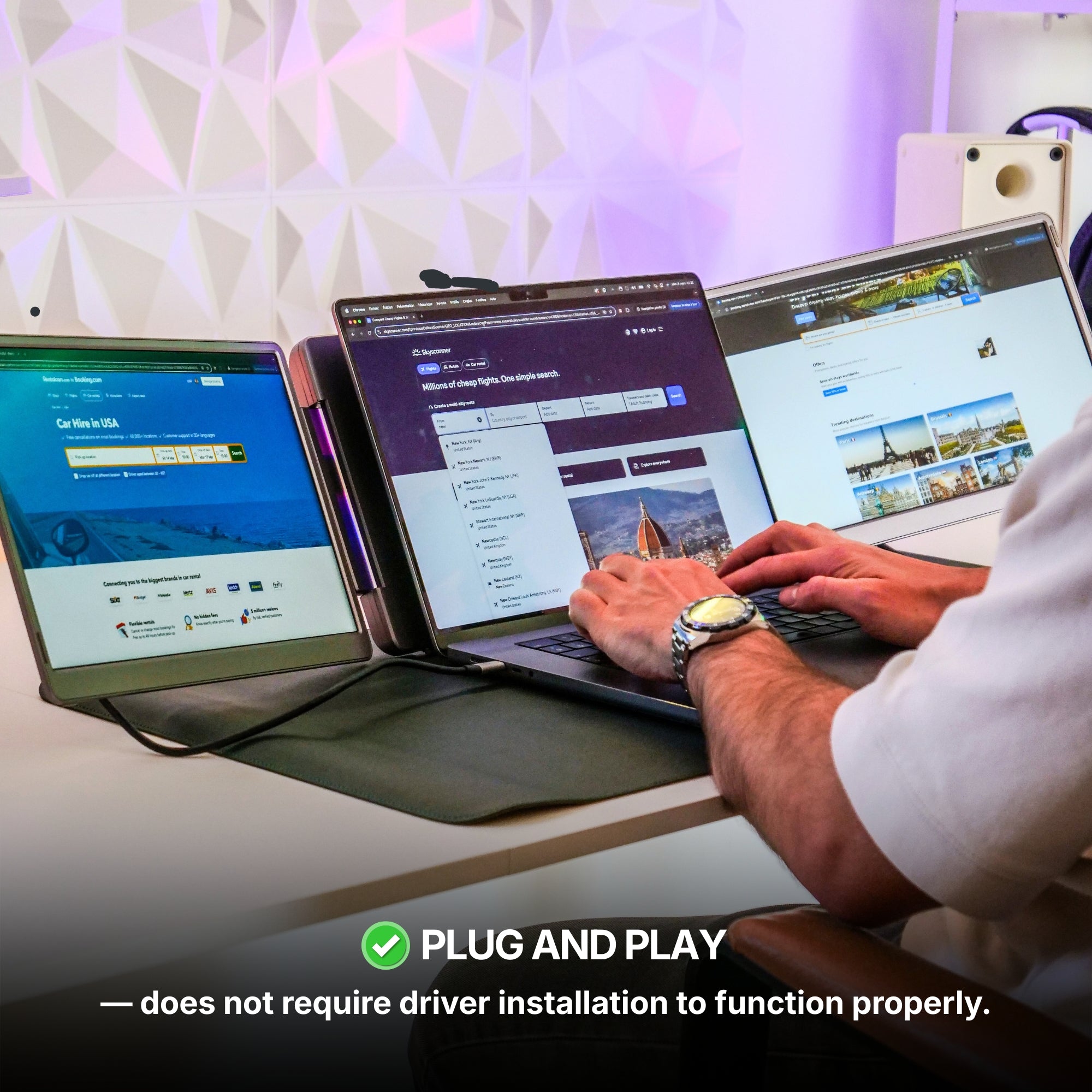
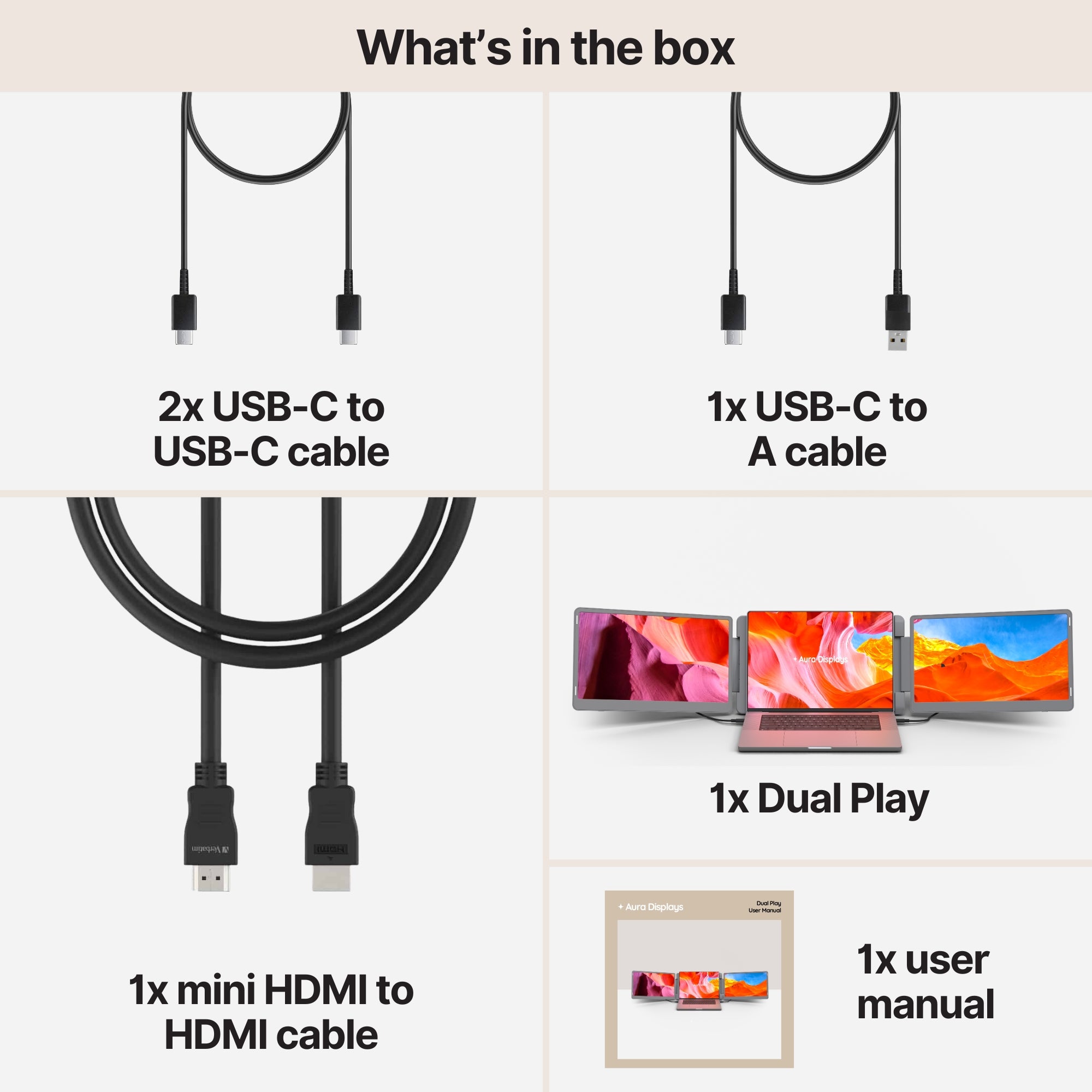
Our recommendation: Dual Play (Gen 3), from $369. Plug and play with no driver to install, and the operating-systems field lists Game Consoles alongside macOS, Windows, Android, Chromebook, Linux, Surface, and iPhone and iPad over USB-C. Inputs are 4× USB-C and 2× mini HDMI, which is what lets you park a console on one panel and a laptop on the other. 300 nits, 14" or 15.6", up to QHD 2.5K. Rated 4.75 out of 5 across 593 reviews.
The cheaper option: Single Boost 15.6" at $249. One panel, plug and play, consoles listed, 300 nits, rated 4.79 out of 5 across 137 reviews. If all you want is the map and the voice list, one panel does the entire job and you keep the difference. Stock on this one is hard to hold, so it comes and goes.
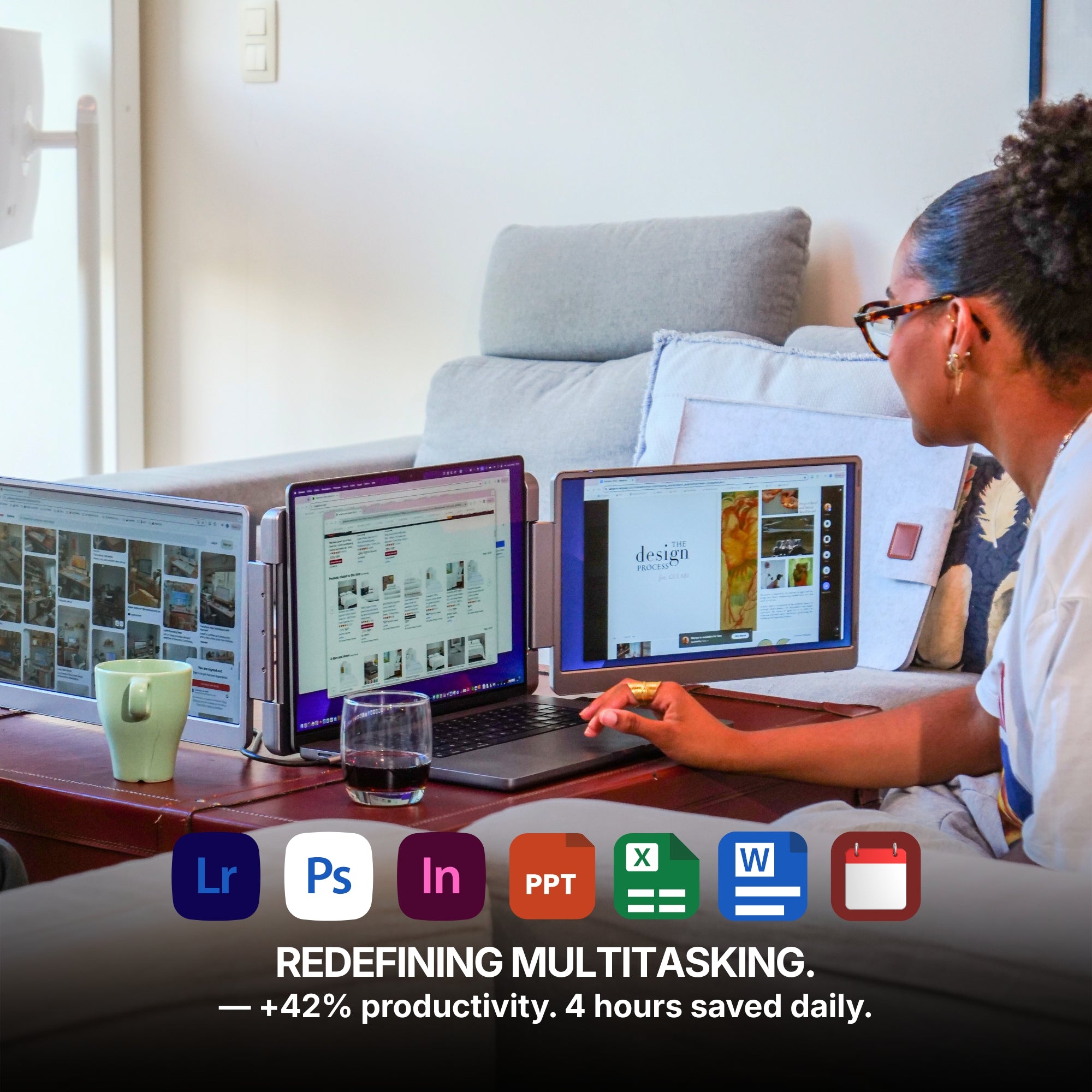
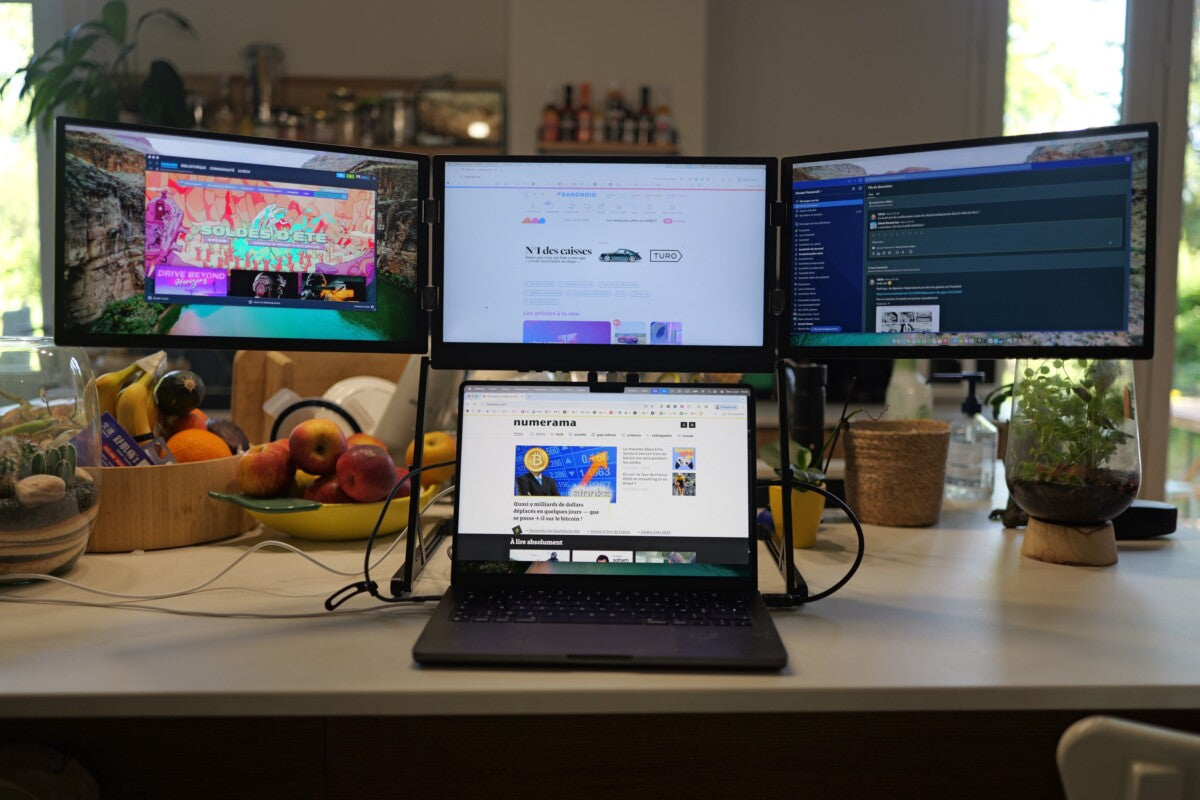
Why we are not selling you more. Triple Go (Gen 3), from $549, is a fine work machine, but its fields read Software required and macOS and Windows only — no consoles. On a gaming desk that is the wrong tool at a higher price. Two screens, correctly assigned, is the answer here.











Share: